![Cadmus Wordmark & Logo_Master File_Cadmus Icon_Ink.png]](https://support.cadmus.io/hs-fs/hubfs/Cadmus%20Wordmark%20%26%20Logo_Master%20File_Cadmus%20Icon_Ink.png?height=40&name=Cadmus%20Wordmark%20%26%20Logo_Master%20File_Cadmus%20Icon_Ink.png)
Cadmus works a little differently from other text editors. Instead of writing on separate pages, you can write continuously and use headings to organise your work.
However, if you're working on a Classic Cadmus assessment (Longform), you can now insert page breaks to choose where a new page will start in your submission PDF.
This support guide covers the following:
- How to insert a page break
- Where can I add a page break?
- How to remove a page break
- How will page breaks appear in my submission PDF?
- Do I still need to worry about page formatting?
How to insert a page break
You can insert a page break in your Classic Cadmus assessment using the toolbar or a keyboard shortcut.
Option 1: Using the toolbar
- Place your cursor where you want the new page to begin.
- Click Insert page break in the toolbar.
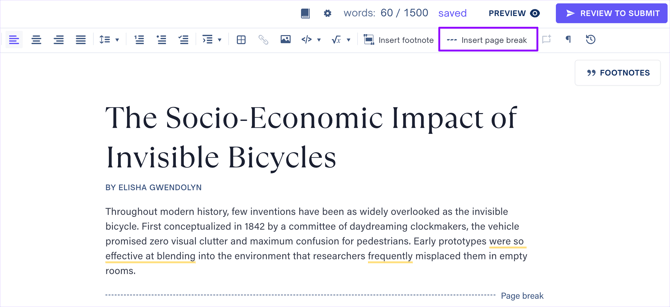
- A dashed line labelled Page break will appear in your work.
Option 2: Using a keyboard shortcut
- Place your cursor where you want the new page to begin.
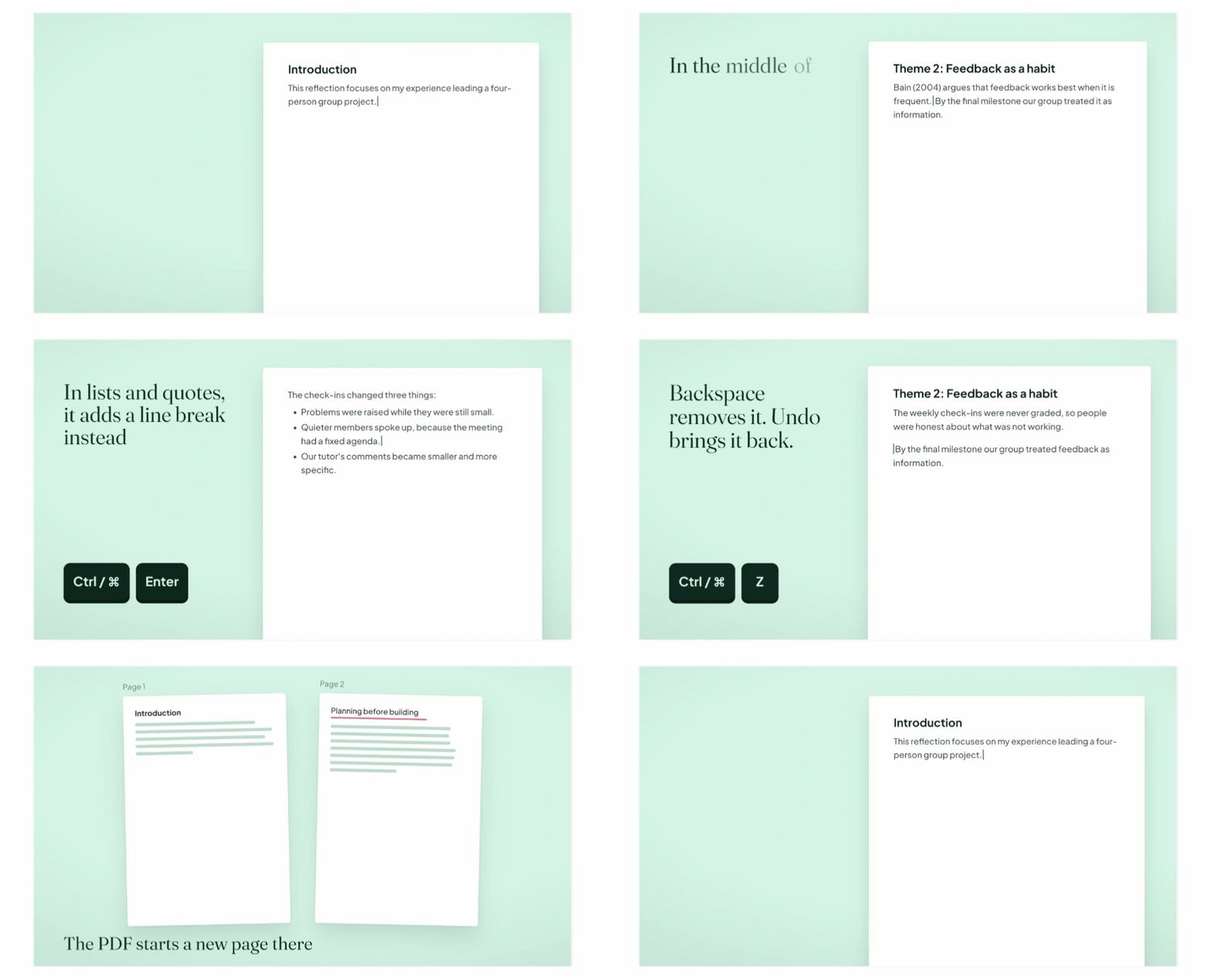
- Press Ctrl + Enter on Windows or Cmd + Enter on Mac.
- A dashed line labelled Page break will appear in your work.
When you download or submit your work as a PDF, the content after the page break will start on a new page.
TIP: Page breaks are currently available in the main writing area of Classic Cadmus assessments only.
Where can I add a page break?
What happens when you insert a page break depends on where your cursor is:
| Cursor position | What happens |
|---|---|
| In the middle of a paragraph or heading | The text is split into two parts, with the page break between them. |
| At the beginning of a paragraph or heading | The page break appears above the paragraph or heading. |
| At the end of a paragraph or heading | The page break appears after the text, and a new empty paragraph or heading is created so you can continue writing. |
NOTE: If your cursor is inside a list, table, quote, or code block, or if you have selected some text, Ctrl/Cmd + Enter will not insert a page break. It will continue to behave as a line break where supported.
To intentionally insert a line break without starting a new page, use Shift + Enter.
How to remove a page break
If you accidentally insert a page break or no longer need it:
- Place your cursor at the beginning of the paragraph or heading immediately after the page break.
- Press Backspace to remove it.
You can also press Delete at the end of the block before the page break.
If you remove a page break by mistake, use Undo to bring it back.
How will page breaks appear in my submission PDF?
When your work is converted into a PDF:
- Each page break you've inserted will start a new page.
- If a page break is at the very end of your work, it won't create an extra blank page.
- If you insert a page break at the very beginning of your work, it may create a blank first page.
- Page breaks won't affect your word count.
Cadmus will still automatically organise the rest of your work into pages when generating the PDF.
Do I still need to worry about page formatting?
Not necessarily. Cadmus is designed to help you focus on your writing rather than managing page layouts.
You can still:
- Use headings to organise your assessment.
- Use in-text citations and a reference list, or add footnotes if required.
- Follow your lecturer's instructions regarding page numbers and a Table of Contents.
Page breaks are optional and can be useful when you want a particular section of your work to begin on a new page.
Please check the illustration below for clearer steps on using page breaks in Classic Cadmus.