---
title: Exam Submission Rules (Teacher)
description: How exam timing and submissions work in Cadmus, and how to help students who run out of time or miss the window using Extra Time or an Alternative Exam Window.
---
[Skip to content](https://support.cadmus.io/exam-submission-rules-teacher#main-content)
English
Show submenu for translations
[Contact Support](https://support.cadmus.io/kb-tickets/new?hsLang=en)
[![Cadmus Wordmark & Logo\_Master File\_Cadmus Icon\_Ink.png\]](https://support.cadmus.io/hs-fs/hubfs/Cadmus%20Wordmark%20%26%20Logo_Master%20File_Cadmus%20Icon_Ink.png?height=40&name=Cadmus%20Wordmark%20%26%20Logo_Master%20File_Cadmus%20Icon_Ink.png)](https://support.cadmus.io/?hsLang=en)
- [Cadmus](https://cadmus.io/)
- [Contact Support](https://support.cadmus.io/kb-tickets/new)
Open main navigation
Close main navigation
- [Cadmus](https://cadmus.io/)
- [Contact Support](https://support.cadmus.io/kb-tickets/new)
- English
Show submenu for translations
- [Contact Support](https://support.cadmus.io/kb-tickets/new)
What would you like to learn?
- There are no suggestions because the search field is empty.
1. [Cadmus Help Docs](https://support.cadmus.io/?hsLang=en)
2. [Teachers](https://support.cadmus.io/teachers?hsLang=en)
3. [Exams](https://support.cadmus.io/teachers?hsLang=en#exams)
# Exam Submission Rules (Teacher)
## A walkthrough of the exam timing and submission rules, and how to support students who need more time or another attempt.
In this article:
- [How Exam Timing and Submission Work](https://support.cadmus.io/exam-submission-rules-teacher#howexamtimingandsubmissionwork)
- [Assisting a Student Who Needs More Time or Another Attempt](https://support.cadmus.io/exam-submission-rules-teacher#assistingastudentwhoneedsmoretimeoranother)
- [Granting Extra Time](https://support.cadmus.io/exam-submission-rules-teacher#givingextratime)
- [Providing an Alternative Exam Window](https://support.cadmus.io/exam-submission-rules-teacher#givinganalternativeexamwindow)
- - [Additional Things to Consider](https://support.cadmus.io/exam-submission-rules-teacher#additionalthingstoconsider)
### How Exam Timing and Submission Work
Cadmus exams are designed to be completed in one sitting. **Once a student click the starts button shown below, the writing timer keeps running and won't pause**, even if they close the tab or step away for a moment.
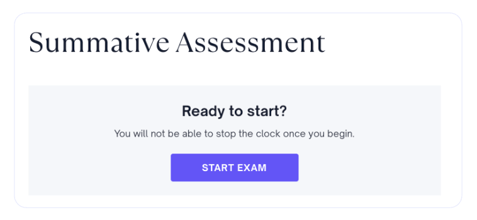
To check whether a student has run out, **compare their start time with the current time.** Their start time can be found in the [Activity Report](https://support.cadmus.io/teachers/learning-analytics-reports#activity-reports:~:text=report%20via%20email.-,Activity%20Reports,-Activity%20Reports%20provide), under the Summary section, shown as the *First Save time*.
**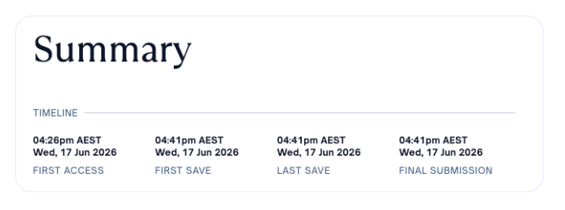**
If the gap between the *First Save* time and now is greater than the writing time set for the exam, the student has used up all of their writing time.
On top of this, **the exam's close time always takes priority over the writing time**. If a student's writing time runs past the moment the exam closes, the close time wins, and the exam ends there, no matter how much writing time is technically left on the clock.
***Example**: A student given 60 minutes of writing time who opens the exam just 30 minutes before it closes will only have 30 minutes to work before they need to submit. The leftover writing time can't stretch beyond the window.*
Once a student runs out of writing time or the exam closes, they can no longer access it.
Each exam also **allows only *one submission***, unless the [**Allow Re-Submissions** setting is enabled](https://support.cadmus.io/teachers/setting-up-exams-blackboard-moodle-d2l#:~:text=still%20submit%20late.-,Allow%20Resubmissions,-Teachers%20can%20now) on the exam's Requirements page.
💡 **Tip**: Because of the above, it's worth letting students know ahead of time that
- They should only open the exam when they're ready to sit it from start to finish
- They should open the exam in good time before the exam window closes
- If the exam only allows one submission, they won't be able to make any further adjustments once they've submitted
A quick heads-up beforehand helps the whole exam run smoothly for everyone on the day.
### Assisting a Student Who Needs More Time or Another Attempt
When a student runs out of writing time, or can't get into an exam that has already closed, they can be given **Extra Time** or an **Alternative Exam Window**. These can be used on their own or together, depending on what the student needs.
**Deciding on Which the Student Need**
1. **Exam still open, student has run out of writing time -** [grant Extra Time (via reset request or special consideration)](https://support.cadmus.io/exam-submission-rules-teacher#givingextratime)
2. **Exam closed, student hasn't started or still has writing time -** [provide an Alternative Exam Window.](https://support.cadmus.io/exam-submission-rules-teacher#givinganalternativeexamwindow)
3. **Exam closed, student has run out of writing time -** do both: [grant Extra Time (via reset request or special consideration)](https://support.cadmus.io/exam-submission-rules-teacher#givingextratime) and [provide an Alternative Exam Window.](https://support.cadmus.io/exam-submission-rules-teacher#givinganalternativeexamwindow)
Additionally:
- **If the exam doesn't allow resubmissions and the student has already submitted** - [Allow Resubmission](https://support.cadmus.io/exam-submission-rules-teacher#allowresubmission)
- **If the exam uses Cadmus Marker and the final feedback has been released for the student** - [Withdraw the Feedback](https://support.cadmus.io/exam-submission-rules-teacher#withdrawfeedback)
If you're ever unsure about which action applies or need any assistance, please don't hesitate to reach out to the Cadmus Support Team, we're always happy to help! Otherwise, scroll down below for the details of each action.
### Granting Extra Time
When a student has run out of writing time, they can be granted more so they can keep working. **There are two ways to grant them more time.**
**Option 1: Ask the Cadmus Support Team to Reset the Student's Writing Time**
It's possible to reach out to the Cadmus Support Team ([support@cadmus.io](mailto:support@cadmus.io)) and ask them to reset the student's writing time. This will restore their full writing time, as if they had never started the exam.
It may take a bit longer than the second option below, but it's the simplest approach when there's a sufficient buffer before the student picks the exam back up.
**Option 2: Add Extra Time Special Consideration**
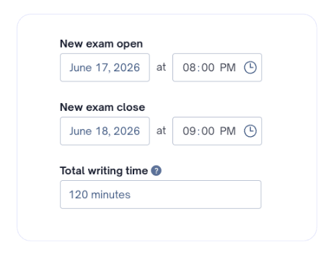
When writing time needs to be restored quickly, and there isn't time to wait for Support, Extra Time can be added directly from the Teacher's Environment by following the steps here: *[Managing Special Consideration](https://support.cadmus.io/teachers/managing-special-considerations#:~:text=To%20add%20or%20update%20special%20considerations%20from%20the%20class%20list)*.
The key thing to keep in mind: the timer has been counting down ever since the student first opened the exam, so the time between then and the retake has already gone. The Extra Time needs to cover both the elapsed time and the time the student should have when they pick the exam back up.
To work out that amount:
> **Total Extra Time = (Retake time − Time the student started) + Writing time the student should have**
**For Example:**
1. The student started their exam at **7:00 p.m.** In practice, please use the student's *First Save* time from the [Activity Report](https://support.cadmus.io/teachers/learning-analytics-reports#activity-reports:~:text=report%20via%20email.-,Activity%20Reports,-Activity%20Reports%20provide) as explained [above](https://support.cadmus.io/exam-submission-rules-teacher#firstsave).
2. The retake is set for **8:00 p.m.** This is flexible, based on when the student will sit the exam again.
3. **Writing time the student should have** when they return to the exam: **60 minutes**.
The gap between 7:00 p.m. and 8:00 p.m. is 60 minutes of time already used up on the timer. Adding the 60 minutes the student should have gives:
> 60 + 60 = **120 minutes total**
So the student's total writing time should be set to **120 minutes**. It would also be good to add **additional 5-10 minutes** for safety.
### Providing an Alternative Exam Window
Once the exam window closes, students can no longer submit. To let a student back in, grant them an Alternative Exam Window by following the detailed steps on this page: *[Managing Special Consideration](https://support.cadmus.io/teachers/managing-special-considerations#:~:text=To%20add%20or%20update%20special%20considerations%20from%20the%20class%20list)*.
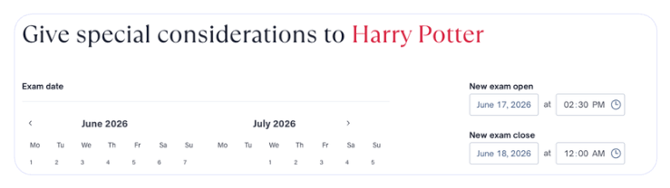
While the exam is still open this isn't needed, since the student can already get in.
### Additional Things to Consider
**Allow resubmission**
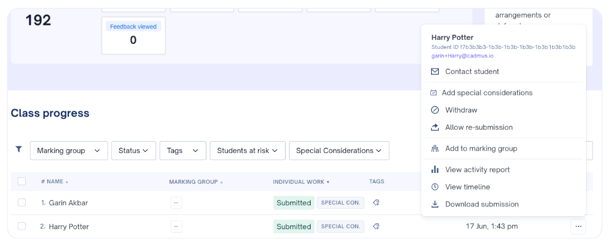
If an exam doesn't allow resubmissions and a student has already submitted, another attempt can be given for just that student. To do this, find the student in the Progress tab, open the three-dot menu next to their name, and choose **Allow Re-Submission**.
**Withdraw Feedback**
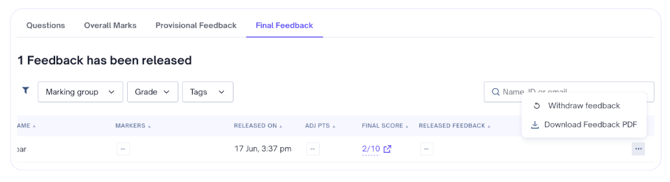
If the exam uses Cadmus Marker and the final feedback has already been released for the student, it will need to be **withdrawn** before they can re-sit the exam.
- [Teachers](https://support.cadmus.io/teachers?hsLang=en#main-content)
- [Introduction](https://support.cadmus.io/teachers?hsLang=en#introduction)
- [Setting up assessments](https://support.cadmus.io/teachers?hsLang=en#setting-up-assessments)
- [Managing your class](https://support.cadmus.io/teachers?hsLang=en#managing-your-class)
- [Turnitin + Cadmus](https://support.cadmus.io/teachers?hsLang=en#turnitin-cadmus)
- [Marking + feedback](https://support.cadmus.io/teachers?hsLang=en#marking-feedback)
- [Exams](https://support.cadmus.io/teachers?hsLang=en#exams)
- [Drafts](https://support.cadmus.io/teachers?hsLang=en#drafts)
- [Insights](https://support.cadmus.io/teachers?hsLang=en#insights)
- [Students working](https://support.cadmus.io/teachers?hsLang=en#students-working)
- [FAQs + Troubleshooting](https://support.cadmus.io/teachers?hsLang=en#faqs-troubleshooting)
- [Multi-format Assessments](https://support.cadmus.io/teachers?hsLang=en#multi-format-assessments)
- [Group Assessments](https://support.cadmus.io/teachers?hsLang=en#group-assessments)
- [Oral Assessments](https://support.cadmus.io/teachers?hsLang=en#oral-assessments)
- [Students](https://support.cadmus.io/students?hsLang=en#main-content)
- [Introduction](https://support.cadmus.io/students?hsLang=en#introduction)
- [Working in Cadmus](https://support.cadmus.io/students?hsLang=en#working-in-cadmus)
- [Submitting](https://support.cadmus.io/students?hsLang=en#submitting)
- [Grades + Feedback](https://support.cadmus.io/students?hsLang=en#grades-feedback)
- [Drafts](https://support.cadmus.io/students?hsLang=en#drafts)
- [FAQs + Troubleshooting](https://support.cadmus.io/students?hsLang=en#faqs-troubleshooting)
- [Multi-format Assessment](https://support.cadmus.io/students?hsLang=en#multi-format-assessment)
- [Group Assessments](https://support.cadmus.io/students?hsLang=en#group-assessments)
- [Oral Assessments](https://support.cadmus.io/students?hsLang=en#oral-assessments)
- [Admins](https://support.cadmus.io/admins?hsLang=en#main-content)
- [Integrations](https://support.cadmus.io/admins?hsLang=en#integrations)
- [Release Notes](https://support.cadmus.io/release-notes?hsLang=en)
- [Privacy Policy](https://support.cadmus.io/privacy-policy?hsLang=en)
- [Cadmus](https://cadmus.io/)
- [Video Tutorials](https://cadmus.io/video-tutorials/)
- [Contact Support](https://support.cadmus.io/kb-tickets/new)
- [System Status](https://cadmus.statuspage.io/)
[](http://cadmus.io)
Copyright © 2026, Cadmus