![Cadmus Wordmark & Logo_Master File_Cadmus Icon_Ink.png]](https://support.cadmus.io/hs-fs/hubfs/Cadmus%20Wordmark%20%26%20Logo_Master%20File_Cadmus%20Icon_Ink.png?height=40&name=Cadmus%20Wordmark%20%26%20Logo_Master%20File_Cadmus%20Icon_Ink.png)
A Multi-Format Assessment (MFA) is a new type of exam or assignment that can be created in Cadmus. Unlike classic Cadmus assessments, which primarily support long-form text-based assessments, MFA allows you to include different types of questions within the same assessment.
All question types, excluding extended response, are automatically marked. Details about auto-marking can be found here. Currently supported question types include:
- Multiple choice
- Short answer
- Extended response
- Fill in the blanks
- True & False
- Numerical
- Hotspot
- Matching
To set up a Multi-format Assessment
If your institution has MFA enabled, please follow the instructions below to get started with creating a Multi-format Assessment.
- Create a Cadmus link in the LMS.
- Click on the Go to Cadmus button to go to the Cadmus Teacher Environment.
- Click the Switch format button
 on the toolbar.
 - Select Multi format builder and click Confirm.
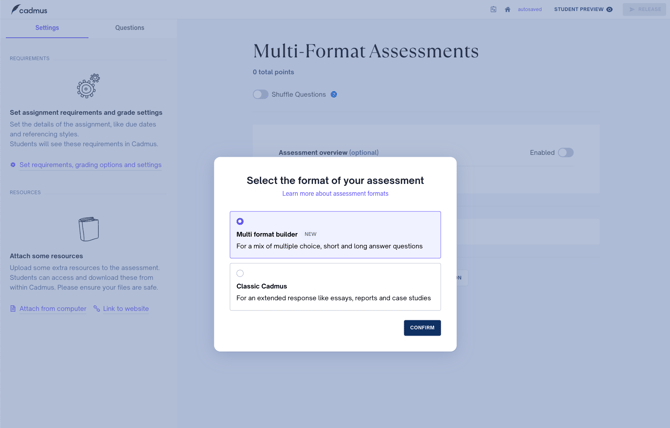
TIP! You can switch between Classic and Multi-Format Builder at any time, by clicking the Switch Format button on the toolbar.
The Multi-Format Builder
Once a new Multi-format Assessment has been created, you will be taken into the Multi-Format Builder. This is where key dates and settings can be applied, resources can be attached, and the assessment itself can be built
The Multi-Format Builder consists of three main working areas:
Workspace
The Workspace is the main area of the Multi-Format Builder. This is where different question types can be used to build the exam or assignment.
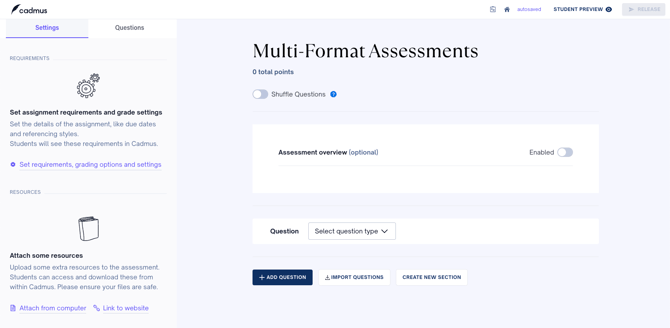
Assessment overview
The Assessment Overview can be used to provide students with general instructions or information about the assessment. This section can optionally be enabled using the toggle on the right.
Action bar
The Action Bar sits at the bottom of the workspace and can be used to edit and structure the assessment.
-
Add question: Create a new question block.
-
Import question: Import questions to your test from the Cadmus Question Library or existing pools from your LMS. Learn more about importing questions here.
-
Create new section: Optionally add section headers to separate your assessment into parts.
Note: Once a Multi-Format Assessment has been released, any questions added into the Builder are automatically saved into the Cadmus Question Library (CQL). These questions can later be searched, filtered, and reused through the Question Library, including by assessment name for easier organisation and retrieval 😊
Question blocks
Each question is displayed as an individual block within the main workspace. While some question types have their own specific settings, all question blocks include:
- Question number: This indicates the position of the question in the assessment.
- Question type: This can be selected using the dropdown provided.
- Points: This can be set using the input box in the top-right of the question block.
- Question text: Type your question directly into the question block. Note that each question requires a minimum of 20 characters.
- Additional feedback: Optionally provide further context for correct answers. Note that this becomes visible to the students after marking is complete, depending on the selected feedback visibility settings.
- Delete question: To delete a question click on the Bin icon. Note that this action is irreversible and any deleted questions may be lost.
File Upload & Camera Capture
For supported question types such as Extended Response, File Upload and Camera Capture can optionally be enabled within the question block.
This allows students to:
- upload files alongside their response
- capture and attach photos directly using their device camera during the assessment
This feature can be useful for handwritten workings, diagrams, drawings, calculations, lab work, or other visual responses that may need to accompany a written answer.
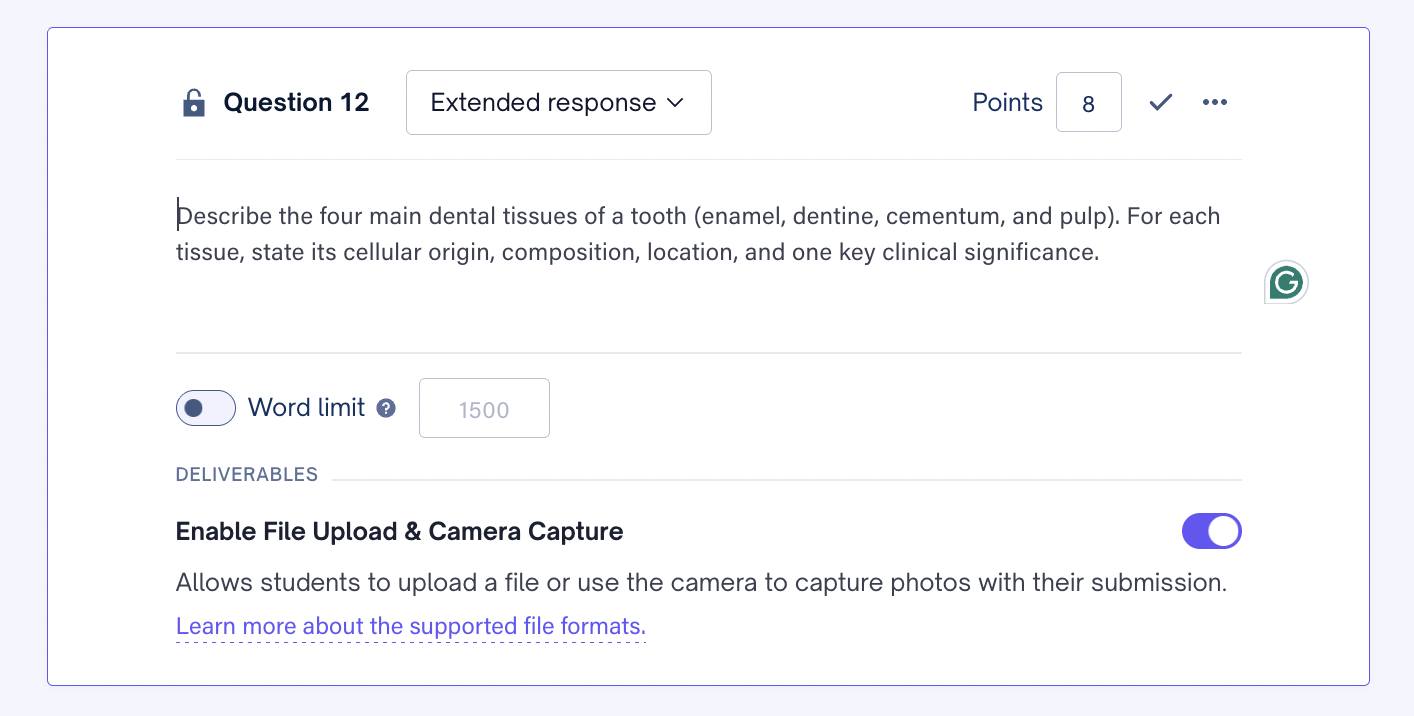
To enable this feature:
- Open the relevant question block.
- Scroll to the Deliverables section.
- Toggle on Enable File Upload & Camera Capture.
-
Once enabled, students will see options to:
- upload supported file types
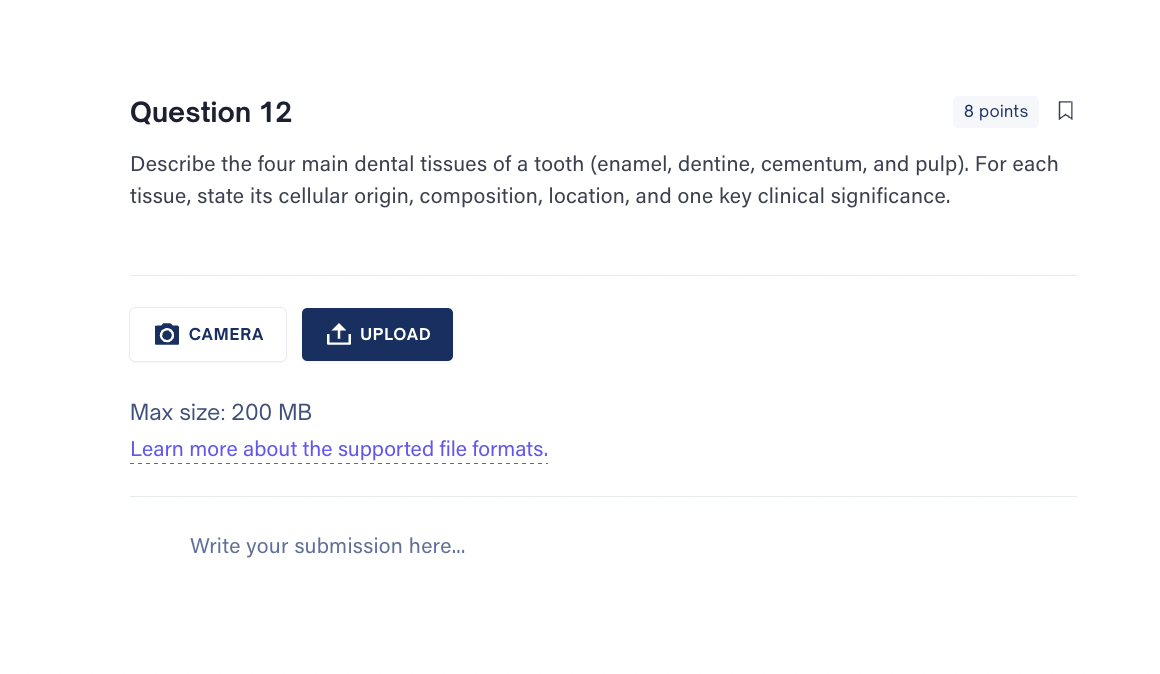
- open their device camera to capture a photo or video directly within Cadmus
- upload supported file types
Note: Camera access depends on the browser and device permissions granted by the student. If camera access is blocked, students may need to allow camera permissions within their browser settings before continuing.
Questions tab
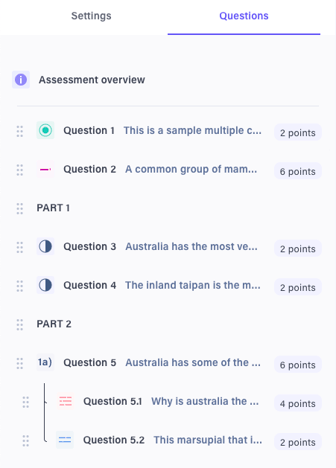
The Questions tab is located on the left panel of the Multi-Format Builder. It can be used to view and edit the structure of the test by reordering questions and sections.
Question details
The question details show the question type through a coloured icon, include a preview of the question text, and display the points assigned.
Moving and reordering questions
Questions and section headers can be reordered using drag and drop. Questions can also be moved in and out of sections, while sub-questions can be reordered and moved in and out of their parent questions.
Settings tab
The Settings tab is located in the left panel of the Multi-Format Builder. This is where requirements and settings for the assignment can be managed, and where resources can be attached. These areas work the same way as in classic (long-form text-based assessments) Cadmus.
Review further details on the Requirements, and Resources sections: