---
title: Import Questions
description: MFA is built to support IMS Question and Test Interoperability specification (QTI). The IMS Global Learning Consortium established the QTI standard to support compatibility between questions and a cou
---
[Skip to content](https://support.cadmus.io/teachers/import-questions#main-content)
English
Show submenu for translations
[Contact Support](https://support.cadmus.io/kb-tickets/new?hsLang=en)
[![Cadmus Wordmark & Logo\_Master File\_Cadmus Icon\_Ink.png\]](https://support.cadmus.io/hs-fs/hubfs/Cadmus%20Wordmark%20%26%20Logo_Master%20File_Cadmus%20Icon_Ink.png?height=40&name=Cadmus%20Wordmark%20%26%20Logo_Master%20File_Cadmus%20Icon_Ink.png)](https://support.cadmus.io/?hsLang=en)
- [Cadmus](https://cadmus.io/)
- [Contact Support](https://support.cadmus.io/kb-tickets/new)
Open main navigation
Close main navigation
- [Cadmus](https://cadmus.io/)
- [Contact Support](https://support.cadmus.io/kb-tickets/new)
- English
Show submenu for translations
- [Contact Support](https://support.cadmus.io/kb-tickets/new)
What would you like to learn?
- There are no suggestions because the search field is empty.
1. [Cadmus Help Docs](https://support.cadmus.io/?hsLang=en)
2. [Teachers](https://support.cadmus.io/teachers?hsLang=en)
3. [Multi-format Assessments](https://support.cadmus.io/teachers?hsLang=en#multi-format-assessments)
# Import Questions
## This page introduces the process of importing questions into Cadmus using files, making it easier to build assessments without creating each question manually.
### **Import Questions**
[Multi-Format Assessment](https://support.cadmus.io/teachers/introduction-to-mfa?hsLang=en) supports the [IMS Question and Test Interoperability (QTI)](https://www.1edtech.org/standards/qti/index) standard, developed by the IMS Global Learning Consortium. This allows questions to be shared and reused across different platforms, regardless of the learning management system.
Within Cadmus, this means you can import questions from external sources that have been exported in a supported QTI file format, making it easier to build and manage your assessments in MFA.
#### **How to prepare my questions for import into MFA**
Questions from any LMS that supports the QTI standard can be exported into a compatible file format for use in Cadmus.
Multi-Format Assessment (MFA) supports importing the following file types: .XML, .DAT, .QTI, .IMSCC, and .ZIP. Files created in line with QTI Version 1.2 specifications will be automatically unpacked upon import, allowing your questions to be accessed and used within MFA.
The following resources provide guidance on exporting questions from Canvas and Blackboard.
- [Export Classic Quizzes from Canvas](https://community.canvaslms.com/t5/Instructor-Guide/How-do-I-export-quiz-content-from-a-course/ta-p/826)
- [Export New Quizzes from Canvas](https://community.canvaslms.com/t5/Instructor-Guide/How-do-I-export-a-New-Quiz-from-a-course/ta-p/580322)
- [Export QTI Package from Blackboard](https://help.anthology.com/blackboard/instructor/en/assessments/questions/reuse-questions/qti-packages.html)
These exports are typically provided as .ZIP files containing the questions and any associated assets, and can be imported directly into MFA.
**Note:** *When exporting questions from Blackboard, please export the QTI Package from a pool rather than a test. This ensures all question types and any accepted answers import correctly into Cadmus.*
#### **How to import questions into MFA**
Once a compatible file is available, the questions can be imported into MFA.
### Uploading the files
1. At the bottom of the right panel in the MFA builder, locate the Action bar. Click **Import Questions from file**.
2. This will open the [Cadmus Question Library](https://support.cadmus.io/cadmus-question-library?hsLang=en). From there, please select the **Import from File** button.
3. Drag and **drop a file** or click **Upload from computer**. Upload an .XML, .DAT, .QTI, .IMSCC and .ZIP file (Only these QTI specification files will be unpacked).
4. Cadmus will unpack the upload, displaying the number of questions in each file and their category.
1. Each file can be renamed by clicking on the **Pencil icon** that appears when you hover on the corresponding list item. This allows to easily identify the imports.
2. Clicking on the **down arrow** expands the row and shows the first 3 questions within the corresponding file.
3. To see all the questions within a file, click **View All** in the expanded state.
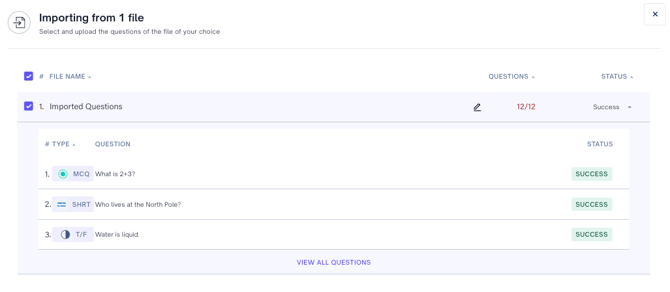
5. Once ready to proceed, please click the **Import** button at the bottom right of the screen.
6. It’s recommended to add unique tags so questions can be easily filtered when setting up assessments.
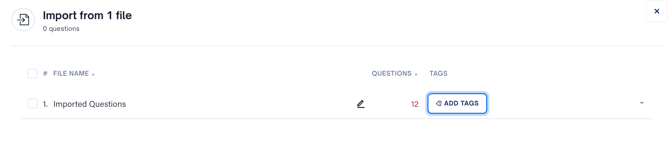
7. To select which files to import, **click on the check boxes** next to the relevant file names. Clicking the check box at the very top of the list (next to the file-name column header) selects all the files at once.
8. Once imported, these files will be further unpacked to reveal the questions contained within them. This list of questions can be filtered according to **Filename, Question type** and **Difficulty**. Some questions might not have a difficulty attribute specified
**NOTE***:*
- Assigning tags to questions is important, as it allows them to be easily located using filters. Questions without tags will need to be found and selected manually each time.
- One question can have multiple tags, such as subject names, exam names, etc.
### **Selecting questions when setting up an exam**
There are two ways to add questions from the Cadmus Question Library to an assessment:
1. Add manually
1. Select the questions by **clicking on the checkbox** at the beginning of each corresponding list item.
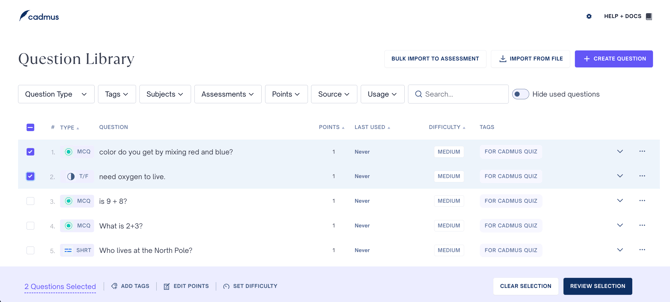
2. Use the available filters to find questions by Question Type, Subject, previous Assessment Names, Tags, and more..
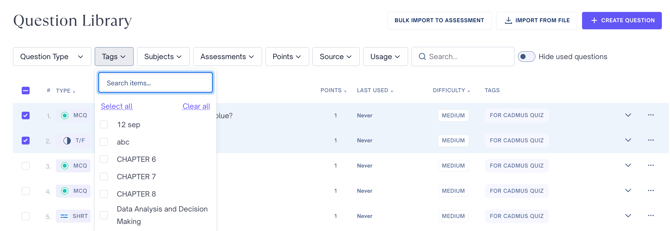
3. Once you’ve selected the questions, click **Review Selection** at the bottom of the page, then proceed with **Import All to Assessments**.
2. Select questions in bulk
1. Select the Bulk Import to Assessment option at the top.

2. Define the selection criteria by setting the **number of questions**, **question type**, **points**, and **tags**, along with optional filters like **difficulty** and **usage**. Once configured, generate the selection to automatically create question sets based on the preferred rules.
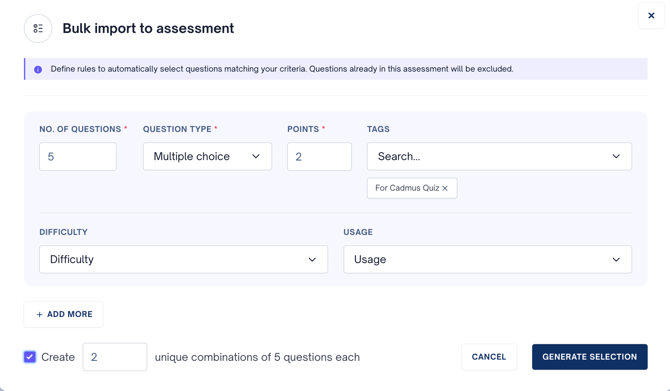
3. To add another category for selection, click **Add more**. Click the Bin icon on the right to delete a row from your selection criteria.
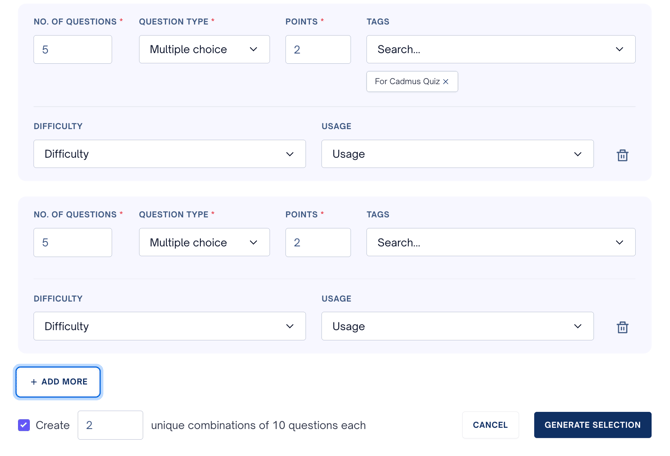
4. Once everything has been selected, proceed with the import.
5. Cadmus will auto-select questions from the imported files based on the selections and type specified by you. These will be populated for you to review.
6. Finalise the step by clicking the **Import to Assessment** button to add all the selected questions to the current exam.
7. You can also choose to swap any auto-selected questions with other similar ones from within your imported file. Simply select the questions and Click **Replace with similar questions**.
8. Click **Reset selection** to redo the entire selection again from the previous screen.
**NOTE**: The number of questions available for selection within each category will be capped based on prior selections, helping prevent duplication.
- [Teachers](https://support.cadmus.io/teachers?hsLang=en#main-content)
- [Introduction](https://support.cadmus.io/teachers?hsLang=en#introduction)
- [Setting up assessments](https://support.cadmus.io/teachers?hsLang=en#setting-up-assessments)
- [Managing your class](https://support.cadmus.io/teachers?hsLang=en#managing-your-class)
- [Turnitin + Cadmus](https://support.cadmus.io/teachers?hsLang=en#turnitin-cadmus)
- [Marking + feedback](https://support.cadmus.io/teachers?hsLang=en#marking-feedback)
- [Exams](https://support.cadmus.io/teachers?hsLang=en#exams)
- [Drafts](https://support.cadmus.io/teachers?hsLang=en#drafts)
- [Insights](https://support.cadmus.io/teachers?hsLang=en#insights)
- [Students working](https://support.cadmus.io/teachers?hsLang=en#students-working)
- [FAQs + Troubleshooting](https://support.cadmus.io/teachers?hsLang=en#faqs-troubleshooting)
- [Multi-format Assessments](https://support.cadmus.io/teachers?hsLang=en#multi-format-assessments)
- [Group Assessments](https://support.cadmus.io/teachers?hsLang=en#group-assessments)
- [Oral Assessments](https://support.cadmus.io/teachers?hsLang=en#oral-assessments)
- [Students](https://support.cadmus.io/students?hsLang=en#main-content)
- [Introduction](https://support.cadmus.io/students?hsLang=en#introduction)
- [Working in Cadmus](https://support.cadmus.io/students?hsLang=en#working-in-cadmus)
- [Submitting](https://support.cadmus.io/students?hsLang=en#submitting)
- [Grades + Feedback](https://support.cadmus.io/students?hsLang=en#grades-feedback)
- [Drafts](https://support.cadmus.io/students?hsLang=en#drafts)
- [FAQs + Troubleshooting](https://support.cadmus.io/students?hsLang=en#faqs-troubleshooting)
- [Multi-format Assessment](https://support.cadmus.io/students?hsLang=en#multi-format-assessment)
- [Group Assessments](https://support.cadmus.io/students?hsLang=en#group-assessments)
- [Oral Assessments](https://support.cadmus.io/students?hsLang=en#oral-assessments)
- [Admins](https://support.cadmus.io/admins?hsLang=en#main-content)
- [Integrations](https://support.cadmus.io/admins?hsLang=en#integrations)
- [Release Notes](https://support.cadmus.io/release-notes?hsLang=en)
- [Privacy Policy](https://support.cadmus.io/privacy-policy?hsLang=en)
- [Cadmus](https://cadmus.io/)
- [Video Tutorials](https://cadmus.io/video-tutorials/)
- [Contact Support](https://support.cadmus.io/kb-tickets/new)
- [System Status](https://cadmus.statuspage.io/)
[](http://cadmus.io)
Copyright © 2026, Cadmus