---
title: Using Cadmus Question Library and Building Question Sets
description: Learn how to re-use questions across MFA exams/assessments and deliver different question sets for different cohorts.
---
[Skip to content](https://support.cadmus.io/cadmus-question-library#main-content)
English
Show submenu for translations
[Contact Support](https://support.cadmus.io/kb-tickets/new?hsLang=en)
[![Cadmus Wordmark & Logo\_Master File\_Cadmus Icon\_Ink.png\]](https://support.cadmus.io/hs-fs/hubfs/Cadmus%20Wordmark%20%26%20Logo_Master%20File_Cadmus%20Icon_Ink.png?height=40&name=Cadmus%20Wordmark%20%26%20Logo_Master%20File_Cadmus%20Icon_Ink.png)](https://support.cadmus.io/?hsLang=en)
- [Cadmus](https://cadmus.io/)
- [Contact Support](https://support.cadmus.io/kb-tickets/new)
Open main navigation
Close main navigation
- [Cadmus](https://cadmus.io/)
- [Contact Support](https://support.cadmus.io/kb-tickets/new)
- English
Show submenu for translations
- [Contact Support](https://support.cadmus.io/kb-tickets/new)
What would you like to learn?
- There are no suggestions because the search field is empty.
1. [Cadmus Help Docs](https://support.cadmus.io/?hsLang=en)
2. [Teachers](https://support.cadmus.io/teachers?hsLang=en)
3. [Multi-format Assessments](https://support.cadmus.io/teachers?hsLang=en#multi-format-assessments)
# Using Cadmus Question Library and Building Question Sets
## Understand how questions can be reused across MFA exams and assessments, and how different question sets can be delivered to different cohorts.
In this article, we cover the following:
- [Accessing the Cadmus Question Library](https://support.cadmus.io/cadmus-question-library#access)
- [Adding questions to the Library](https://support.cadmus.io/cadmus-question-library#add)
- [Viewing and filtering questions from the Library](https://support.cadmus.io/cadmus-question-library#view)
- [Adding questions and creating sets from the Library](https://support.cadmus.io/cadmus-question-library#sets)
#### **Accessing Cadmus Question Library**
#### The Cadmus Question Library can be accessed by:
- Clicking the **Import Questions button** located at the bottom of the MFA task builder.

- Clicking the **Cadmus Question Library** **button** located at the top of the Cadmus homepage.

**Adding questions to the Library**
Questions can either be imported via external files or manually added to the Library.
**To import questions**:
1. Select **Import from File button** andchoose a zip or XML file (Refer to [this link](https://support.cadmus.io/import-questions?hsLang=en) for information on supported file formats) with the questions to be imported. Alternatively, the file may be dragged and dropped.


2. Upon successful file import, a **Success** message will appear in the *Status* column. Click the **pencil icon** to modify the file name, if needed. Click the arrow under Success to view the imported questions, or click **View All** to display all questions within the file.

3. Click **Import File** to add the question file to the Library. On the next page, add tags to the questions so they’re easier to locate if needed.

4. To add specific questions, select the desired questions and click the **Review Selection** button. Once reviewed, import the questions to add them to the *Multi-Format Assessment builder*

**NOTE:** Tags can be assigned to the imported question file or to individual questions.
**To manually add questions**:
1. Click on the **Create Question button** located at the top of the Cadmus Question Library.

2. Select the appropriate question type and input the question, point value, tags, and difficulty level.

3. Click the **Create button** to add the question to the Library. Utilize tags or the search bar to locate the newly added question.
****

#### **Viewing and filtering questions from the Library**
The Question Library allows for refined searching and filtering of questions based on several criteria: question type, assigned tags, point value, source (whether created in Cadmus or imported), and usage frequency. A **search bar** is also available to search by question name. We've also introduced *subject* and *assessment level* filters to view and filter the subject and assessment-specific questions. You can also hide used questions using the toggle on the right.
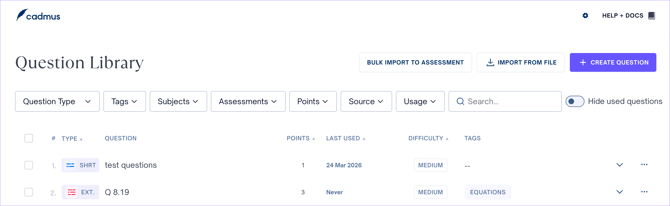
**Adding questions and creating sets from the Library**Questions from the Library can be selected manually or in bulk and added to an MFA exam or assessment. These can be organised into **group sets**, with different sets assigned to different cohorts of students.
For manual selection and addition of questions:
1. Use the filter options (question types, tags, assessment names, etc.) to locate the desired questions.
2. Select individual questions using the checkbox to the left of each question.
3. Click the three dots on the right to access options to copy, edit, or delete the question.
4. After selecting questions, click **Add Tags**, **Edit Points**, or **Set Difficulty** to make any adjustments.
5. Click the **Review Selection** button to review the selected questions. Individual questions can be removed from the selection or replaced with similar questions. Click **Clear Selection** to deselect all and select other questions.

6. Click the **Import All to Assessment** button to add the selected questions to the assessment/exam.
**To create sets from the questions selected:**
Within the *Review Selection*window, click the **Create Sets from Selection** button. Specify the desired number of unique sets and the number of questions per set, then click **Create Sets**.
Review the generated sets and click **Import All to Assessment.**

You can also **Create by Rules** that allows you to automatically create question sets based on selected criteria.

1. Enter the number of questions you’d like in each set, then choose the question type and points for each question. You can further narrow the selection using Tags, Difficulty, or Usage.
2. Select **+ Add More** to include additional question criteria if needed.
3. Finally, enter the number of sets you’d like to create. The summary at the bottom will show how many sets and questions will be generated. Once everything looks right, select **Create Sets**.
**To bulk select and add questions**:
1. Click the **Bulk Import Questions button** at the top of the Question Library.

2. Define rules for generating multiple question sets, including the number of questions, question type, point allocation, tags, and difficulty level.
3. Click the **Add More** **button** to add additional rules and create more question sets.
4. Within the **Create** boxunder the **Bulk Select** window, specify the number of unique question sets to be generated based on the defined rules.

5. Click **Generate Selection** to finalise.
6. Import the questions into the assessment.
**NOTE:** When multiple sets are created, all of the sets will contain an equal number of questions with the exact same question types and points.
After being added, question sets appear in the task builder, where they can be **reviewed** or **removed**, and **question shuffling** can be enabled or disabled.

**NOTE:** Any question in the set or the corresponding points cannot be edited after it is added to the task builder. All changes to questions added to sets should be made in the Library itself.
- [Teachers](https://support.cadmus.io/teachers?hsLang=en#main-content)
- [Introduction](https://support.cadmus.io/teachers?hsLang=en#introduction)
- [Setting up assessments](https://support.cadmus.io/teachers?hsLang=en#setting-up-assessments)
- [Managing your class](https://support.cadmus.io/teachers?hsLang=en#managing-your-class)
- [Turnitin + Cadmus](https://support.cadmus.io/teachers?hsLang=en#turnitin-cadmus)
- [Marking + feedback](https://support.cadmus.io/teachers?hsLang=en#marking-feedback)
- [Exams](https://support.cadmus.io/teachers?hsLang=en#exams)
- [Drafts](https://support.cadmus.io/teachers?hsLang=en#drafts)
- [Insights](https://support.cadmus.io/teachers?hsLang=en#insights)
- [Students working](https://support.cadmus.io/teachers?hsLang=en#students-working)
- [FAQs + Troubleshooting](https://support.cadmus.io/teachers?hsLang=en#faqs-troubleshooting)
- [Multi-format Assessments](https://support.cadmus.io/teachers?hsLang=en#multi-format-assessments)
- [Group Assessments](https://support.cadmus.io/teachers?hsLang=en#group-assessments)
- [Oral Assessments](https://support.cadmus.io/teachers?hsLang=en#oral-assessments)
- [Students](https://support.cadmus.io/students?hsLang=en#main-content)
- [Introduction](https://support.cadmus.io/students?hsLang=en#introduction)
- [Working in Cadmus](https://support.cadmus.io/students?hsLang=en#working-in-cadmus)
- [Submitting](https://support.cadmus.io/students?hsLang=en#submitting)
- [Grades + Feedback](https://support.cadmus.io/students?hsLang=en#grades-feedback)
- [Drafts](https://support.cadmus.io/students?hsLang=en#drafts)
- [FAQs + Troubleshooting](https://support.cadmus.io/students?hsLang=en#faqs-troubleshooting)
- [Multi-format Assessment](https://support.cadmus.io/students?hsLang=en#multi-format-assessment)
- [Group Assessments](https://support.cadmus.io/students?hsLang=en#group-assessments)
- [Oral Assessments](https://support.cadmus.io/students?hsLang=en#oral-assessments)
- [Admins](https://support.cadmus.io/admins?hsLang=en#main-content)
- [Integrations](https://support.cadmus.io/admins?hsLang=en#integrations)
- [Release Notes](https://support.cadmus.io/release-notes?hsLang=en)
- [Privacy Policy](https://support.cadmus.io/privacy-policy?hsLang=en)
- [Cadmus](https://cadmus.io/)
- [Video Tutorials](https://cadmus.io/video-tutorials/)
- [Contact Support](https://support.cadmus.io/kb-tickets/new)
- [System Status](https://cadmus.statuspage.io/)
[](http://cadmus.io)
Copyright © 2026, Cadmus