![Cadmus Wordmark & Logo_Master File_Cadmus Icon_Ink.png]](https://support.cadmus.io/hs-fs/hubfs/Cadmus%20Wordmark%20%26%20Logo_Master%20File_Cadmus%20Icon_Ink.png?height=40&name=Cadmus%20Wordmark%20%26%20Logo_Master%20File_Cadmus%20Icon_Ink.png)
Learn how to set up timed exams and tests in Cadmus
Once you have created a Cadmus assessment link, you can configure your exam settings and edit your instructions.
To be taken to the Requirements page, click Set requirements, grading options and settings. From here, you can set up the timings and format of your exam, specify any requirements for students, and configure your marking tool. You’ll also be able to see how these exam details will be displayed to students as they work in the Student Environment.
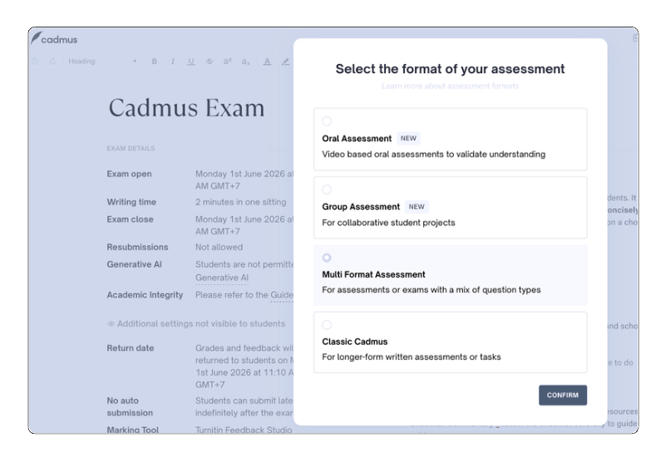
Firstly, select the format of your assessment to be a Multi-Format Assessment.
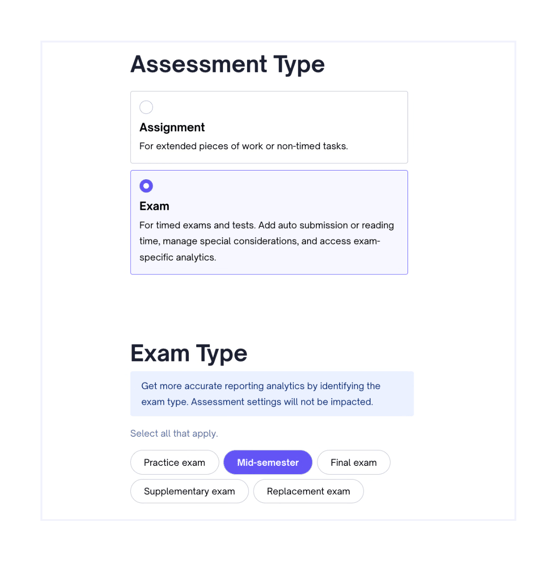
From the Requirements page, select Exam as your Assessment type and specify what sort of exam or test you are setting up under Exam Type to assist with reporting and analytics. Your assessment settings will not be impacted by the exam type you select.
If you're running a timed task, learn how to set up exams and tests instead.
You can then set your requirements for the following categories of exam settings:
Exam Timing
There are two timing options for exams in Cadmus.
Live Exam
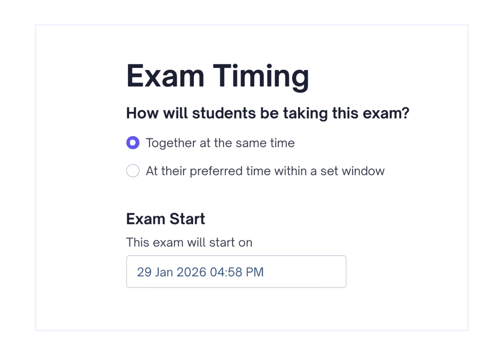
If your students are sitting the exam at the same time, we recommend selecting Together at the same time. You will then need to specify the Exam start date and time.
Window Exam
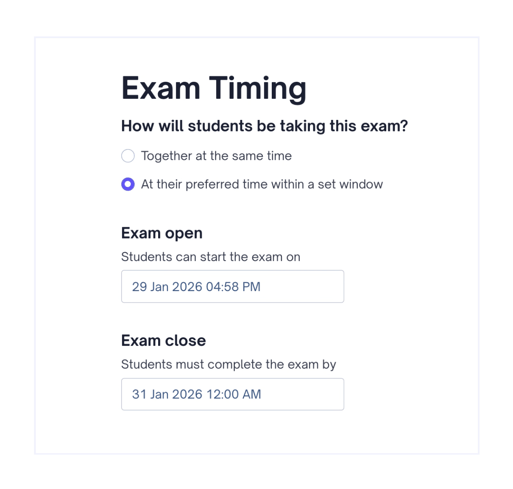
Selecting At their preferred time within a set window allows you to set an exam that is open for a window of time (e.g. 24 hours). Students can choose when to start within this window and will have a set amount of time to complete the exam (e.g. 2 hours). Specify an Exam open and Exam close date and time for exams of this format.
Reading Time
If Reading time is On, you can allocate time at the start of an exam for students to read through their instructions without being able to type in Cadmus. Simply specify the number of minutes of reading time.
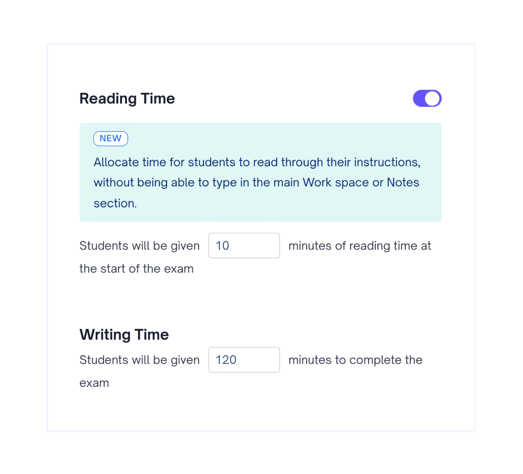
Writing Time
Specify the number of minutes students are allowed to work on the exam. A student's writing time begins as soon as they click Start Exam and continues to count down in real time until it reaches zero. The timer will continue running even if the student closes their browser, loses internet connectivity, leaves the exam, or shuts down their device.
Students can generally continue working and re-enter Cadmus while they still have writing time remaining (if resubmissions is allowed). If they are unable to return to the exam promptly, their writing time may expire during their absence. In these situations, students may require special consideration or an extension from the teaching team in order to continue the exam.
Assessment Integrity
Assessment Integrity settings provide additional controls to help support secure exam delivery and reduce opportunities for unauthorised access or disruption.
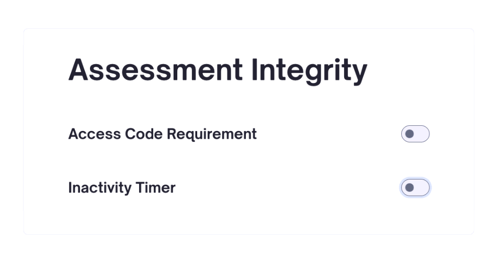
Access Codes
Access codes add an extra layer of security by requiring students to enter a code before they can begin their exam. Multiple codes can be generated and labelled for different rooms, cohorts, or invigilation arrangements.
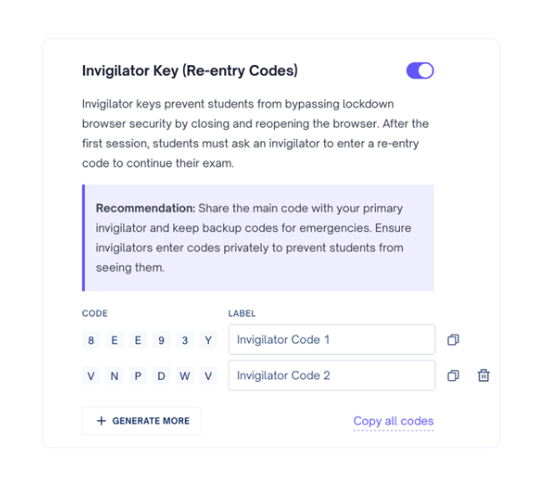
Invigilator Key (Re-Entry Codes)
Invigilator codes help maintain exam security by requiring an invigilator to approve a student’s re-entry. This works with Respondus LockDown Browser and standard browsers.
Once an exam session has started, any attempt to re-enter after closing the browser or ending the session will require an invigilator code.
A code is generated automatically when you turn the setting on. Select Generate More for backup codes, or refresh all codes any time before the exam starts. Codes are only visible to teachers and invigilators. You can see re-entry attempts for each student in the Learning Assurance tab.
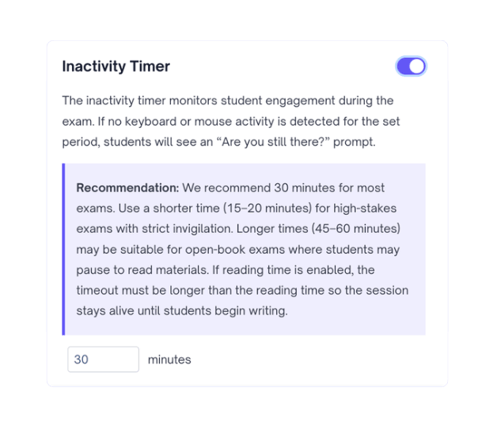
Inactivity Timer
When enabled, the inactivity timer monitors student engagement during the exam. If no keyboard or mouse activity is detected within the configured period, students will see an "Are you still there?" prompt and will need to confirm that they are still actively worki
The default is 30 minutes, and the minimum you can set is 5 minutes. Students who don’t respond would be signed out of Cadmus automatically.
Submissions
Generative AI
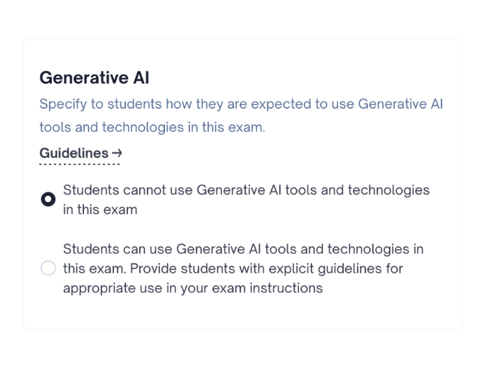
Teachers can now choose how students use Generative AI tools and technologies in exams. To set AI-use controls:
- Find the Generative AI requirement under the Submissions section in the settings and requirements.
- Choose between the options to permit students to either not use or use Generative AI tools and technologies for the assessment or exam.
- In case Generative AI tools usage is permitted, you may add explicit guidelines for appropriate usage under the assessment or exam instructions.
Referencing
Turn Referencing on to let students add references and footnotes to Extended Response answers, then choose the style students should follow, for example APA or Harvard. Students will see the selected style on the first page of the exam.
Select Allow references/footnotes in word count to count them toward each question’s word limit.
Use the Allow References toggle on an individual Extended Response question to turn the references section on or off for that specific question.
Note: When you duplicate an assessment, it carries over the referencing style and word count settings. Duplicating a single question will not.
Auto Submission
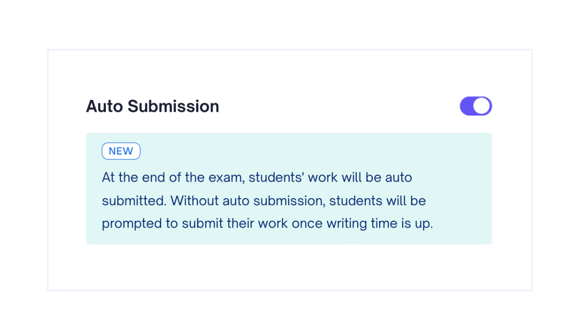
If Auto submission is on, students' work will be automatically submitted at the end of their allocated writing time.
NOTE: Students must be connected to the internet for auto submission to work. If they are offline at this time, their work will be auto submitted as soon as they are back online.
If Auto submission is off, you can specify a period of time to accept late submissions. Students will be prompted to submit at the end of their allocated writing time, but can choose to continue working and submit late. Once the late submission time allowance has passed, students cannot continue working and will be prompted to submit again.
TIP! If your exam has a grace period or allowance for technology issues, you can set this up by turning auto submission off and specifying a late allowance. This way, students who have issues can still submit late.
Allow Resubmissions
Control how many times students can submit their exam during the exam window.
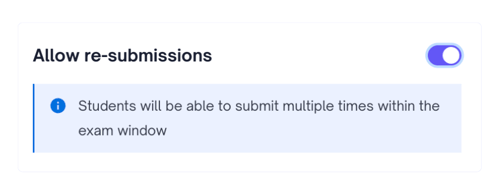
- When Allow re-submissions is enabled, students can submit multiple times and continue updating their work until the exam is automatically submitted or their writing time expires. Each new submission replaces the previous one.
- When Allow re-submissions is disabled, students are limited to a single submission attempt. Once submitted, the exam cannot be reopened by the student unless an additional submission attempt is granted by a teacher.
For students who have used all available submission attempts, an additional submission attempt can be granted from the Progress tab. From the student's row in the class list, open the three-dot menu and select Allow Resubmission.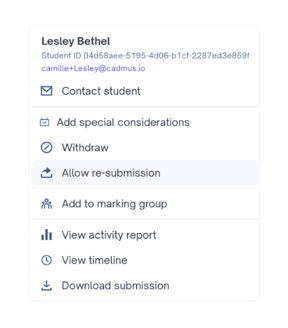
Note:
-
Each time Allow Resubmission is selected, the student's available submission attempts increase by one. Once that additional attempt has been used, the Allow Resubmission option will become available again if another attempt needs to be granted.
- Students who have been granted additional submission attempts can also be identified from the Progress tab using the available quick filters, and an indicator will appear alongside their name in the class list.
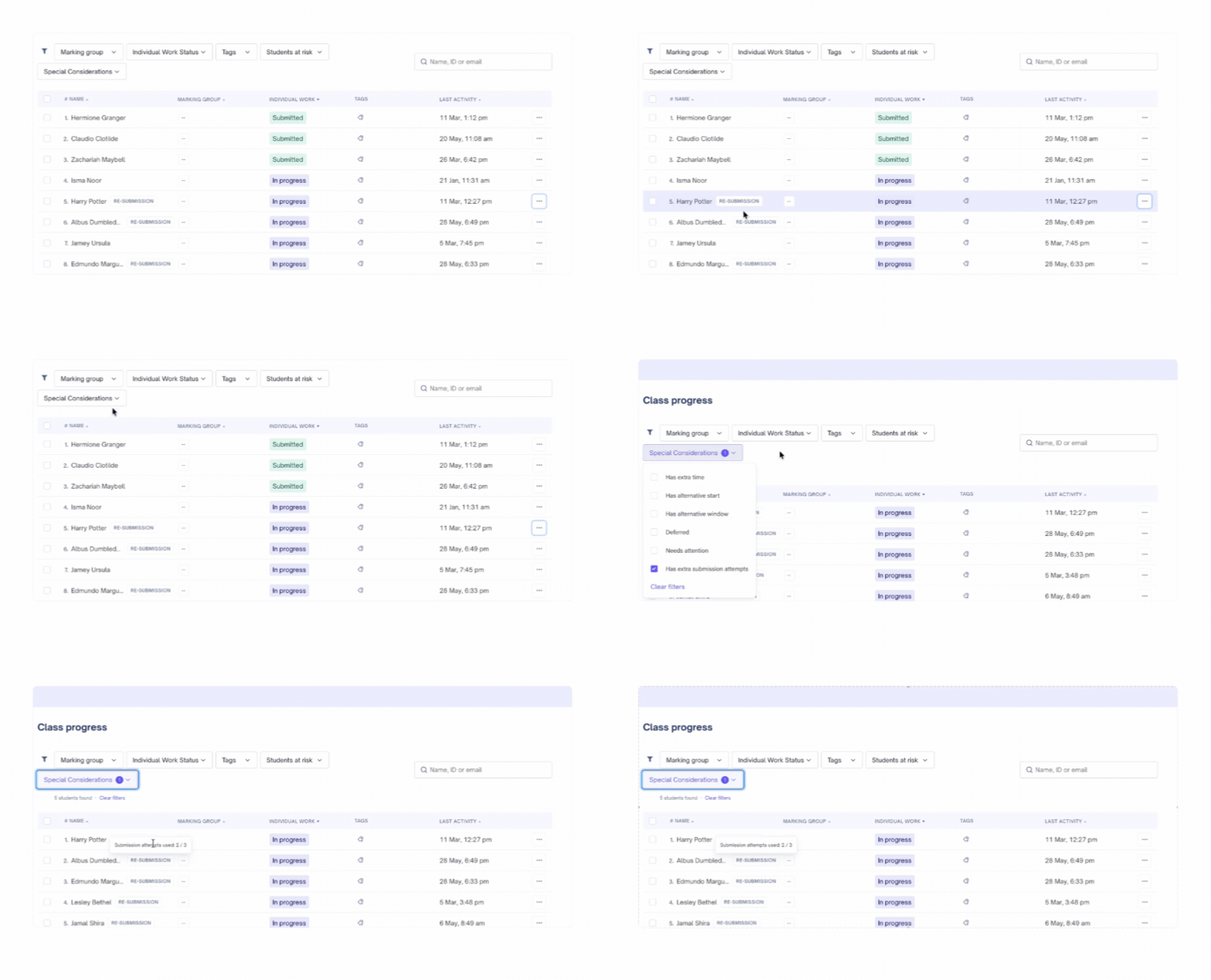
More on this, please visit Managing Exam Resubmissions.
PDF Copy of Student Submissions
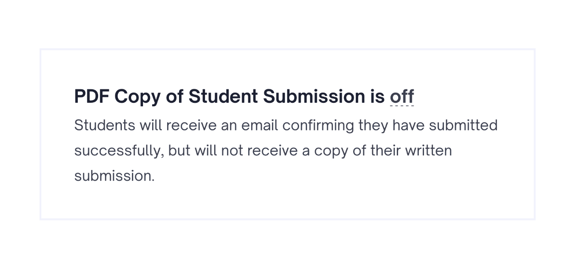
Students receive an email confirming they have submitted successfully by default. If PDF student submissions is on, students will receive a PDF copy of their submission attached to the submission confirmation email.
Marking
Marking Tool
Choose where marking and feedback will take place for the assessment. The available options depend on the institution's LMS configuration and may include Cadmus Marker, Turnitin Feedback Studio, or the Moodle Grader.
Each marking tool offers a different marking experience and set of features. For example, Cadmus Marker supports rubric marking, annotations, moderation workflows, auto-marking, and controlled feedback release directly within Cadmus.
It's important to select your preferred marking tool before releasing your assessment.
If a different marking tool is required after students have started submitting, please contact Cadmus Support for guidance on the available options.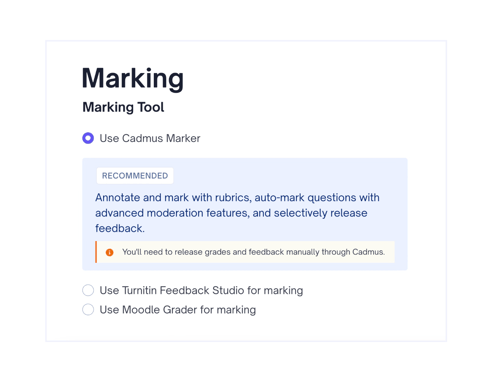
Total Points
Total Points is available when using Turnitin Feedback Studio for marking.
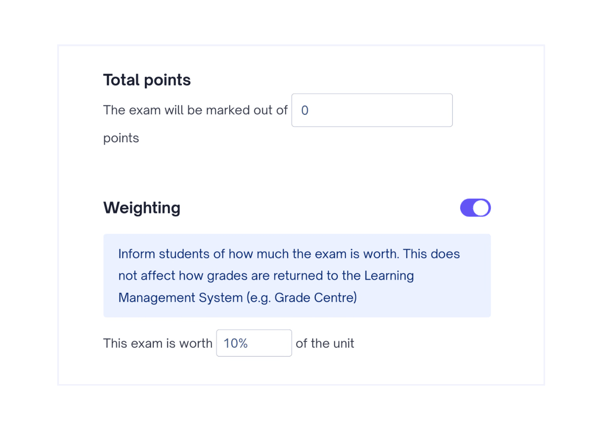
Total Points displays the cumulative point total of all questions as a read-only field. This ensures clarity on the total possible score students can achieve.
Note: If Turnitin Feedback Studio is selected as the marking tool for an exam, Cadmus still stores a Feedback Return Date internally, even when Written Feedback Return is disabled and no Feedback Return Date is shown in the assessment settings.
When using Turnitin Feedback Studio, please enable Written Feedback Return if you would like to schedule when students can access their feedback.
Weighting
Turn Weighting on to let students know how much the assignment is worth (as a %).
This doesn’t affect how grades are returned to the marking tool— it will only be seen by students in their exam instructions.
Anonymous Marking
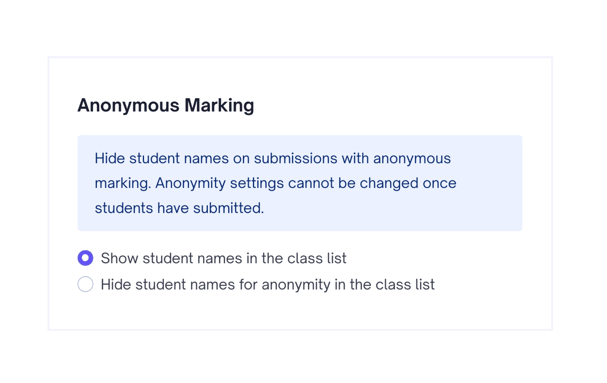
Anonymous marking allows student names to be hidden from submissions during marking. Once a submission has been made in an assessment, you'll no longer be able to change this setting.
To turn on anonymous marking
- Select Hide student names in the class list.
- If you’re using SpeedGrader as your marking tool, turn anonymous marking on in SpeedGrader as well.
Show Rubrics to Students
The Show Rubrics to Students option will show up if Cadmus marker is selected as the grading tool. If the show/hide rubrics for students' setting is enabled, students will be able to see marking rubrics for their assessment/exam while working on their submission. By default, rubric visibility will be enabled.
To learn how to add a rubric to each Extended Response question, see Rubric-Based Marking for Extended Response questions in Multi-Format Assessments.