![Cadmus Wordmark & Logo_Master File_Cadmus Icon_Ink.png]](https://support.cadmus.io/hs-fs/hubfs/Cadmus%20Wordmark%20%26%20Logo_Master%20File_Cadmus%20Icon_Ink.png?height=40&name=Cadmus%20Wordmark%20%26%20Logo_Master%20File_Cadmus%20Icon_Ink.png)
Teachers can now use the Moderation tab to edit grades, release feedback, set up penalties, and view student performance insights such as individual scores, class performance, and the success rate of students across questions. In the Moderation tab, you will see:
- Success Rate and Class Performance
- Questions section
- Update accepted answers for auto-marked questions
- Student Scores section
- Edit Grades and Release Feedback
Success Rate and Class Performance
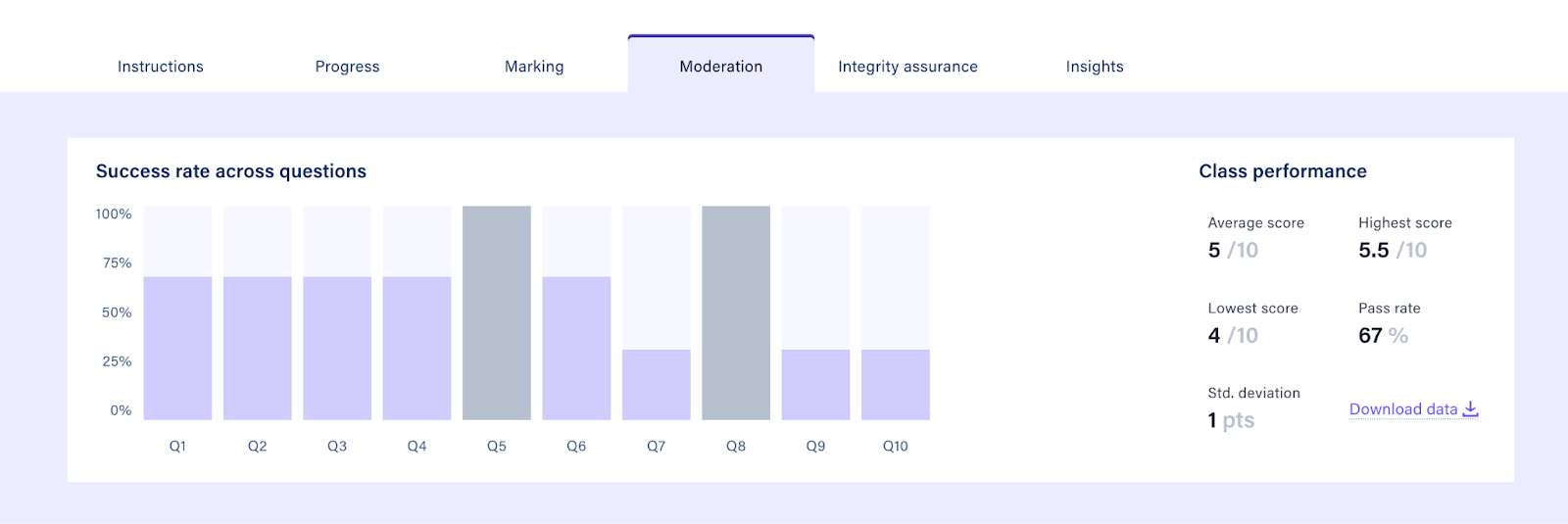
At the top of the Moderation tab, you’ll find the Success Rate across questions and overall Class Performance.
The Success Rate across questions shows the percentage of students who answered each auto-marked question correctly. Extended response questions, however, do not display a success rate, and their bars will appear greyed out.
Class Performance provides a summary of key metrics, including Average Score, Highest Score, Lowest Score, Pass Rate, and Standard Deviation, offering a snapshot of student outcomes. Teachers can download this data in CSV format for future reference.
Questions Section
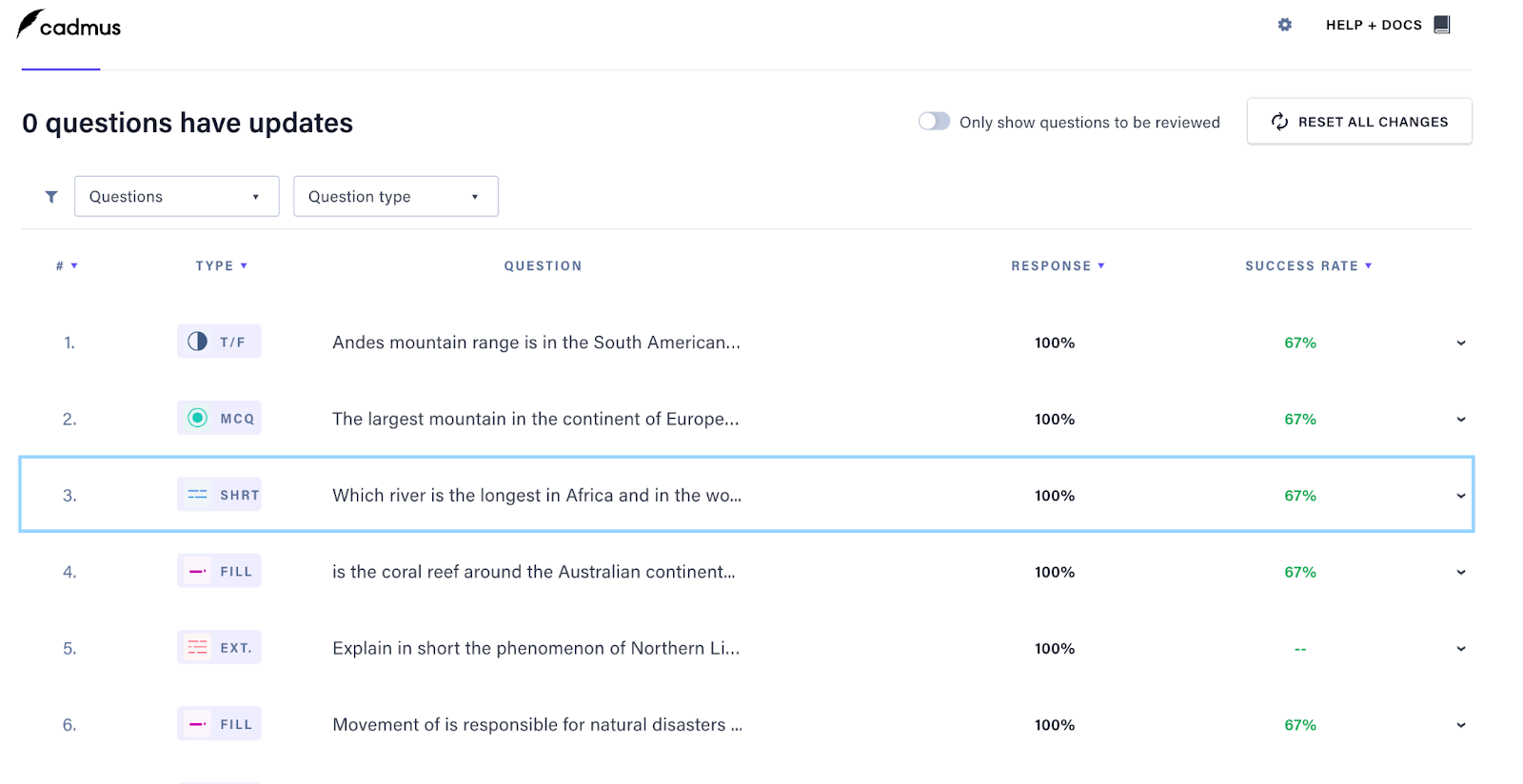
The Questions section provides key data, including the response rate and success rate for each question. You can filter questions by number and type, and toggling the ‘Only show questions to be reviewed’ button will display questions that still need marking.
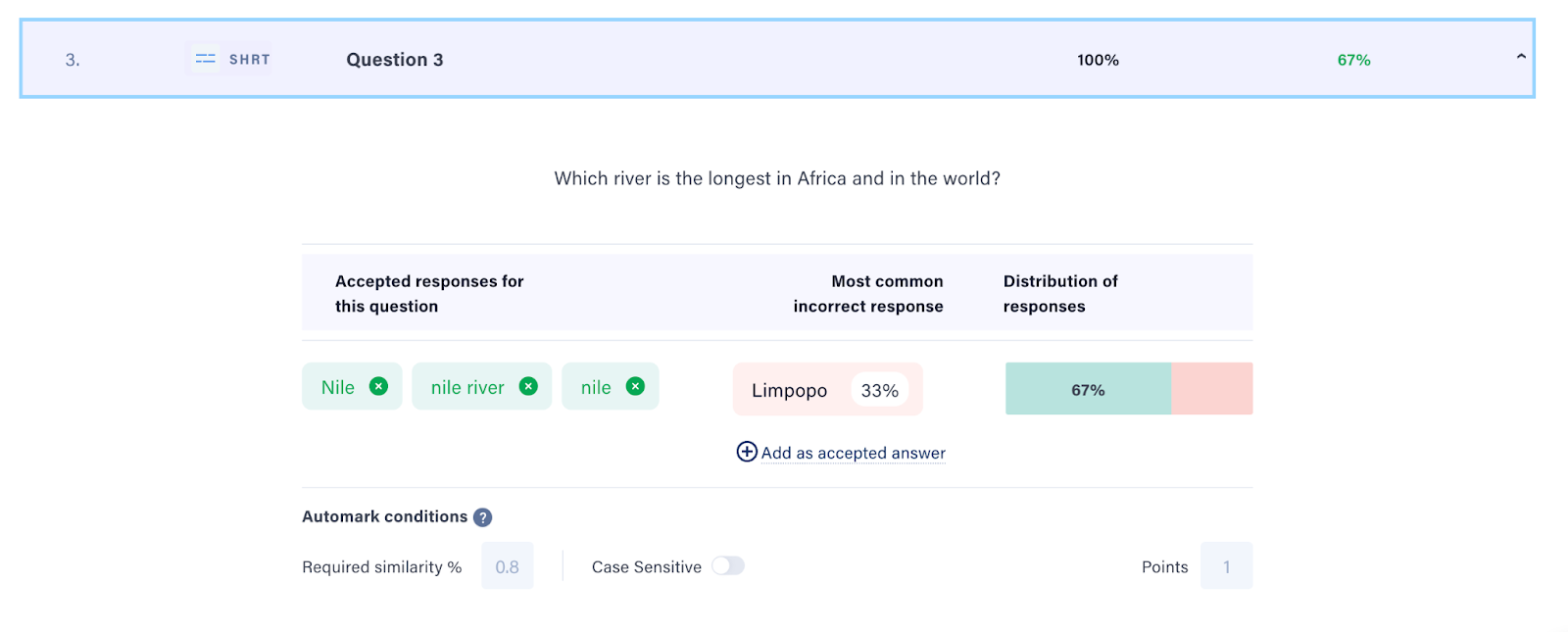
Clicking on a specific question reveals the percentage of students who selected or provided the correct versus incorrect responses. Filtering by question will dynamically update the success rate percentage and graph. For Short Answer Questions and Fill-in-the-Blank questions, you can also view the most commonly chosen incorrect answers by students.
For Short Answer Questions and Fill-in-the-Blank questions, you can add common incorrect answers as accepted answers or remove any previously accepted answers as needed.
Update accepted answers for auto-marked questions
If you notice that an auto-marked Short Answer or Fill-in-the-Blank question has accepted or rejected responses incorrectly, you can update the accepted answers directly from the Moderation tab, under the Questions sub-tab.
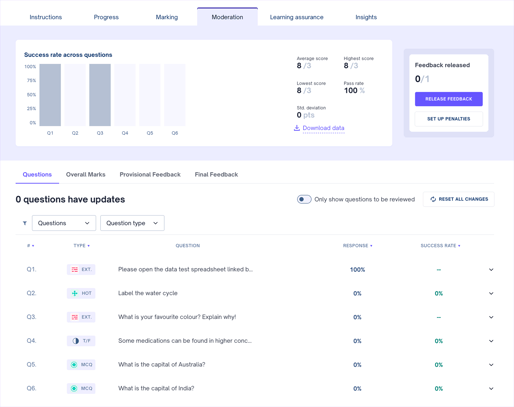
- Add a common incorrect answer as an accepted answer.
- Remove an accepted answer if it should no longer be considered correct.
- Adjust the similarity threshold if needed to make matching more or less strict.
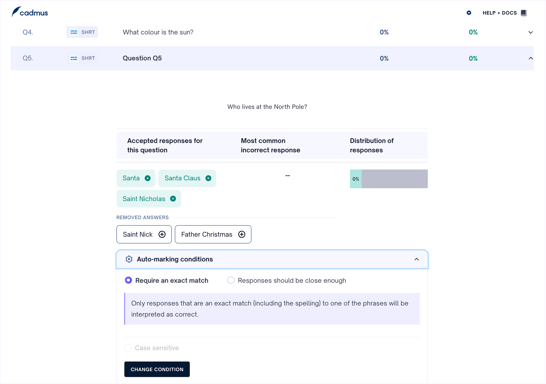
Once your changes have been saved, Cadmus will automatically re-mark all affected student responses and update their scores accordingly.
Using the Moderation tab is the recommended approach for updating accepted answers for certain question types, as it allows you to re-mark responses without needing to update and re-release the assessment instructions.
Student Scores Section
At the top of the Student Scores section, you’ll find the score distribution across students along with the Class Performance metrics.
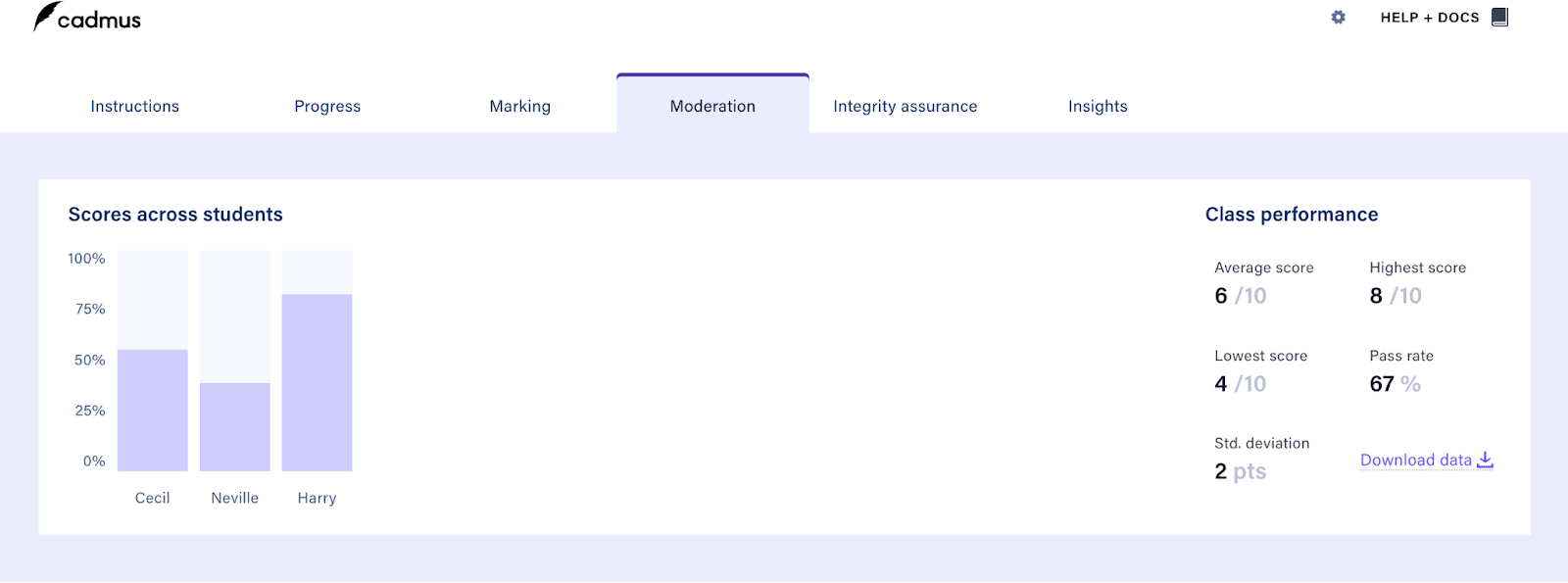
Similar class management features from the Marking tab are also available in this section for you to easily navigate across submissions by using filters and tags. You can sort the class (in ascending and descending order) by:
- Name
- Marking group (if any)
- Submission time
- Similarity score, and
- Grade
Submissions can be searched using student ID, email, or name from the search bar at the top. Clicking on the grade would redirect you to the grader selected for the assessment.
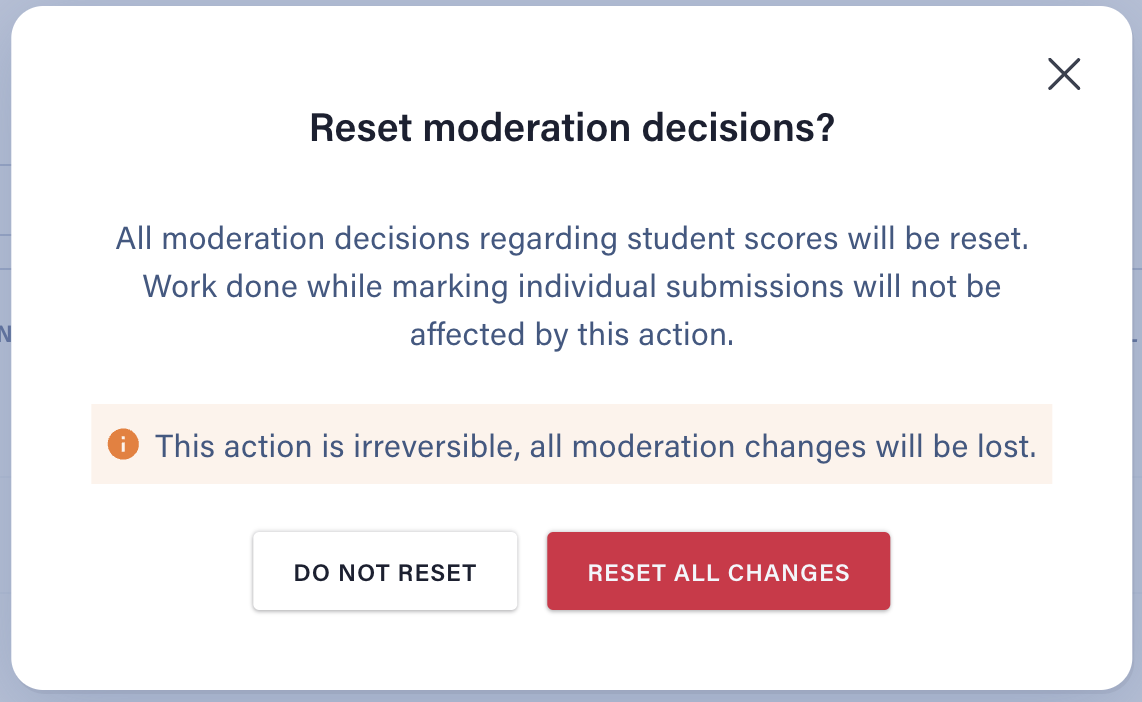
NOTE: The Reset All Changes button at the top will permanently reset all moderation decisions related to student scores. Selecting this button opens a confirmation box, and once confirmed, all moderation adjustments will be removed.
Edit Grades and Release Feedback
Once marking has been completed, teachers can use the Moderation tab to make final adjustments before releasing results to students.
Edit Grades
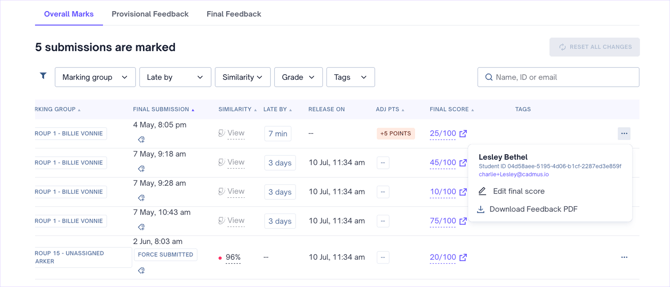
If teachers need to adjust a student's score, navigate to the Overall Marks tab, click Edit final score next to their grade. Any changes made during moderation will appear as "Adjusted Points" in the Student Scores table.
Release Feedback
When you're ready, click Release Feedback to publish feedback to students. Depending on the assessment setup, you can release either Provisional Feedback or Final Feedback.
Selective feedback release is also available if you only want to release feedback to some students. Any students not selected will remain unreleased until you're ready to publish their feedback later.
Note: Once Final Feedback has been released, grades become locked. If further changes are required, you'll first need to withdraw Final Feedback before making additional moderations.
Set Up Penalties
Click Set Up Penalties to apply penalties based on your assessment's submission conditions. Penalties can be applied to individual students or groups.
For detailed instructions, see: Managing Final Feedback Release and Penalties