---
title: Managing Final Feedback Release and Penalties
description: Releasing Feedback and Setting Up Penalties for Multi-Format Exams.
---
[Skip to content](https://support.cadmus.io/feedback-release-and-setting-up-penalties#main-content)
English
Show submenu for translations
[Contact Support](https://support.cadmus.io/kb-tickets/new?hsLang=en)
[![Cadmus Wordmark & Logo\_Master File\_Cadmus Icon\_Ink.png\]](https://support.cadmus.io/hs-fs/hubfs/Cadmus%20Wordmark%20%26%20Logo_Master%20File_Cadmus%20Icon_Ink.png?height=40&name=Cadmus%20Wordmark%20%26%20Logo_Master%20File_Cadmus%20Icon_Ink.png)](https://support.cadmus.io/?hsLang=en)
- [Cadmus](https://cadmus.io/)
- [Contact Support](https://support.cadmus.io/kb-tickets/new)
Open main navigation
Close main navigation
- [Cadmus](https://cadmus.io/)
- [Contact Support](https://support.cadmus.io/kb-tickets/new)
- English
Show submenu for translations
- [Contact Support](https://support.cadmus.io/kb-tickets/new)
What would you like to learn?
- There are no suggestions because the search field is empty.
1. [Cadmus Help Docs](https://support.cadmus.io/?hsLang=en)
2. [Teachers](https://support.cadmus.io/teachers?hsLang=en)
3. [Setting up assessments](https://support.cadmus.io/teachers?hsLang=en#setting-up-assessments)
# Managing Final Feedback Release and Penalties
Grades and feedback can now be released directly from the *Moderation* tab once multi-format exams have been marked. Final Feedback is pushed to the Learning Management System (LMS), while [Provisional Feedback](https://support.cadmus.io/provisional-feedback-release?hsLang=en) is only visible within Cadmus and can continue to be edited and re-released as needed.
This page will cover:
- [Releasing Feedback](https://support.cadmus.io/feedback-release-and-setting-up-penalties#Releasing-Feedback)
- [Setting Up Penalties](https://support.cadmus.io/feedback-release-and-setting-up-penalties#Setting-up-penalties)
- [Withdraw Final Feedback](https://support.cadmus.io/feedback-release-and-setting-up-penalties#Withdraw-final-feedback)
You can find a quick guide on Moderation and Feedback Release here:
### Releasing Feedback
To release the Final Feedback, follow these steps:
1. Navigate to the *Moderation* tab in your assessment.
2. Click the **Release feedback** button. This opens the window to select between the **Provisional Feedback** and **Final Feedback** options. Select **Final Feedback** and click **Next**.

3. Select one of the feedback visibility options: **Full Feedback** (answers, comments, and marks), **Answers and Comments Only**, or **Marks Only**.
To allow students to download feedback as a PDF or receive a notification when feedback is available, use the toggle next to each option.
For [group assignments](https://support.cadmus.io/intro-to-group-assessments?hsLang=en), use the toggle next to **Release individual work feedback separately** to set a different release date for individual feedback and group feedback.

4. In the next panel, choose whether to release feedback to the entire class or to a selected group.
If **Release now for everyone** is selected, feedback will be released immediately after clicking **Next**.
If **Release Selectively** is selected, you can choose to release feedback immediately or schedule it for a later date while withholding feedback from specific students or student groups.
To release feedback selectively:
- Select **Release Selectively**.
- Choose whether to **Release now** or **Schedule release**.
- Under the exclusion options, select the individual students or student tags whose feedback should be withheld from the release.
- Click **+ Add to schedule** if you'd like to create additional release schedules for different groups of students. Once your settings are configured, click **Release now** or **Save and Continue** to schedule the release
- If **Release now for everyone** is selected, grades and feedback will be published to all students. Click **Save and Continue**, then **Release**.

**NOTE**:
Once feedback has been released to any student in the class, class-wide moderation actions such as applying penalties or updating answers are no longer available.
If further moderation is needed, **feedback can be withdrawn** before continuing.
### **Setting Up Penalties**
1. Click the **Set-up Penalties** button in the *Moderation* tab to open a dashboard where rule-based penalties can be added for individual students or groups.
2. In the penalties dashboard, select the penalty type. Choose between applying penalties as points using the # icon or as a percentage of the total using the % icon.
If the **Late by more than** penalty type is selected, define the duration after which submissions will be penalised (in days, hours, or minutes), apply tags if needed, and set the points to be deducted for the delay.

3. If the **Other** penalty type is selected, add comments outlining the reason for the penalty, apply tags if needed, specify the students the penalty applies to, and set the points to be deducted.
An option is also available to exclude this penalty from being applied alongside other penalties. Use the **checkbox** at the bottom to enable this.

4. Use the **Edit** and **Delete** buttons at the top to revise or remove existing penalties.
Click **Add another penalty** to include additional penalties, or **Reset all penalties** to start over with new penalty rules.
### **Withdraw Final Feedback**
The **Provisional Feedback** and **Final Feedback** sections are available in the **Moderation** tab, but they’ll remain empty until feedback has been released.
Once feedback has been released, each section will show the students who have received that type of feedback, along with the release timestamp and relevant moderation details.
#### To withdraw feedback for a student
- Go to the **assessment page**.
- Open the **Moderation** tab.
- To withdraw final feedback, select the **Final Feedback** tab. For provisional feedback, select the **Provisional Feedback** tab.
- Click the **three-dot menu** next to the student’s name.
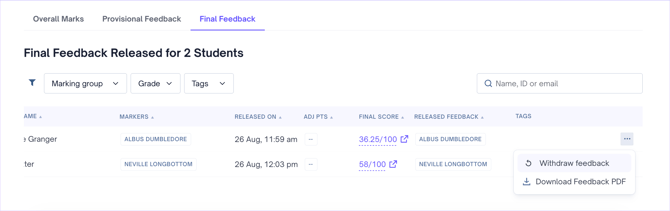
- A confirmation notification will appear. Select **Yes, Withdraw** to confirm.
#### To withdraw feedback in bulk
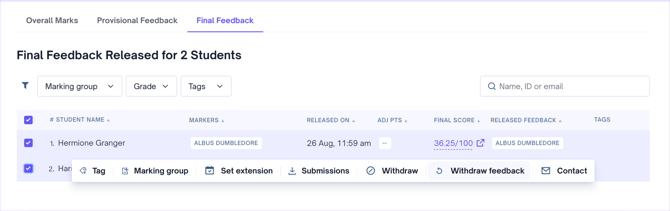
Select the students using the checkboxes on the left of their names, then click the **Final Feedback** option at the bottom of the page.
- [Teachers](https://support.cadmus.io/teachers?hsLang=en#main-content)
- [Introduction](https://support.cadmus.io/teachers?hsLang=en#introduction)
- [Setting up assessments](https://support.cadmus.io/teachers?hsLang=en#setting-up-assessments)
- [Managing your class](https://support.cadmus.io/teachers?hsLang=en#managing-your-class)
- [Turnitin + Cadmus](https://support.cadmus.io/teachers?hsLang=en#turnitin-cadmus)
- [Marking + feedback](https://support.cadmus.io/teachers?hsLang=en#marking-feedback)
- [Exams](https://support.cadmus.io/teachers?hsLang=en#exams)
- [Drafts](https://support.cadmus.io/teachers?hsLang=en#drafts)
- [Insights](https://support.cadmus.io/teachers?hsLang=en#insights)
- [Students working](https://support.cadmus.io/teachers?hsLang=en#students-working)
- [FAQs + Troubleshooting](https://support.cadmus.io/teachers?hsLang=en#faqs-troubleshooting)
- [Multi-format Assessments](https://support.cadmus.io/teachers?hsLang=en#multi-format-assessments)
- [Group Assessments](https://support.cadmus.io/teachers?hsLang=en#group-assessments)
- [Oral Assessments](https://support.cadmus.io/teachers?hsLang=en#oral-assessments)
- [Students](https://support.cadmus.io/students?hsLang=en#main-content)
- [Introduction](https://support.cadmus.io/students?hsLang=en#introduction)
- [Working in Cadmus](https://support.cadmus.io/students?hsLang=en#working-in-cadmus)
- [Submitting](https://support.cadmus.io/students?hsLang=en#submitting)
- [Grades + Feedback](https://support.cadmus.io/students?hsLang=en#grades-feedback)
- [Drafts](https://support.cadmus.io/students?hsLang=en#drafts)
- [FAQs + Troubleshooting](https://support.cadmus.io/students?hsLang=en#faqs-troubleshooting)
- [Multi-format Assessment](https://support.cadmus.io/students?hsLang=en#multi-format-assessment)
- [Group Assessments](https://support.cadmus.io/students?hsLang=en#group-assessments)
- [Oral Assessments](https://support.cadmus.io/students?hsLang=en#oral-assessments)
- [Admins](https://support.cadmus.io/admins?hsLang=en#main-content)
- [Integrations](https://support.cadmus.io/admins?hsLang=en#integrations)
- [Release Notes](https://support.cadmus.io/release-notes?hsLang=en)
- [Privacy Policy](https://support.cadmus.io/privacy-policy?hsLang=en)
- [Cadmus](https://cadmus.io/)
- [Video Tutorials](https://cadmus.io/video-tutorials/)
- [Contact Support](https://support.cadmus.io/kb-tickets/new)
- [System Status](https://cadmus.statuspage.io/)
[](http://cadmus.io)
Copyright © 2026, Cadmus
```json
{
"@context" : "https://schema.org",
"@type" : "VideoObject",
"caption" : {
"@type" : "MediaObject",
"contentUrl" : "https://support.cadmus.io/media-transcripts/221842628616/en.vtt",
"inLanguage" : "en",
"name" : "en Captions"
},
"contentUrl" : "https://5206287.fs1.hubspotusercontent-na1.net/hubfs/5206287/video_assets/221842628616/inherited/web_optimized.mp4",
"dateModified" : "2026-09-14T08:15:51.126Z",
"duration" : "PT4M3S",
"height" : 1014,
"name" : "Moderation and feedback release (1)",
"thumbnailUrl" : "https://5206287.fs1.hubspotusercontent-na1.net/hubfs/5206287/Moderation%20and%20feedback%20release%20(1).mp4/medium.jpg",
"uploadDate" : "2026-09-14T08:15:40.371Z",
"width" : 2044
}
```