---
title: Understanding the Student View of Video Response Questions
description: Learn how to answer a Video Response Question in an Oral Assessment
---
[Skip to content](https://support.cadmus.io/teachers/understanding-the-student-view-of-video-response-questions#main-content)
English
Show submenu for translations
[Contact Support](https://support.cadmus.io/kb-tickets/new?hsLang=en)
[![Cadmus Wordmark & Logo\_Master File\_Cadmus Icon\_Ink.png\]](https://support.cadmus.io/hs-fs/hubfs/Cadmus%20Wordmark%20%26%20Logo_Master%20File_Cadmus%20Icon_Ink.png?height=40&name=Cadmus%20Wordmark%20%26%20Logo_Master%20File_Cadmus%20Icon_Ink.png)](https://support.cadmus.io/?hsLang=en)
- [Cadmus](https://cadmus.io/)
- [Contact Support](https://support.cadmus.io/kb-tickets/new)
Open main navigation
Close main navigation
- [Cadmus](https://cadmus.io/)
- [Contact Support](https://support.cadmus.io/kb-tickets/new)
- English
Show submenu for translations
- [Contact Support](https://support.cadmus.io/kb-tickets/new)
What would you like to learn?
- There are no suggestions because the search field is empty.
1. [Cadmus Help Docs](https://support.cadmus.io/?hsLang=en)
2. [Teachers](https://support.cadmus.io/teachers?hsLang=en)
3. [Oral Assessments](https://support.cadmus.io/teachers?hsLang=en#oral-assessments)
# Understanding the Student View of Video Response Questions
## Below is a guide to how students experience the Video Response questions, starting with Device Check setup, all the way to saving their video.
When you add a Video Response question to an assessment, students move through a guided sequence: reading the prompt, preparing, recording, and (if needed) re-attempting and choosing the best recording, before finally submitting. Seeing this sequence from the student's side helps you write tighter prompts, set realistic time limits, and answer student questions before they come up.
This article will guide you through:
1. [What a student sees when a Video Response question opens](https://support.cadmus.io/teachers/understanding-the-student-view-of-video-response-questions#Header1)
2. [How preparation time works from the student's side](https://support.cadmus.io/teachers/understanding-the-student-view-of-video-response-questions#Header2)
3. [How students record and review their responses](https://support.cadmus.io/teachers/understanding-the-student-view-of-video-response-questions#Header-3)
4. [How attempts and re-attempts appear to students](https://support.cadmus.io/teachers/understanding-the-student-view-of-video-response-questions#Header-4)
### What does a student see when a Video Response question opens?
**Device Check**
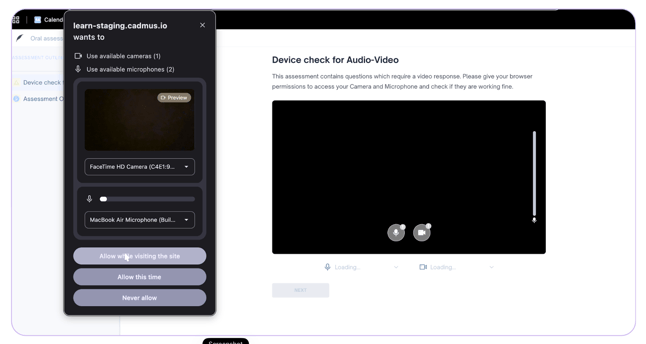
Students will receive a prompt to allow Cadmus to use their device's camera and audio. After clicking “Allow”, they will see:
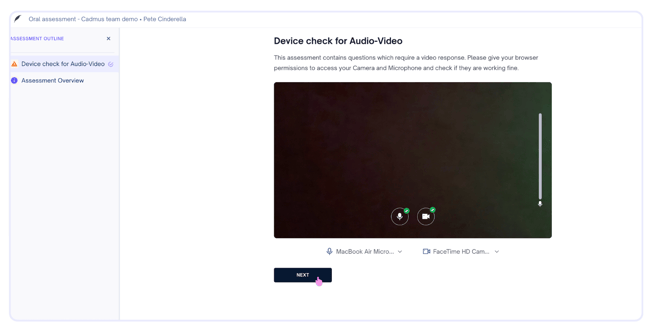
On the left-hand side you can see the Assessment outline. At this point, the Oral question prompt is not yet showing (still hidden).
If the device check is successful, the student will see a Green checklist similar to above, and they can click “Next” to proceed towards the questions.
**Tip:**
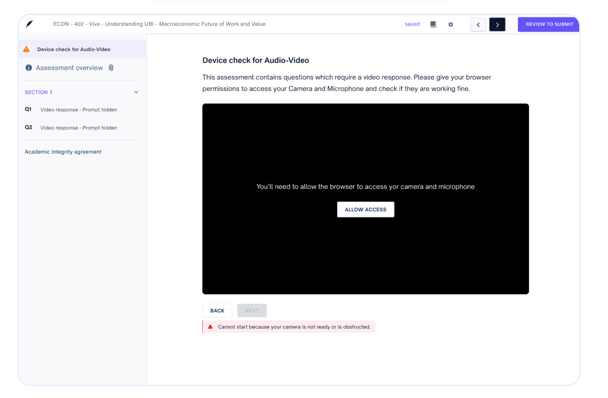
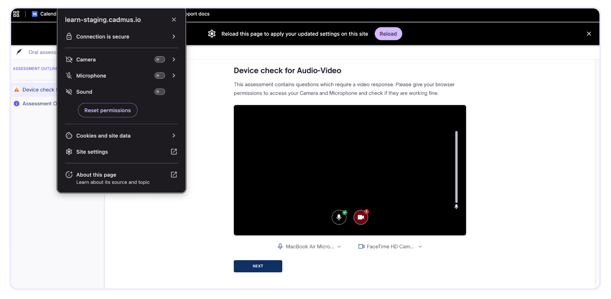
The above picture illustrates an event where the student did not grant access. In this case, they will need to:
- Click the **Settings Icon** (sliders in Chrome) at the far left of the address bar
- Toggle **Camera** and **Microphone** to **Allow**
- And then reload the page.
- An example can be found below:
### Viewing the Question
**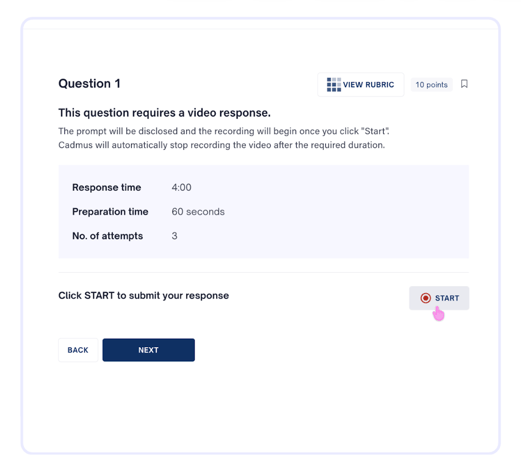**
At this stage, the question prompt is still hidden, but they can see:
- The required response time
- How long will they have to prepare
- And the number of attempts aligns with what is set in the Assessment settings.
- They can also move between questions (if [Backtracking](https://support.cadmus.io/teachers/no-backtracking?hsLang=en) is turned on)
- They can also bookmark the question and view the Rubric attached. Please note that students cannot see your marking rubric unless you've switched on **Show rubrics to students** in the assessment settings.
**Caution:** Students must click **Start** instead of **Next** as Next will transport them to the next question. If they accidentally pressed **Next** instead of **Start**, they will receive a warning that they’ve skipped a question.
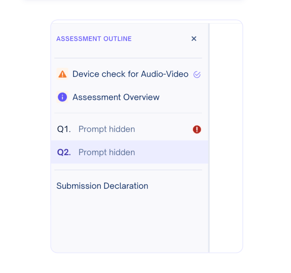
Students won't be able to see the question prompt until they click **Start**.
---
### How does preparation time work for students?
Once a student starts a question, they will be able to view the question prompt on the left hand side, and their Preparation time countdown begins.
**Preparation time** is the window you set to let students think and plan before recording.
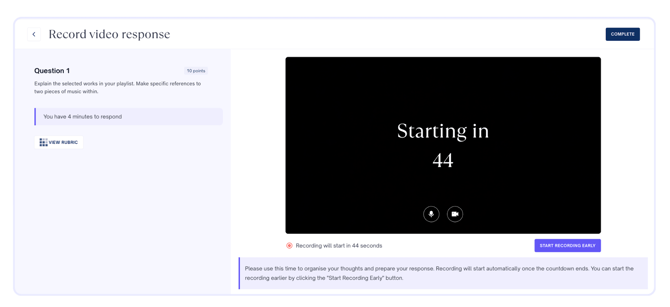
They can also opt to skip the countdown entirely by clicking “Start Recording Early”
**Note:** *Preparation time is separate from Reading Time, which covers the general assessment instructions rather than an individual question.*
---
### During the recording
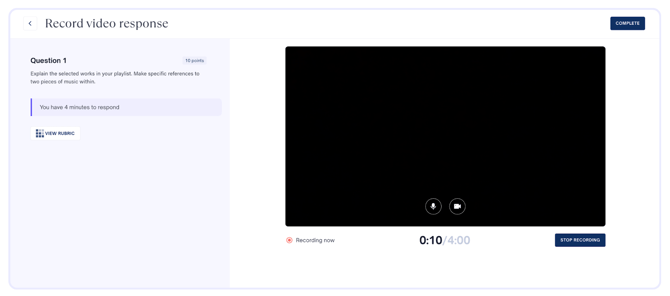
When the **Countdown runs out,** the recording automatically starts in the same Cadmus tab (no pop up)
Please note that:
- If you've enabled **Video mandatory**, students must keep their camera on for the full recording.
- They can click **Stop Recording** anytime before the timer runs out, and will receive the following confirmation screen:
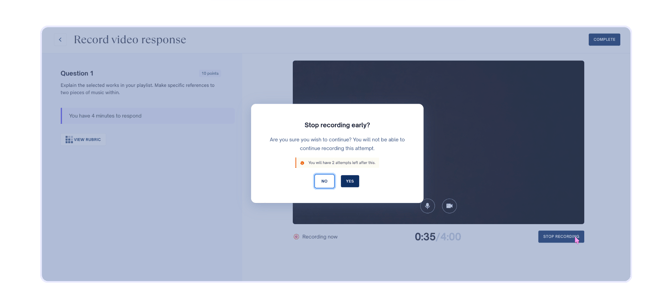
- Once confirmed, they receive a notification in the bottom right corner that their recording is saved, and have the option to rewatch their recorded video.
---
### Re-attempting the video
For each question, students are able to see how many **attempts** they have remaining.
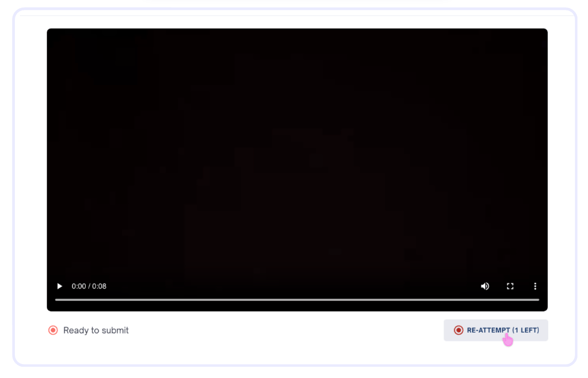
It’s worth noting that:
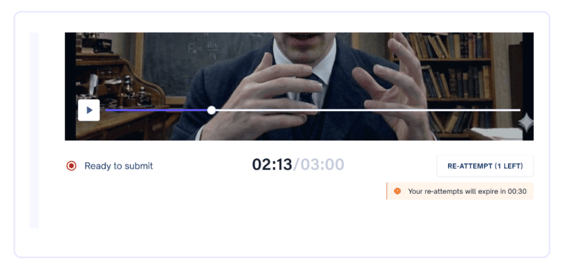
- If **Re-attempts will expire** are switched on in Assessment settings, students will see a countdown showing how long they have to start their next attempt before it expires. Example below:
- If **Backtracking** is disabled, students won't be able to return to a question they've already attempted or skipped — worth flagging in your instructions if your cohort tends to want to revisit answers.
- If the student logged multiple attempts, they'll be able to view their previous attempts before locking in their final selection. Please note that their latest recording is selected by default.
- From there, students can then proceed to the next question and submit their work as normal.
**In case a student still has attempts and time showing but can't start another one,** it's likely because there isn't enough time left in the assessment to complete a full Preparation + Response window. Check their remaining time against the assessment's Preparation and Response settings, and use Special Considerations to reset their assessment or grant extra time. See [Introduction to Oral Assessments](https://support.cadmus.io/teachers/introduction-to-oral-assessments?hsLang=en) for how to calculate this.
---
### After submission
If **Students will receive their submission PDF** is enabled, students can download a copy of their submission after finishing.
**Tip**: Consider linking to the student-facing guide, [How to Answer a Video Response Question](https://support.cadmus.io/students/how-to-answer-a-video-response-question?hsLang=en), in your course instructions so students know what to expect before the assessment opens.
- [Teachers](https://support.cadmus.io/teachers?hsLang=en#main-content)
- [Introduction](https://support.cadmus.io/teachers?hsLang=en#introduction)
- [Setting up assessments](https://support.cadmus.io/teachers?hsLang=en#setting-up-assessments)
- [Managing your class](https://support.cadmus.io/teachers?hsLang=en#managing-your-class)
- [Turnitin + Cadmus](https://support.cadmus.io/teachers?hsLang=en#turnitin-cadmus)
- [Marking + feedback](https://support.cadmus.io/teachers?hsLang=en#marking-feedback)
- [Exams](https://support.cadmus.io/teachers?hsLang=en#exams)
- [Drafts](https://support.cadmus.io/teachers?hsLang=en#drafts)
- [Insights](https://support.cadmus.io/teachers?hsLang=en#insights)
- [Students working](https://support.cadmus.io/teachers?hsLang=en#students-working)
- [FAQs + Troubleshooting](https://support.cadmus.io/teachers?hsLang=en#faqs-troubleshooting)
- [Multi-format Assessments](https://support.cadmus.io/teachers?hsLang=en#multi-format-assessments)
- [Group Assessments](https://support.cadmus.io/teachers?hsLang=en#group-assessments)
- [Oral Assessments](https://support.cadmus.io/teachers?hsLang=en#oral-assessments)
- [Students](https://support.cadmus.io/students?hsLang=en#main-content)
- [Introduction](https://support.cadmus.io/students?hsLang=en#introduction)
- [Working in Cadmus](https://support.cadmus.io/students?hsLang=en#working-in-cadmus)
- [Submitting](https://support.cadmus.io/students?hsLang=en#submitting)
- [Grades + Feedback](https://support.cadmus.io/students?hsLang=en#grades-feedback)
- [Drafts](https://support.cadmus.io/students?hsLang=en#drafts)
- [FAQs + Troubleshooting](https://support.cadmus.io/students?hsLang=en#faqs-troubleshooting)
- [Multi-format Assessment](https://support.cadmus.io/students?hsLang=en#multi-format-assessment)
- [Group Assessments](https://support.cadmus.io/students?hsLang=en#group-assessments)
- [Oral Assessments](https://support.cadmus.io/students?hsLang=en#oral-assessments)
- [Admins](https://support.cadmus.io/admins?hsLang=en#main-content)
- [Integrations](https://support.cadmus.io/admins?hsLang=en#integrations)
- [Release Notes](https://support.cadmus.io/release-notes?hsLang=en)
- [Privacy Policy](https://support.cadmus.io/privacy-policy?hsLang=en)
- [Cadmus](https://cadmus.io/)
- [Video Tutorials](https://cadmus.io/video-tutorials/)
- [Contact Support](https://support.cadmus.io/kb-tickets/new)
- [System Status](https://cadmus.statuspage.io/)
[](http://cadmus.io)
Copyright © 2026, Cadmus