---
title: Smart Comments
description: This guide walks through how to add Smart Comments in Cadmus and how to use them to manage feedback for assignments and exams more efficiently.
---
[Skip to content](https://support.cadmus.io/teachers/smart-comments#main-content)
English
Show submenu for translations
[Contact Support](https://support.cadmus.io/kb-tickets/new?hsLang=en)
[![Cadmus Wordmark & Logo\_Master File\_Cadmus Icon\_Ink.png\]](https://support.cadmus.io/hs-fs/hubfs/Cadmus%20Wordmark%20%26%20Logo_Master%20File_Cadmus%20Icon_Ink.png?height=40&name=Cadmus%20Wordmark%20%26%20Logo_Master%20File_Cadmus%20Icon_Ink.png)](https://support.cadmus.io/?hsLang=en)
- [Cadmus](https://cadmus.io/)
- [Contact Support](https://support.cadmus.io/kb-tickets/new)
Open main navigation
Close main navigation
- [Cadmus](https://cadmus.io/)
- [Contact Support](https://support.cadmus.io/kb-tickets/new)
- English
Show submenu for translations
- [Contact Support](https://support.cadmus.io/kb-tickets/new)
What would you like to learn?
- There are no suggestions because the search field is empty.
1. [Cadmus Help Docs](https://support.cadmus.io/?hsLang=en)
2. [Teachers](https://support.cadmus.io/teachers?hsLang=en)
3. [Marking + feedback](https://support.cadmus.io/teachers?hsLang=en#marking-feedback)
# Smart Comments
## This guide walks through how to add Smart Comments in Cadmus and how to use them to manage feedback for assignments and exams more efficiently.
With smart comments, teachers can now save and reuse frequently used comments while marking and giving feedback on student submissions.
In this guide, we’ll cover how to:
1. [Add and use smart comments](https://support.cadmus.io/teachers/smart-comments#add)
2. [Use smart suggestions](https://support.cadmus.io/teachers/smart-comments#smart)
3. [Edit a smart comment before adding it as feedback](https://support.cadmus.io/teachers/smart-comments#edit)
4. [Browse the smart comment library](https://support.cadmus.io/teachers/smart-comments#browse)
Add and use smart comments
To add a comment to the Smart Comments library, click **Convert to smart comment** in the *Marking* tab or next to a comment in the *Expanded Rubric* view. A smart comment icon will appear once the comment has been added.

Click on the three dots next to the comment and click the **Not a smart comment** option in a case where you accidentally added it to the smart comment library.

Please note that you can only add a comment as a smart comment after marking the student via the rubric. Smart comments are only available under specific rubric criteria, as each smart comment is linked to the scale item it was added under.

#### Use smart suggestions
The smart comments you add are automatically suggested when you use the same scale item under a criterion. Click on the suggestion pill to add the suggested comment as feedback. Any suggested comments added as feedback will have the smart comment icon next to them.
Any added smart comment linked to a criterion will be available for grading in the same assessment and for all assessments that use the same criteria. In a case where a criterion uses different scales in different assessments, only those smart comments that fall under the % score equivalent of the previously used scale will be visible and available to use.

#### Edit a smart comment before adding it as feedback
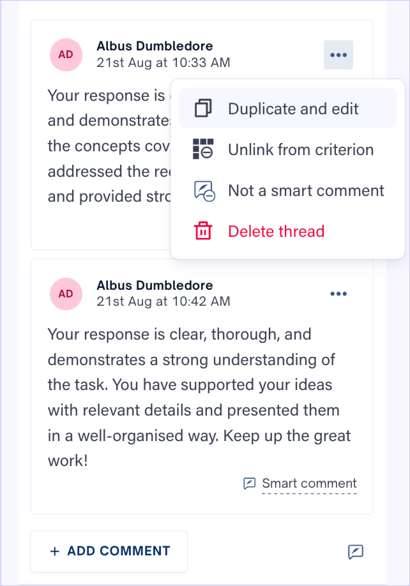
#### To use the content from a previously used smart comment, you can add, duplicate and edit it as per your convenience, and add it as student feedback by clicking on the ellipsis next to the comment. Note that any duplicated and edited smart comments don’t automatically get added to the library. They appear as normal feedback comments and can be converted into a smart comment.
#### Browse the smart comment library
Click the **Smart Comments icon** next to **Add Comment** under a criterion in the *Marking* tab to browse the Smart Comments library. You can switch between *Recommended* and *All* comments. Each comment shows its linked criterion, scale score, and last used date.
**Note**: Smart Comments are linked to the criterion from which you opened the library. Smart Comments cannot be browsed from the Expanded Rubric view.
To find previously used comments, use the search bar or filters to filter by criterion or assessment. Select a comment and click **Use** to include it in the student’s feedback. Click the **down arrow** next to a comment to view additional details, such as its author, creation date, and usage count. If you created the comment, you’ll also see options to edit or delete it (see below).

#### Edit and delete smart comments in the library
You can edit or delete smart comments you’ve created from the Browse smart comments window in the Marking tab.
To edit a smart comment
1. Click the **Smart Comments icon** next to *Add Comment* under a criterion.
2. Click the down arrow next to your comment to expand it.
3. Click the pencil icon, update the wording, then click the tick to save. Click the X to cancel.
To delete a smart comment
1. Expand your comment, then click the **bin** icon.
2. Click **Delete** in the confirmation window.
**Note**: Deleting a smart comment removes it from the library for everyone marking with that criterion. Feedback you’ve already left on student work isn’t affected.
- [Teachers](https://support.cadmus.io/teachers?hsLang=en#main-content)
- [Introduction](https://support.cadmus.io/teachers?hsLang=en#introduction)
- [Setting up assessments](https://support.cadmus.io/teachers?hsLang=en#setting-up-assessments)
- [Managing your class](https://support.cadmus.io/teachers?hsLang=en#managing-your-class)
- [Turnitin + Cadmus](https://support.cadmus.io/teachers?hsLang=en#turnitin-cadmus)
- [Marking + feedback](https://support.cadmus.io/teachers?hsLang=en#marking-feedback)
- [Exams](https://support.cadmus.io/teachers?hsLang=en#exams)
- [Drafts](https://support.cadmus.io/teachers?hsLang=en#drafts)
- [Insights](https://support.cadmus.io/teachers?hsLang=en#insights)
- [Students working](https://support.cadmus.io/teachers?hsLang=en#students-working)
- [FAQs + Troubleshooting](https://support.cadmus.io/teachers?hsLang=en#faqs-troubleshooting)
- [Multi-format Assessments](https://support.cadmus.io/teachers?hsLang=en#multi-format-assessments)
- [Group Assessments](https://support.cadmus.io/teachers?hsLang=en#group-assessments)
- [Oral Assessments](https://support.cadmus.io/teachers?hsLang=en#oral-assessments)
- [Students](https://support.cadmus.io/students?hsLang=en#main-content)
- [Introduction](https://support.cadmus.io/students?hsLang=en#introduction)
- [Working in Cadmus](https://support.cadmus.io/students?hsLang=en#working-in-cadmus)
- [Submitting](https://support.cadmus.io/students?hsLang=en#submitting)
- [Grades + Feedback](https://support.cadmus.io/students?hsLang=en#grades-feedback)
- [Drafts](https://support.cadmus.io/students?hsLang=en#drafts)
- [FAQs + Troubleshooting](https://support.cadmus.io/students?hsLang=en#faqs-troubleshooting)
- [Multi-format Assessment](https://support.cadmus.io/students?hsLang=en#multi-format-assessment)
- [Group Assessments](https://support.cadmus.io/students?hsLang=en#group-assessments)
- [Oral Assessments](https://support.cadmus.io/students?hsLang=en#oral-assessments)
- [Admins](https://support.cadmus.io/admins?hsLang=en#main-content)
- [Integrations](https://support.cadmus.io/admins?hsLang=en#integrations)
- [Release Notes](https://support.cadmus.io/release-notes?hsLang=en)
- [Privacy Policy](https://support.cadmus.io/privacy-policy?hsLang=en)
- [Cadmus](https://cadmus.io/)
- [Video Tutorials](https://cadmus.io/video-tutorials/)
- [Contact Support](https://support.cadmus.io/kb-tickets/new)
- [System Status](https://cadmus.statuspage.io/)
[](http://cadmus.io)
Copyright © 2026, Cadmus