---
title: Question Type - Short answer
description: Short answer questions enable you to create a question where students provide a short written response. Short answer questions are automatically marked against the correct short answer responses p
---
[Skip to content](https://support.cadmus.io/teachers/question-type-short-answer#main-content)
English
Show submenu for translations
[Contact Support](https://support.cadmus.io/kb-tickets/new?hsLang=en)
[![Cadmus Wordmark & Logo\_Master File\_Cadmus Icon\_Ink.png\]](https://support.cadmus.io/hs-fs/hubfs/Cadmus%20Wordmark%20%26%20Logo_Master%20File_Cadmus%20Icon_Ink.png?height=40&name=Cadmus%20Wordmark%20%26%20Logo_Master%20File_Cadmus%20Icon_Ink.png)](https://support.cadmus.io/?hsLang=en)
- [Cadmus](https://cadmus.io/)
- [Contact Support](https://support.cadmus.io/kb-tickets/new)
Open main navigation
Close main navigation
- [Cadmus](https://cadmus.io/)
- [Contact Support](https://support.cadmus.io/kb-tickets/new)
- English
Show submenu for translations
- [Contact Support](https://support.cadmus.io/kb-tickets/new)
What would you like to learn?
- There are no suggestions because the search field is empty.
1. [Cadmus Help Docs](https://support.cadmus.io/?hsLang=en)
2. [Teachers](https://support.cadmus.io/teachers?hsLang=en)
3. [Multi-format Assessments](https://support.cadmus.io/teachers?hsLang=en#multi-format-assessments)
# Question Type - Short answer
Short answer questions enable you to create a question where students provide a short written response. Short answer questions are automatically marked against the correct short answer responses provided.
### Creating a short answer question
There are two ways to add a short answer question.
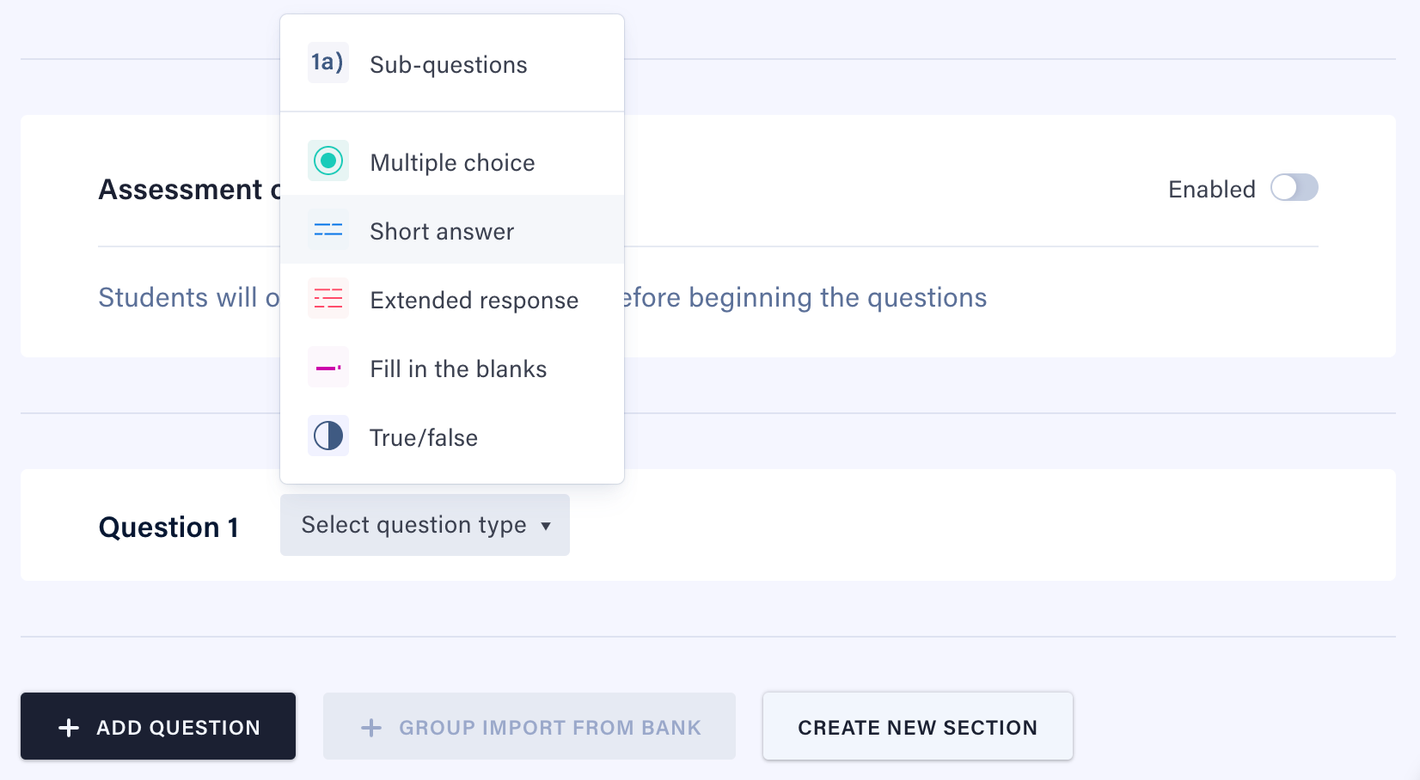
In a blank assessment:
1. Click **Select question type**.
2. Select **Short answer** from the list.
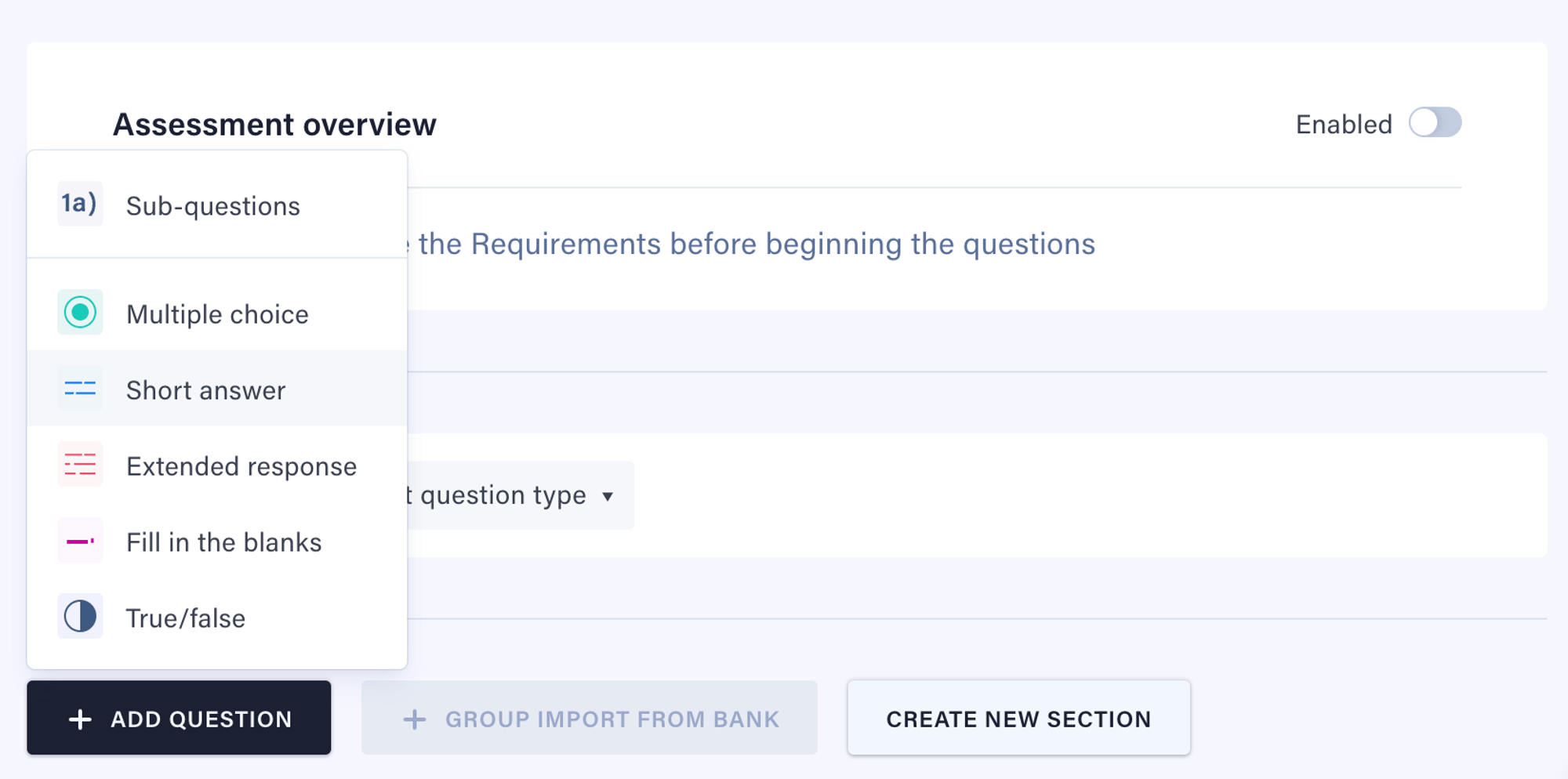
Adding a new short answer question:
1. On the *Action bar, c*lick on **Add Question**.
2. Select **Short answer** from the list.
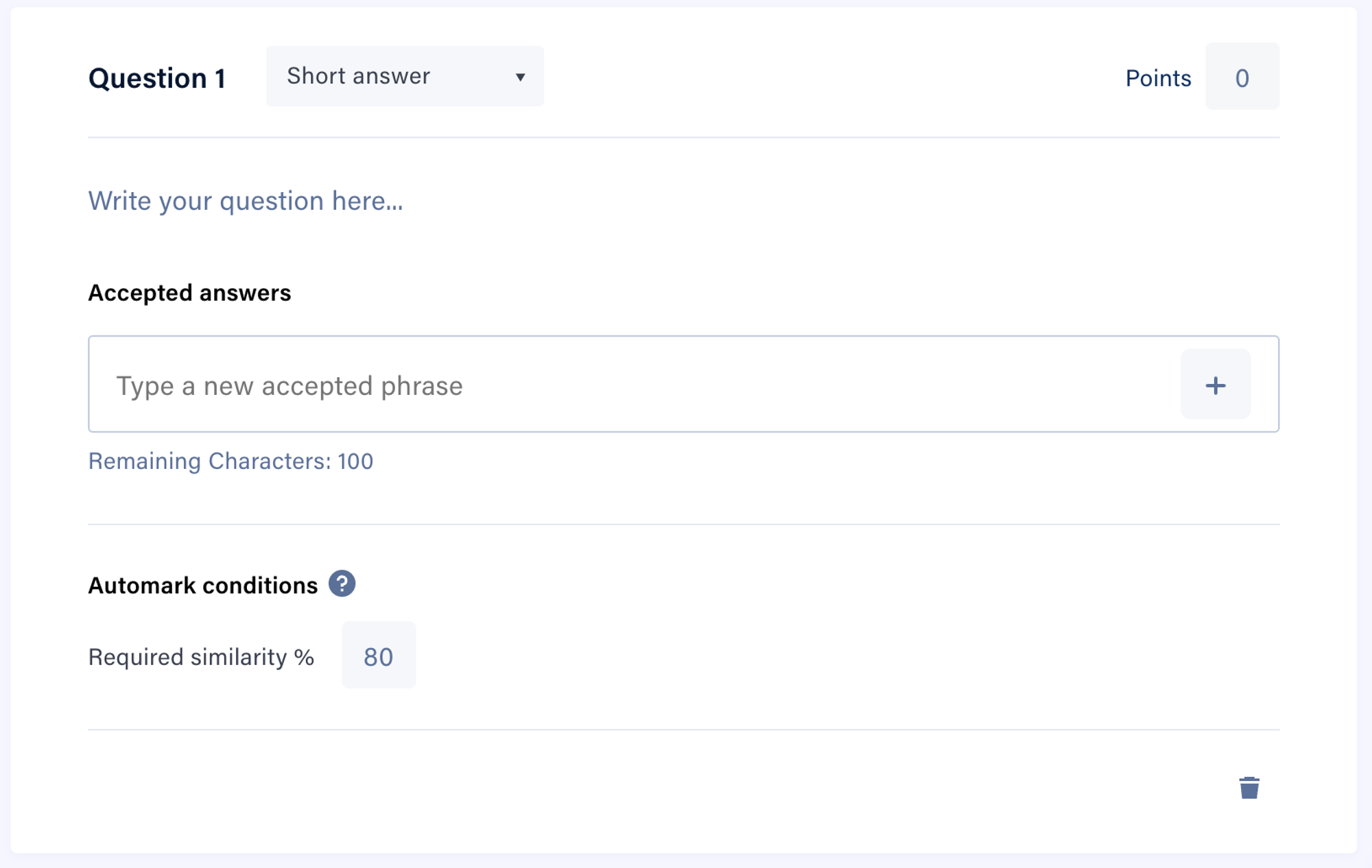
Once complete, you will see an empty short answer question block and can begin constructing your question.
### Required fields
To set up your short answer question, you will need to complete the required fields.
To set the required fields:
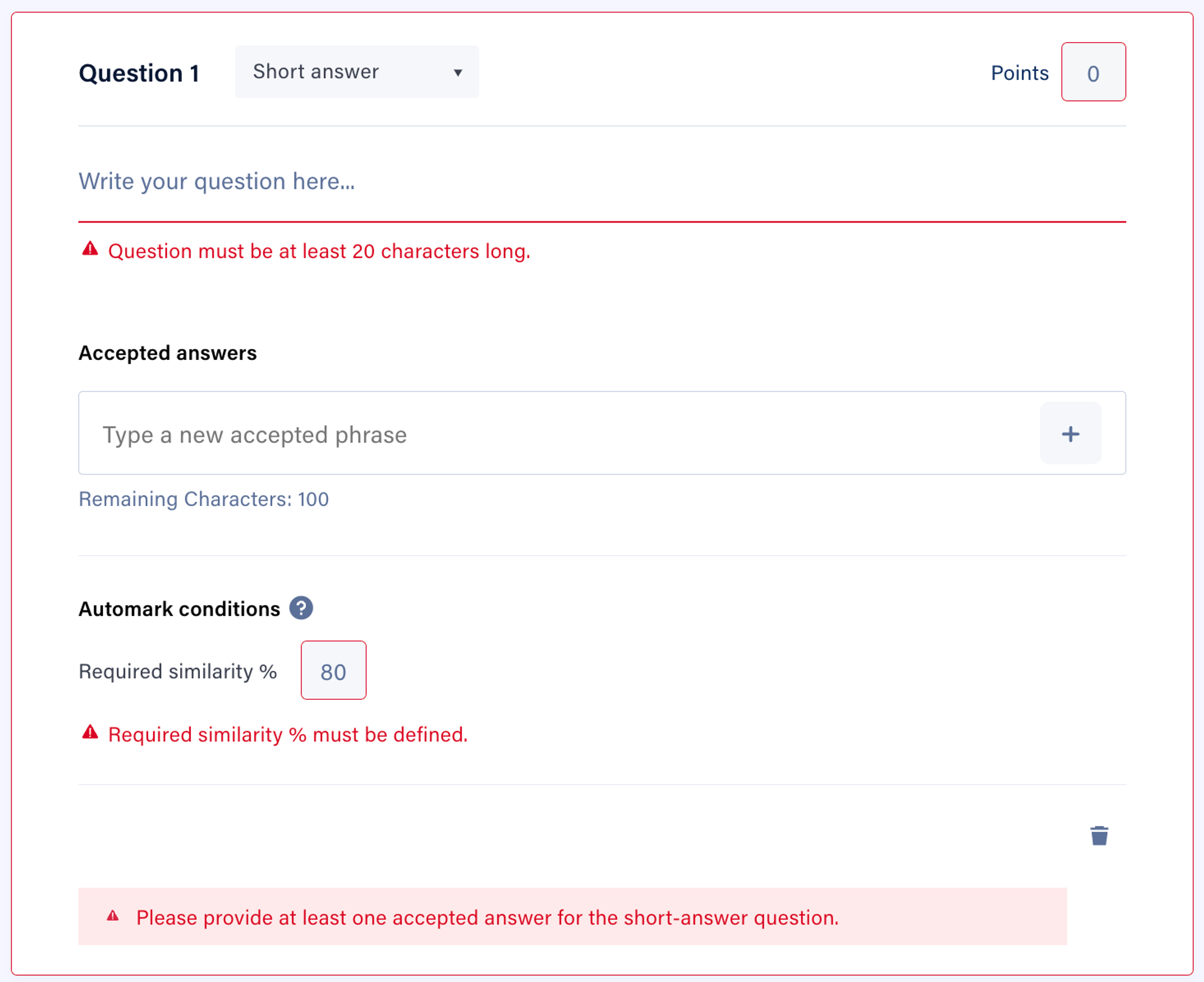
1. Click on **Write your question here** and enter your question. Note that the question must be at least 20 characters in length.
2. Click on **Points** to set the number of points allocated to the question. Note that this cannot be zero.
3. Click **Accepted answers** to set an answer option. Note that at least one answer option will need to be provided.
4. Enter the **Required similarity %**. For more information about the similarity %, please refer to the ["Similarity Score" section](https://support.cadmus.io/teachers/question-type-short-answer#Similarity_Score).
If any of these required fields are missing, you will see corresponding error messages.
#### Similarity Score
1\. A similarity score is calculated by Cadmus to match a student response against accepted answers specified in the assessment.
2\. Cadmus calculates a percentage of similarity that indicates the close-ness of the student response to the accepted answer.
3\. Teachers can set a required similarity percentage for FITB and short answer questions. This is set to 80% by default.
4\. When the required similarity is higher, student responses would need to be more exact matches to accepted answers. The minimum value for this is 50%, as anything lower is not close enough for a student response to be marked "correct".
5\. All responses that match or exceed the required similarity are considered correct and auto-marked accordingly.
6\. This matching is not case sensitive and works effectively up to 100 characters for short answers.
### Setting the correct answers
Once the required fields have been set, you must provide some accepted answers to the short answer question. Click the **+ button** to mark the option as an accepted answer.These accepted answers are used for auto-marking.
To set the correct answers:
1. Click the *Accepted answers* input, and type in an accepted answer.
1. If a correct answer is not set, you will see an error *Please provide at least one accepted answer for the short-answer question*.
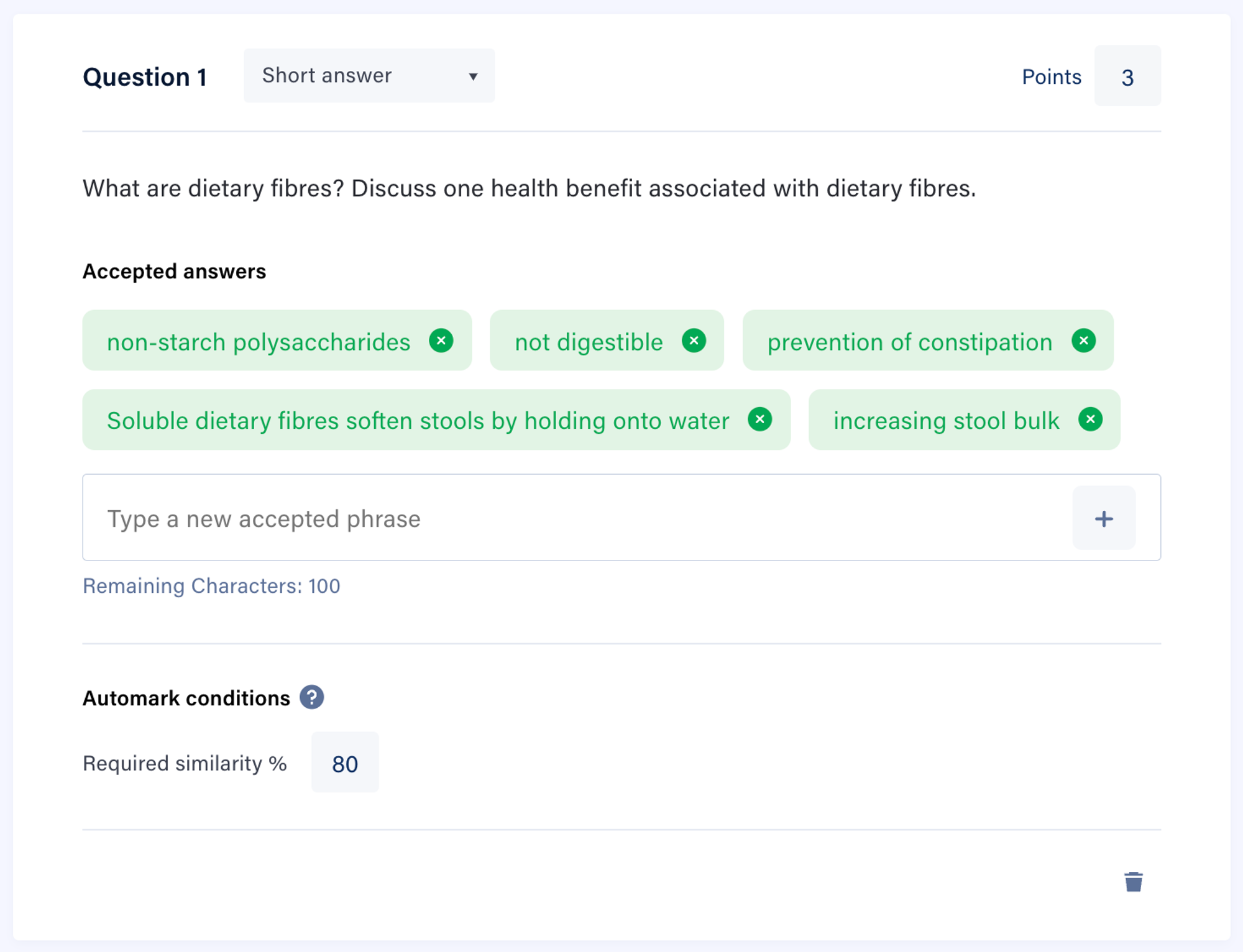
2. Once selected, you will see this option marked as a correct answer.
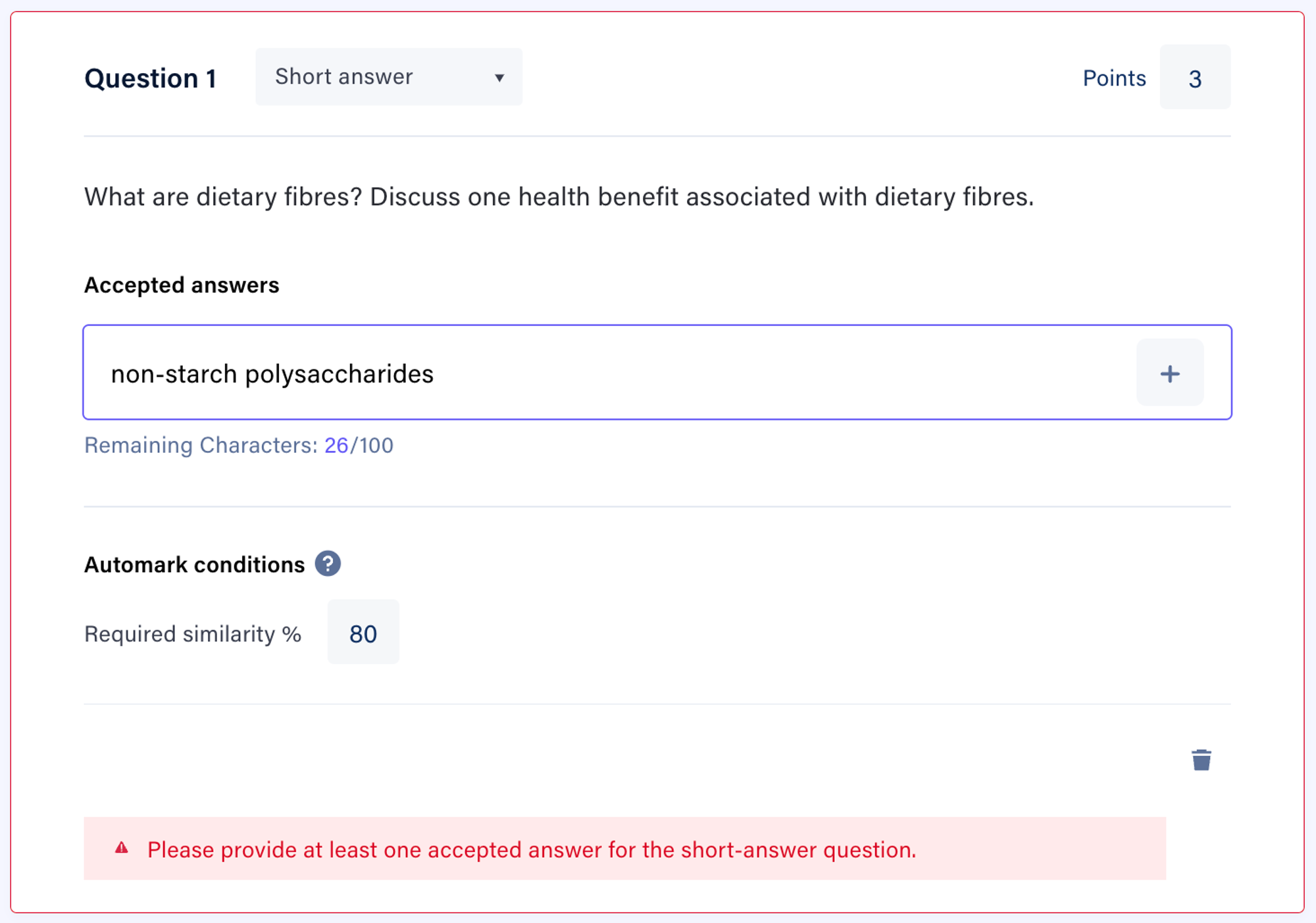
3\. To add another correct answer, click the **+ button** and repeat Step 1.
### Removing accepted answers
Once you have created your question and answer options, you may wish to remove an accepted answer from the options you have set.
To remove an accepted answer:
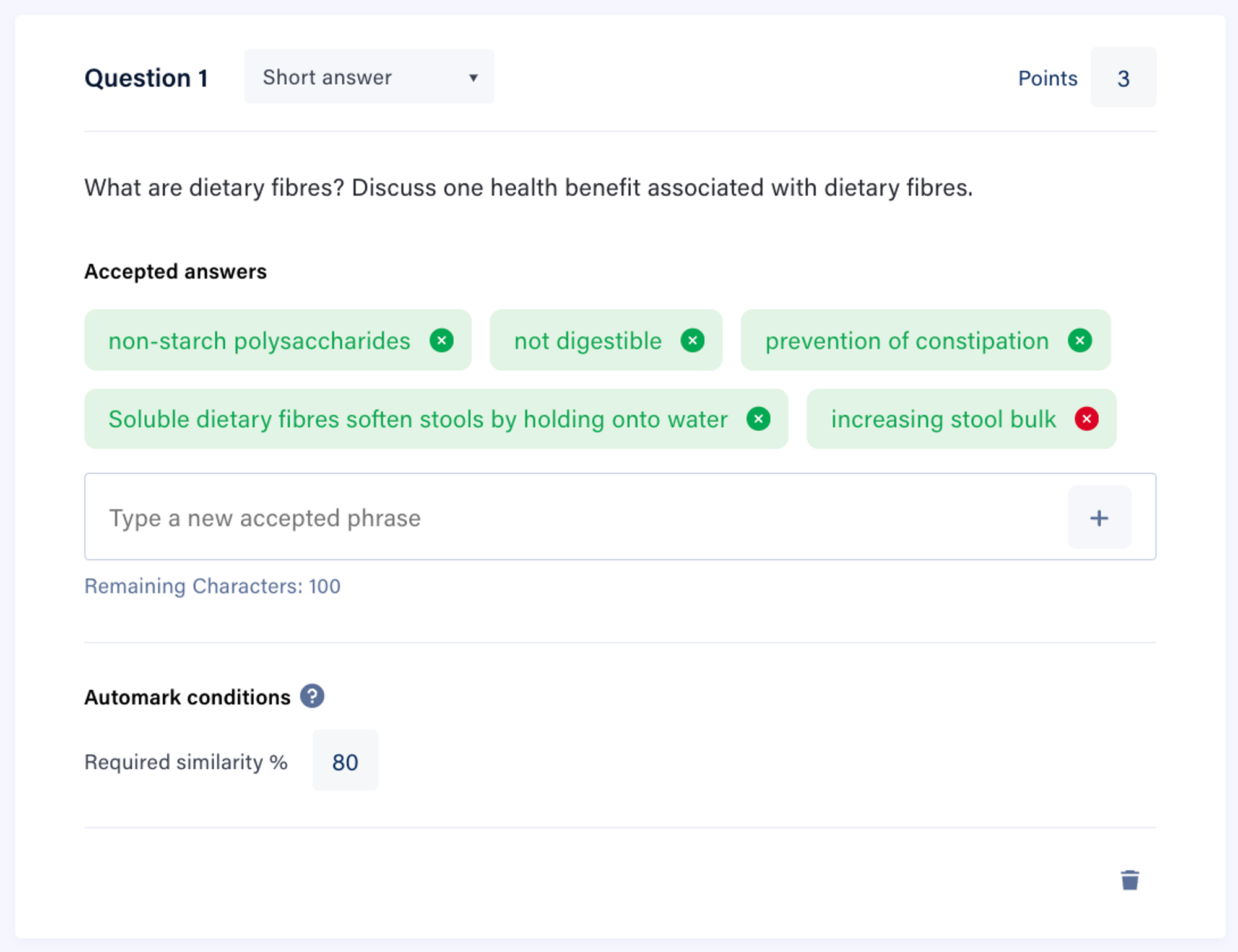
1. Hover over the **X** next to the option, which will turn red.
2. Click on the **X** next to the option.
### Contextual Automarking
Open-ended student responses for Short Answer type questions can be graded using AI-enabled contextual auto-marking with improved speed, accuracy, and consistency.
To use contextual auto-marking:
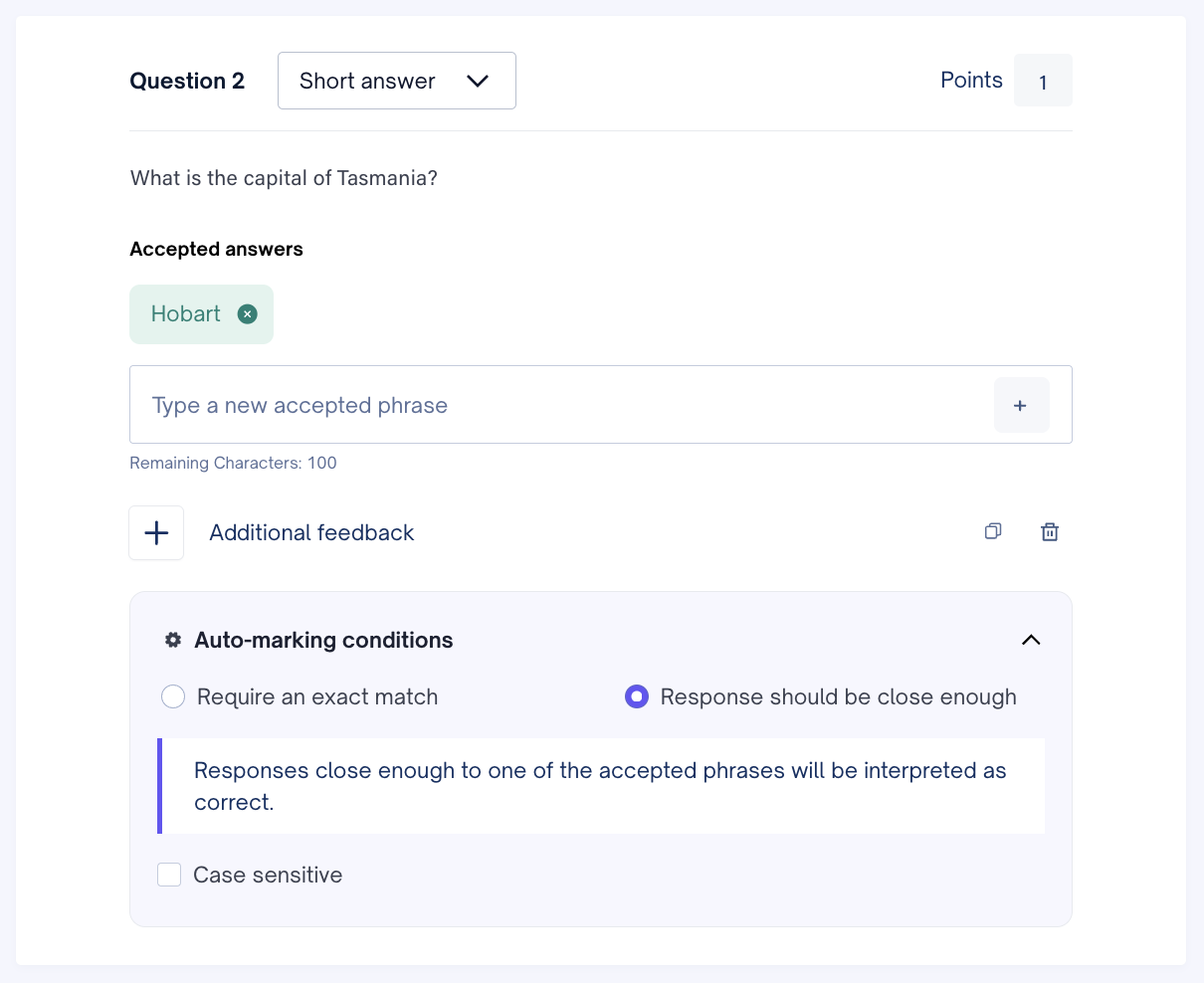
1\. Click the dropdown arrow next to the **Auto-marking conditions**. There will be two options available to match according to the marking style and assessment goals.
2\. If **Require an exact Match** option is selected, only those student responses that are an exact match (including the spelling) to the answer or one of the answer phrases will be interpreted as correct.
In this case, the student’s answer must match the correct answer provided, including spelling, punctuation, and phrasing. This condition is best suited for questions where precision is critical, such as definitions, terminology, formulas, or dates.
3\. If **Responses should be close enough** option is selected, student responses close enough to the answer or one of the accepted phrases will be interpreted as correct.
In this case, the AI will accept answers similar in meaning to the correct answer, even if they're phrased differently. It uses natural language understanding to detect if the student has conveyed the same core idea. This is ideal for open-ended or conceptual responses.
NOTE: Case sensitivity can be switched on only for **Require an exact Match** option. This option will be blocked out for **Responses should be close enough** option.
TIP: 1. If in doubt, choose **Response should be close enough** option for conceptual learning and **Require an exact match** option for memorisation or definitions. You can always review and adjust AI-generated marks before finalising.
2\. To improve the grading accuracy for Short Answer Questions, enter complete sentences for the Accepted Answer instead of phrases and encourage students to answer with full sentences.
- [Teachers](https://support.cadmus.io/teachers?hsLang=en#main-content)
- [Introduction](https://support.cadmus.io/teachers?hsLang=en#introduction)
- [Setting up assessments](https://support.cadmus.io/teachers?hsLang=en#setting-up-assessments)
- [Managing your class](https://support.cadmus.io/teachers?hsLang=en#managing-your-class)
- [Turnitin + Cadmus](https://support.cadmus.io/teachers?hsLang=en#turnitin-cadmus)
- [Marking + feedback](https://support.cadmus.io/teachers?hsLang=en#marking-feedback)
- [Exams](https://support.cadmus.io/teachers?hsLang=en#exams)
- [Drafts](https://support.cadmus.io/teachers?hsLang=en#drafts)
- [Insights](https://support.cadmus.io/teachers?hsLang=en#insights)
- [Students working](https://support.cadmus.io/teachers?hsLang=en#students-working)
- [FAQs + Troubleshooting](https://support.cadmus.io/teachers?hsLang=en#faqs-troubleshooting)
- [Multi-format Assessments](https://support.cadmus.io/teachers?hsLang=en#multi-format-assessments)
- [Group Assessments](https://support.cadmus.io/teachers?hsLang=en#group-assessments)
- [Oral Assessments](https://support.cadmus.io/teachers?hsLang=en#oral-assessments)
- [Students](https://support.cadmus.io/students?hsLang=en#main-content)
- [Introduction](https://support.cadmus.io/students?hsLang=en#introduction)
- [Working in Cadmus](https://support.cadmus.io/students?hsLang=en#working-in-cadmus)
- [Submitting](https://support.cadmus.io/students?hsLang=en#submitting)
- [Grades + Feedback](https://support.cadmus.io/students?hsLang=en#grades-feedback)
- [Drafts](https://support.cadmus.io/students?hsLang=en#drafts)
- [FAQs + Troubleshooting](https://support.cadmus.io/students?hsLang=en#faqs-troubleshooting)
- [Multi-format Assessment](https://support.cadmus.io/students?hsLang=en#multi-format-assessment)
- [Group Assessments](https://support.cadmus.io/students?hsLang=en#group-assessments)
- [Oral Assessments](https://support.cadmus.io/students?hsLang=en#oral-assessments)
- [Admins](https://support.cadmus.io/admins?hsLang=en#main-content)
- [Integrations](https://support.cadmus.io/admins?hsLang=en#integrations)
- [Release Notes](https://support.cadmus.io/release-notes?hsLang=en)
- [Privacy Policy](https://support.cadmus.io/privacy-policy?hsLang=en)
- [Cadmus](https://cadmus.io/)
- [Video Tutorials](https://cadmus.io/video-tutorials/)
- [Contact Support](https://support.cadmus.io/kb-tickets/new)
- [System Status](https://cadmus.statuspage.io/)
[](http://cadmus.io)
Copyright © 2026, Cadmus
```json
{
"@context" : "https://schema.org",
"@type" : "VideoObject",
"caption" : {
"@type" : "MediaObject",
"contentUrl" : "https://support.cadmus.io/media-transcripts/164966707236/en.vtt",
"inLanguage" : "en",
"name" : "en Captions"
},
"contentUrl" : "https://5206287.fs1.hubspotusercontent-na1.net/hubfs/5206287/SAQ_teacher_MFA.mp4",
"dateModified" : "2026-03-11T03:47:56.097Z",
"duration" : "PT1M56.3S",
"height" : 720,
"name" : "SAQ_teacher_MFA",
"thumbnailUrl" : "https://5206287.fs1.hubspotusercontent-na1.net/hubfs/5206287/SAQ_teacher_MFA.mp4/medium.jpg",
"uploadDate" : "2024-04-19T11:14:52.285Z",
"width" : 1280
}
```