---
title: Question Type - Numerical
description: Numerical questions allow you to set questions where only specific numbers or a range of numbers are accepted as answers. These questions are automatically graded based on the correct numerical values
---
[Skip to content](https://support.cadmus.io/teachers/question-type-numerical#main-content)
English
Show submenu for translations
[Contact Support](https://support.cadmus.io/kb-tickets/new?hsLang=en)
[![Cadmus Wordmark & Logo\_Master File\_Cadmus Icon\_Ink.png\]](https://support.cadmus.io/hs-fs/hubfs/Cadmus%20Wordmark%20%26%20Logo_Master%20File_Cadmus%20Icon_Ink.png?height=40&name=Cadmus%20Wordmark%20%26%20Logo_Master%20File_Cadmus%20Icon_Ink.png)](https://support.cadmus.io/?hsLang=en)
- [Cadmus](https://cadmus.io/)
- [Contact Support](https://support.cadmus.io/kb-tickets/new)
Open main navigation
Close main navigation
- [Cadmus](https://cadmus.io/)
- [Contact Support](https://support.cadmus.io/kb-tickets/new)
- English
Show submenu for translations
- [Contact Support](https://support.cadmus.io/kb-tickets/new)
What would you like to learn?
- There are no suggestions because the search field is empty.
1. [Cadmus Help Docs](https://support.cadmus.io/?hsLang=en)
2. [Teachers](https://support.cadmus.io/teachers?hsLang=en)
3. [Multi-format Assessments](https://support.cadmus.io/teachers?hsLang=en#multi-format-assessments)
# Question Type - Numerical
Numerical questions allow you to set questions where only specific numbers or a range of numbers are accepted as answers. These questions are automatically graded based on the correct numerical values added as accepted answers.
### **Creating a Numerical question**
There are two ways to add a numerical question.
In a blank assessment:
1. Click **Select question type**.
2. Select **Numerical** from the list.
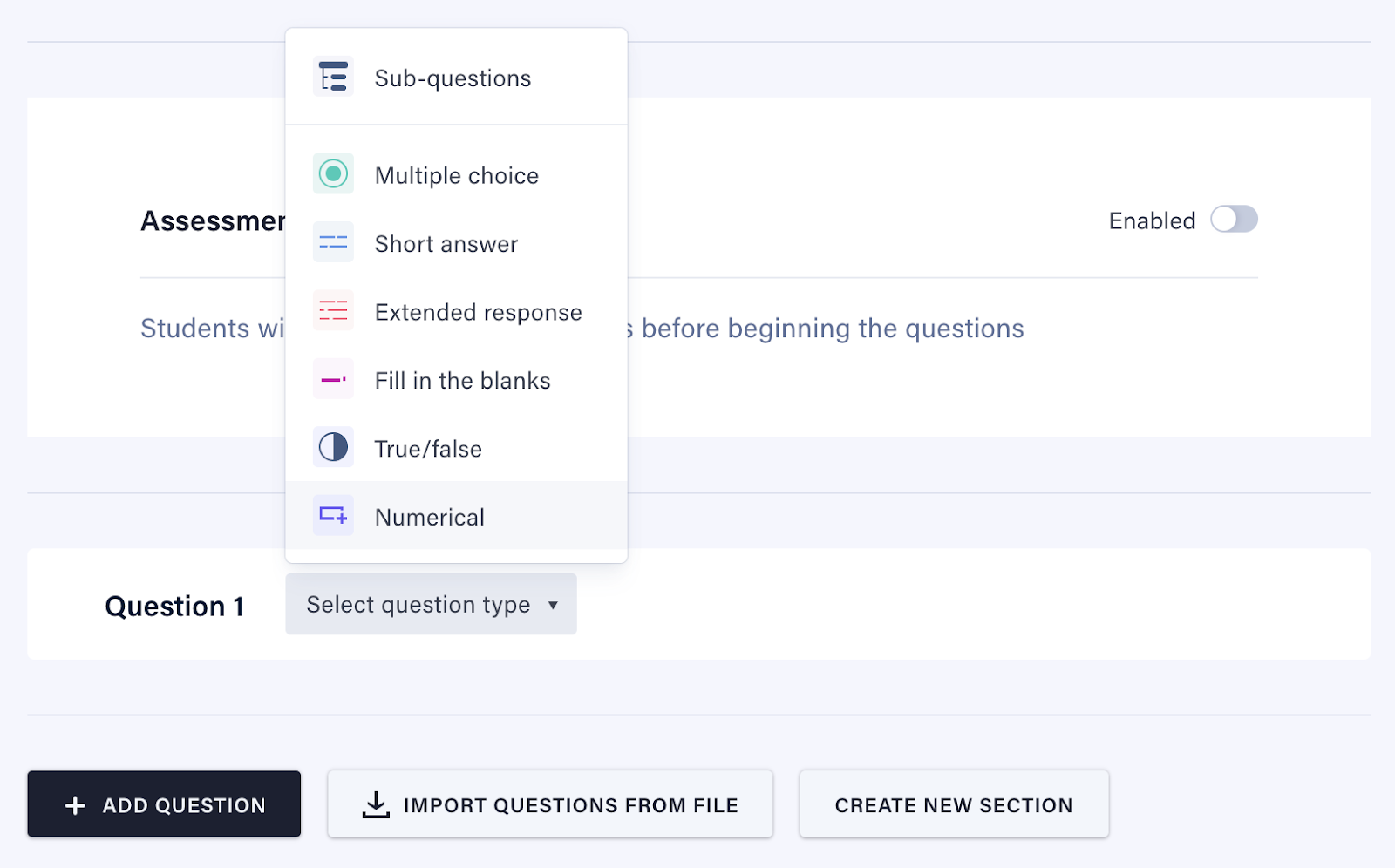
Adding a new numerical question:
1. On the *Action bar,* click on **Add Question**.
2. Select **Numerical** from the list.
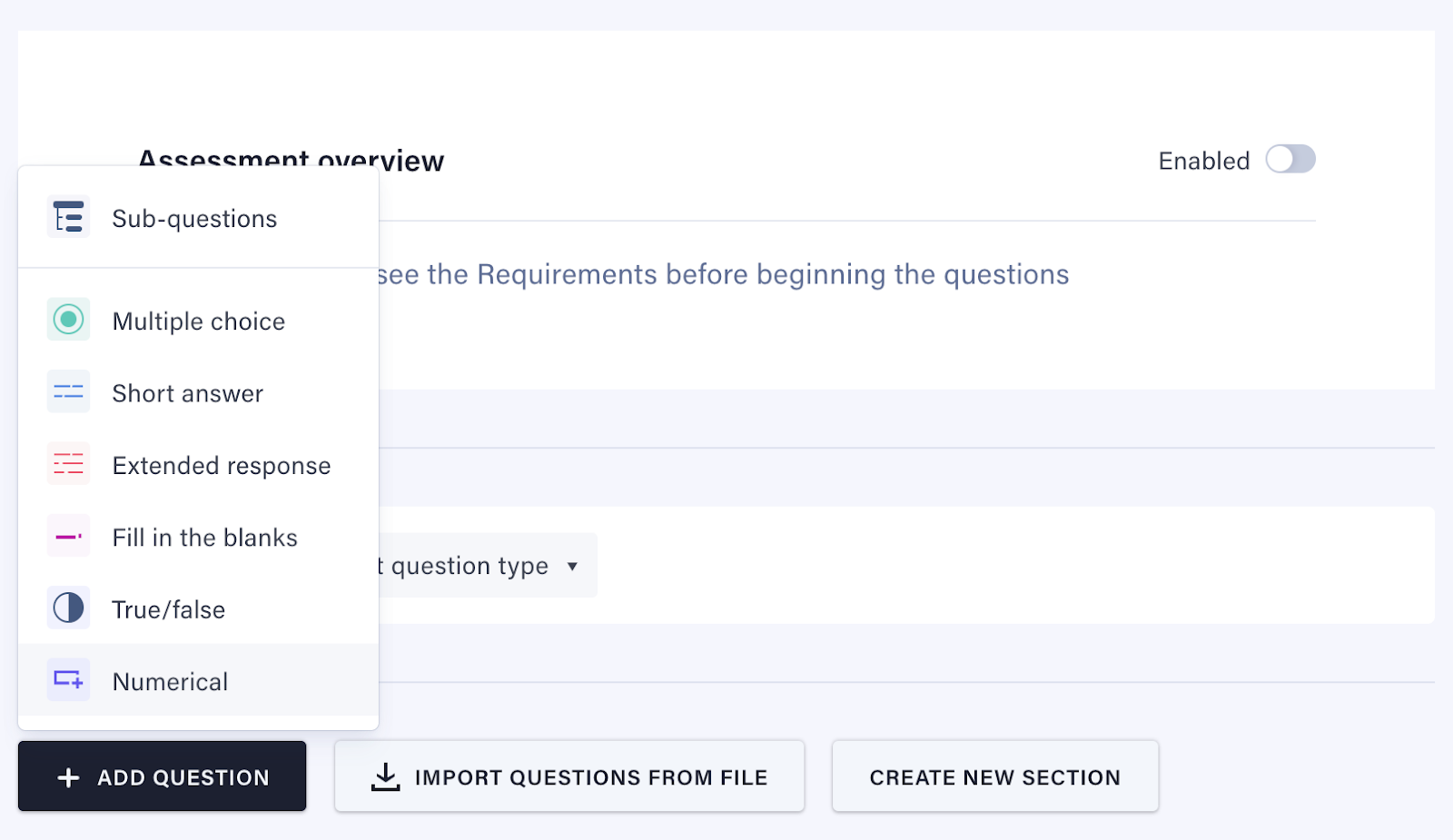
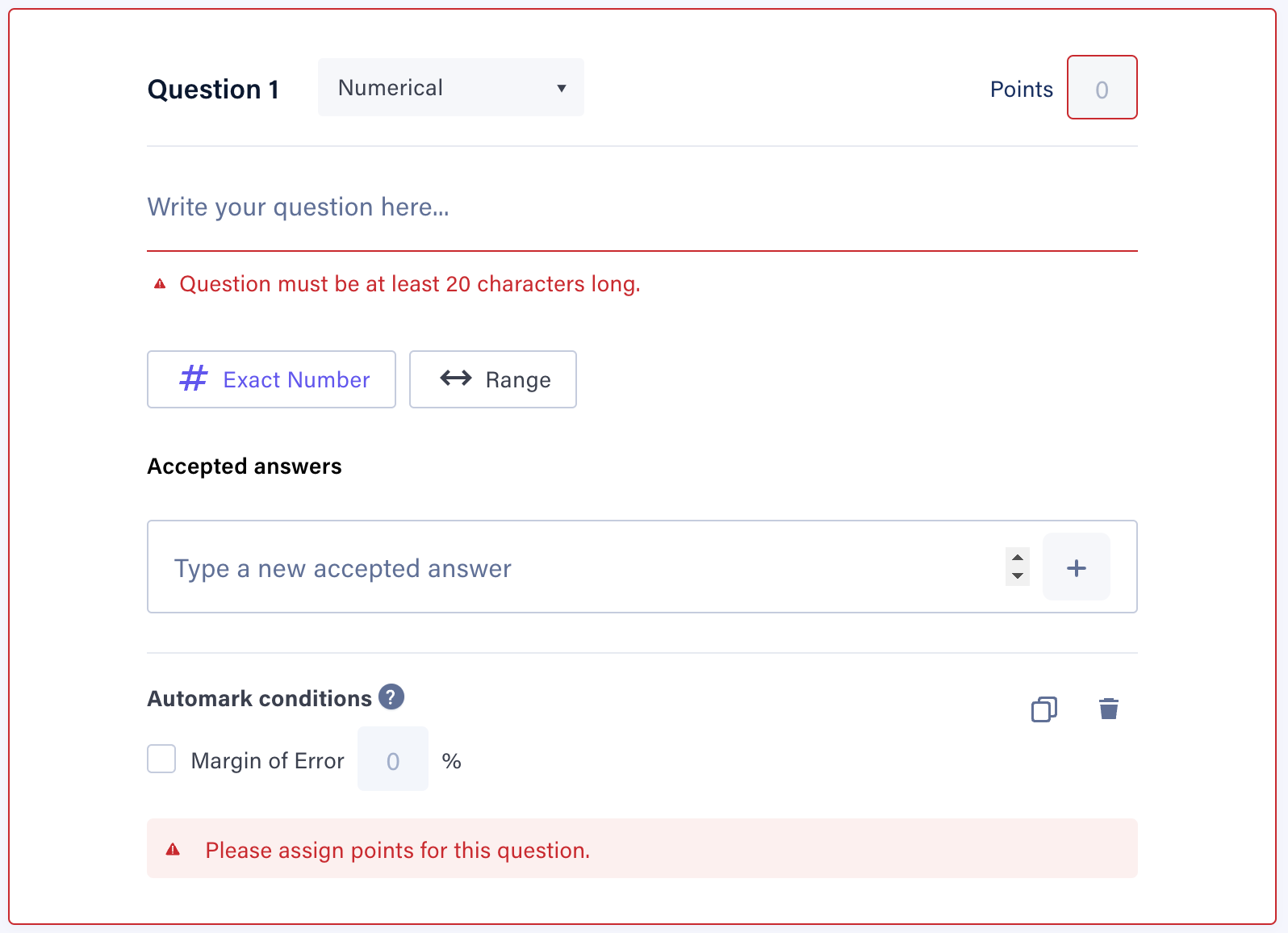
Once completed, an empty numerical question block will appear, allowing you to begin constructing your question.

### **Required fields**
To set up your numerical question, simply complete the required fields as outlined below:
1. Click on **Write your question here** and enter your question. Note that the question must be at least 20 characters in length.
2. Click on **Points** to set the number of points allocated to the question. Note that this cannot be zero.
### **Setting the accepted answer**
After setting the question, accepted answers can be set by typing an accepted answer and clicking the **+ button**. These accepted answers will be used for auto-marking.
To set the correct answers:
1. Click the **Accepted answers input**, and type a numerical answer.
2. Once an answer has been typed, add it by clicking the **+ button**. You will see this option indicated as a correct answer.
NOTE: If a correct answer is not set, you will see an error ‘Please provide at least one accepted answer for the numerical question’.
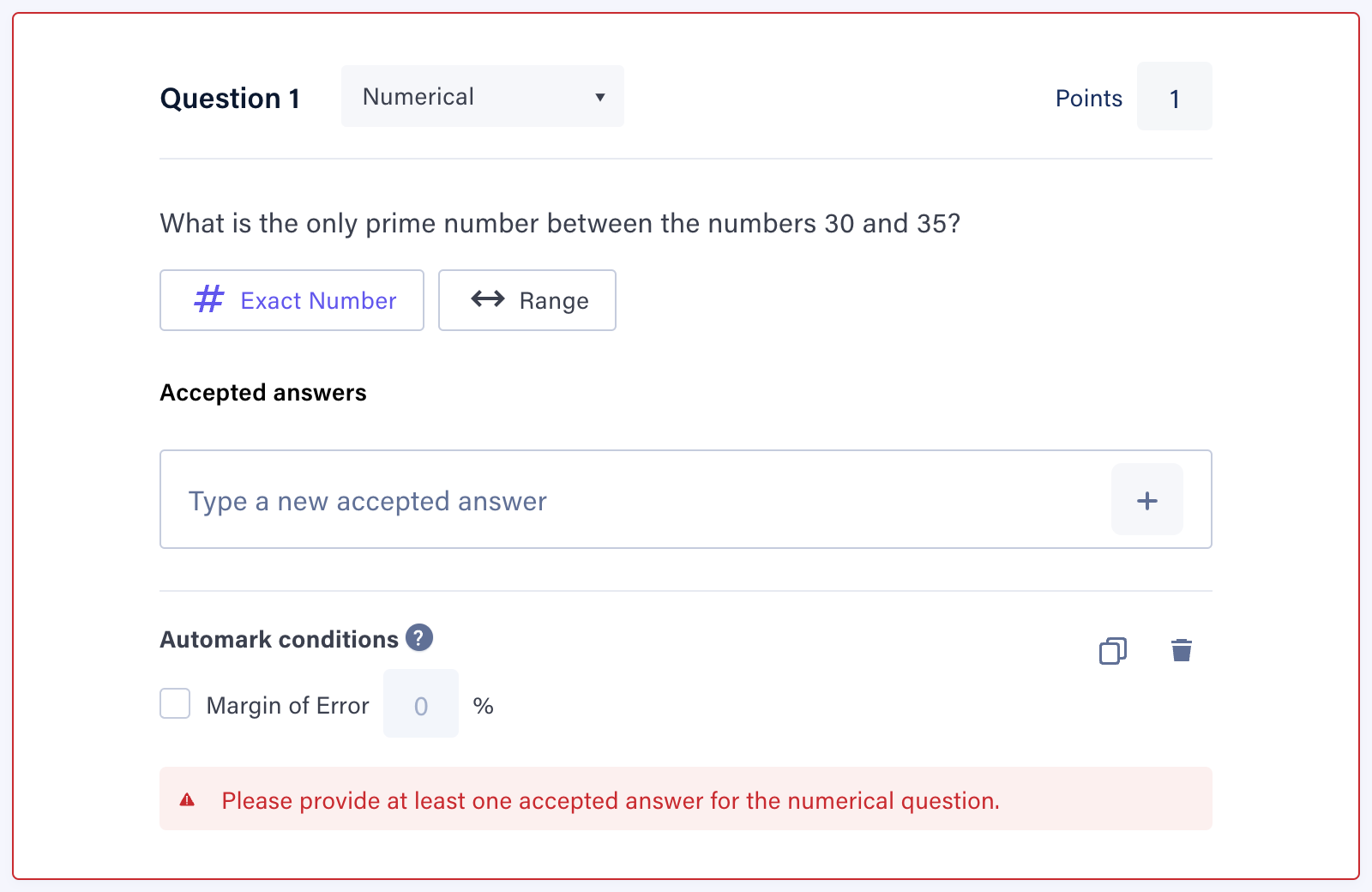
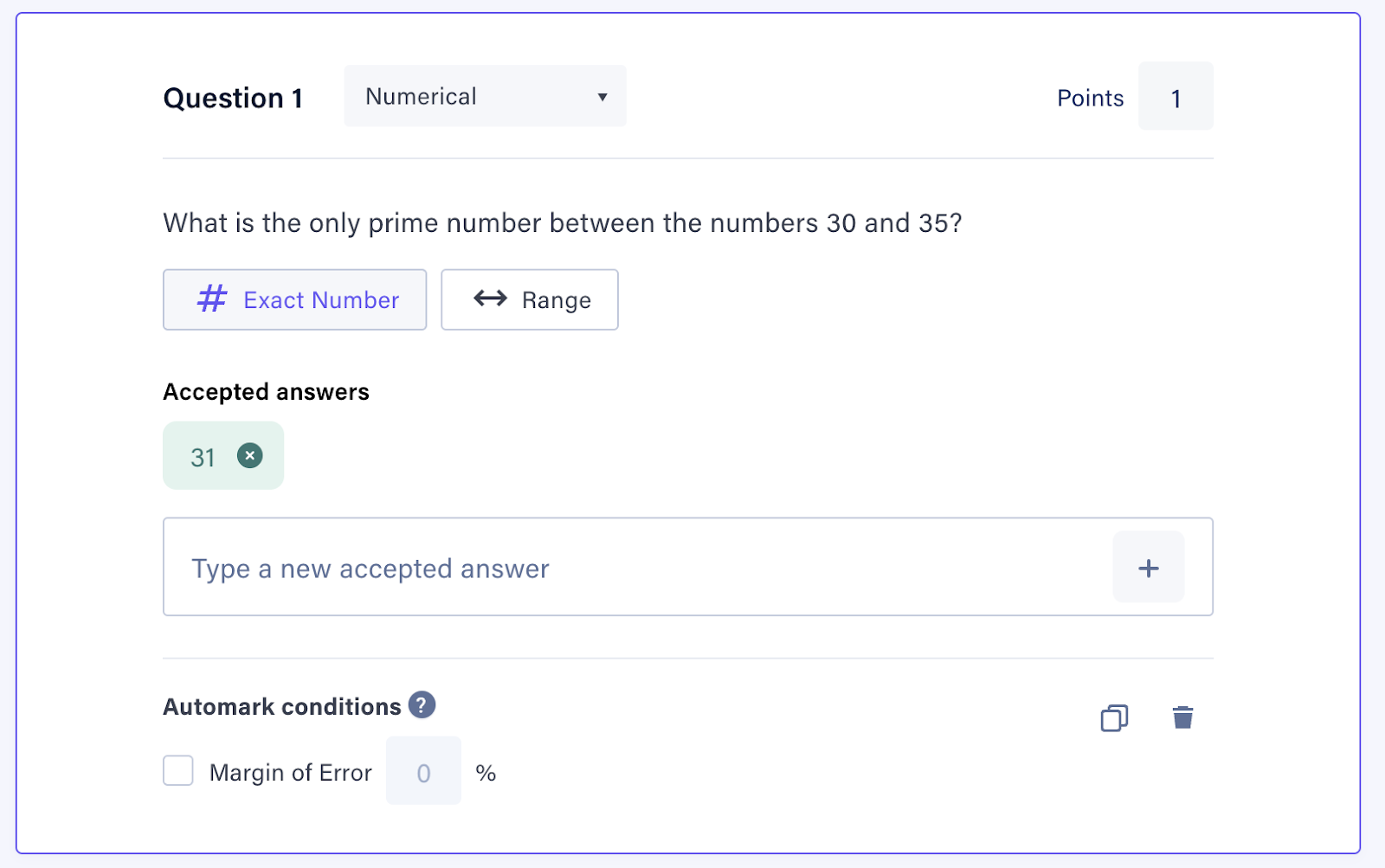
For an **Exact Number** accepted answer, you will find **a number increment or decrement button**, which can be used to add an answer without typing it.
#### **Margin of Error**
Margin of Error allows you to specify a range within which student answers will be accepted as correct. Answers outside this margin will be marked as incorrect.
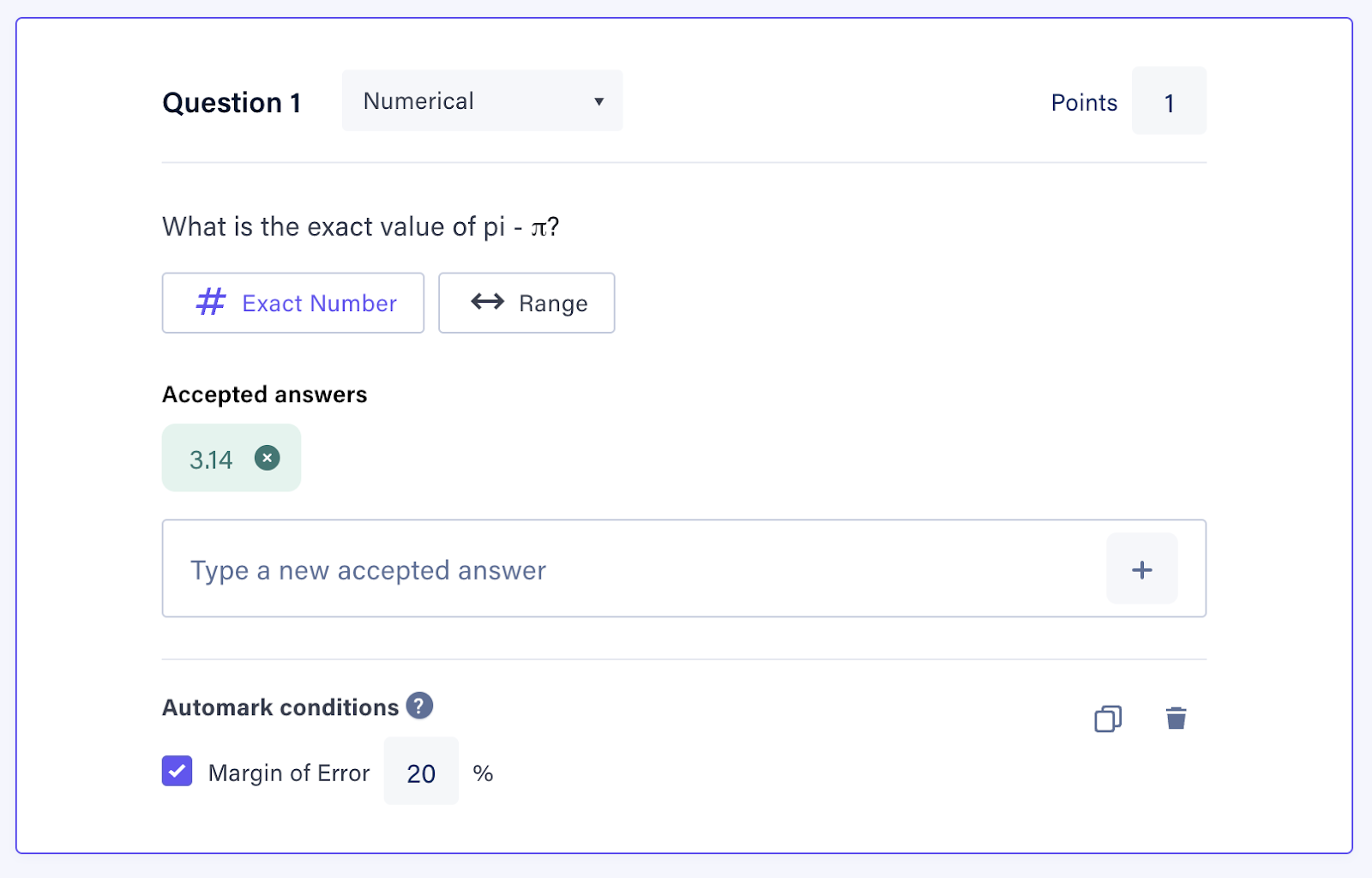
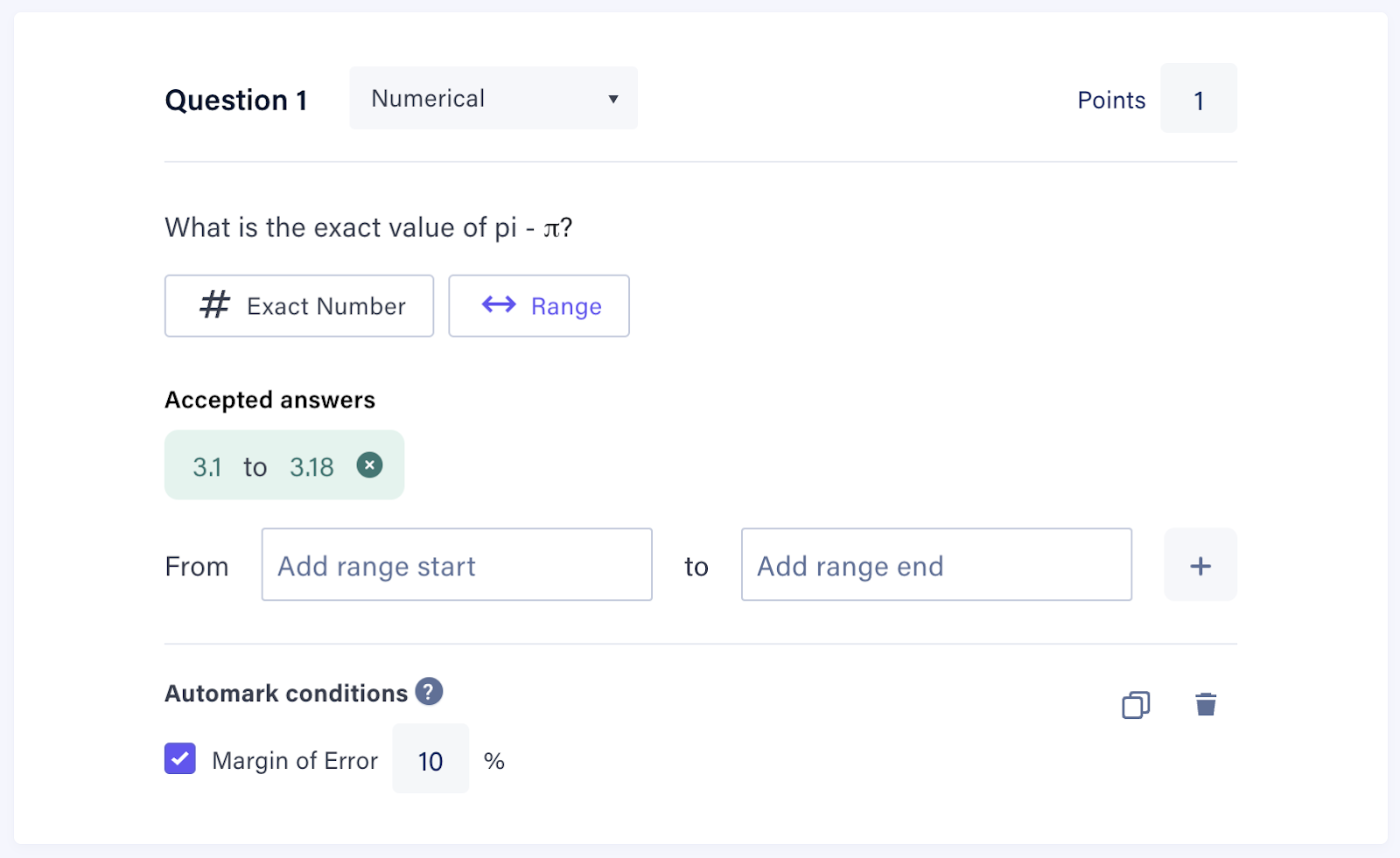
NOTE: For a numerical question, you can either set an exact number or a range of numbers as the correct answer, but not both.
### Removing accepted answers
After creating your question and answer options, you may want to remove an accepted answer from the options provided.
To remove an accepted answer:
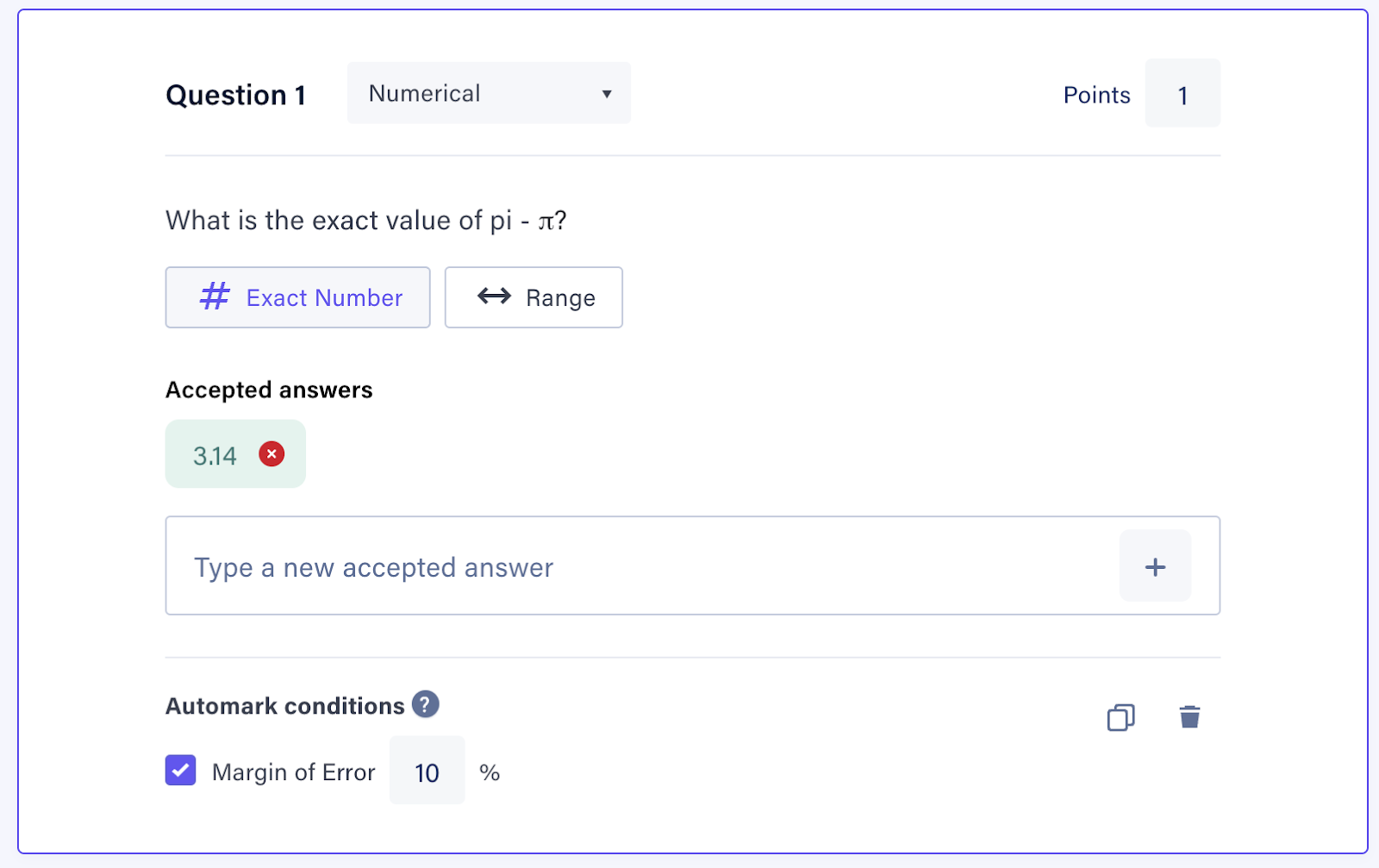
1. Hover over the ╳ next to the option, which will turn red.
2. Click on the ╳ next to the option.
- [Teachers](https://support.cadmus.io/teachers?hsLang=en#main-content)
- [Introduction](https://support.cadmus.io/teachers?hsLang=en#introduction)
- [Setting up assessments](https://support.cadmus.io/teachers?hsLang=en#setting-up-assessments)
- [Managing your class](https://support.cadmus.io/teachers?hsLang=en#managing-your-class)
- [Turnitin + Cadmus](https://support.cadmus.io/teachers?hsLang=en#turnitin-cadmus)
- [Marking + feedback](https://support.cadmus.io/teachers?hsLang=en#marking-feedback)
- [Exams](https://support.cadmus.io/teachers?hsLang=en#exams)
- [Drafts](https://support.cadmus.io/teachers?hsLang=en#drafts)
- [Insights](https://support.cadmus.io/teachers?hsLang=en#insights)
- [Students working](https://support.cadmus.io/teachers?hsLang=en#students-working)
- [FAQs + Troubleshooting](https://support.cadmus.io/teachers?hsLang=en#faqs-troubleshooting)
- [Multi-format Assessments](https://support.cadmus.io/teachers?hsLang=en#multi-format-assessments)
- [Group Assessments](https://support.cadmus.io/teachers?hsLang=en#group-assessments)
- [Oral Assessments](https://support.cadmus.io/teachers?hsLang=en#oral-assessments)
- [Students](https://support.cadmus.io/students?hsLang=en#main-content)
- [Introduction](https://support.cadmus.io/students?hsLang=en#introduction)
- [Working in Cadmus](https://support.cadmus.io/students?hsLang=en#working-in-cadmus)
- [Submitting](https://support.cadmus.io/students?hsLang=en#submitting)
- [Grades + Feedback](https://support.cadmus.io/students?hsLang=en#grades-feedback)
- [Drafts](https://support.cadmus.io/students?hsLang=en#drafts)
- [FAQs + Troubleshooting](https://support.cadmus.io/students?hsLang=en#faqs-troubleshooting)
- [Multi-format Assessment](https://support.cadmus.io/students?hsLang=en#multi-format-assessment)
- [Group Assessments](https://support.cadmus.io/students?hsLang=en#group-assessments)
- [Oral Assessments](https://support.cadmus.io/students?hsLang=en#oral-assessments)
- [Admins](https://support.cadmus.io/admins?hsLang=en#main-content)
- [Integrations](https://support.cadmus.io/admins?hsLang=en#integrations)
- [Release Notes](https://support.cadmus.io/release-notes?hsLang=en)
- [Privacy Policy](https://support.cadmus.io/privacy-policy?hsLang=en)
- [Cadmus](https://cadmus.io/)
- [Video Tutorials](https://cadmus.io/video-tutorials/)
- [Contact Support](https://support.cadmus.io/kb-tickets/new)
- [System Status](https://cadmus.statuspage.io/)
[](http://cadmus.io)
Copyright © 2026, Cadmus