![Cadmus Wordmark & Logo_Master File_Cadmus Icon_Ink.png]](https://support.cadmus.io/hs-fs/hubfs/Cadmus%20Wordmark%20%26%20Logo_Master%20File_Cadmus%20Icon_Ink.png?height=40&name=Cadmus%20Wordmark%20%26%20Logo_Master%20File_Cadmus%20Icon_Ink.png)
Cadmus now supports Video Response questions with oral assessments. This may be used to support a follow-up oral component — asking students to speak about their own work, giving institutions a stronger layer of learning assurance.
Each video response question includes:
- A question prompt (hidden from the students)
- A preparation window
- A recording window
- A set number of attempts
Students answer video response questions in sequence, recording a video for each. Video Responses may be graded per question using a Marker Rubric.
This article will guide how to
- Creating an Oral Assessment
- Adding instructions to an Oral Assessment
- Select requirements and settings for an Oral Assessment
- Granting Special Considerations
How do I create an Oral Assessment?
- Create a Cadmus link in the LMS and click on the Go to Cadmus button to go to the Cadmus Teacher Environment.
- Select Oral Assessment as the format and click Confirm.
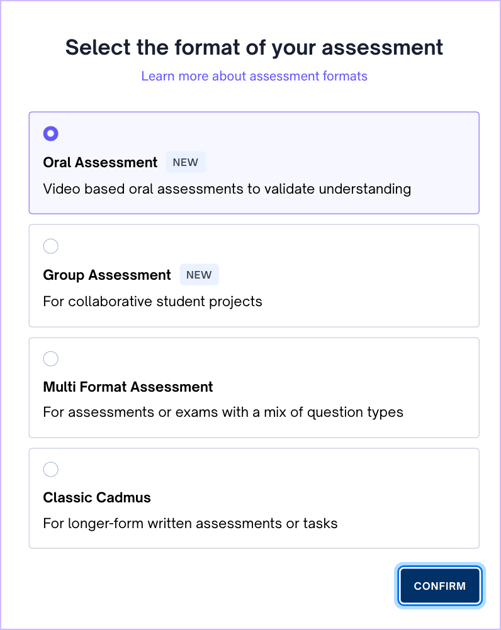
TIP: Click the switch format button on top to quickly switch to Oral assessments from any other assessment format.
How do I add instructions to my Oral Assessment?
- In the assessment builder, select Video Response as the question type from the dropdown.
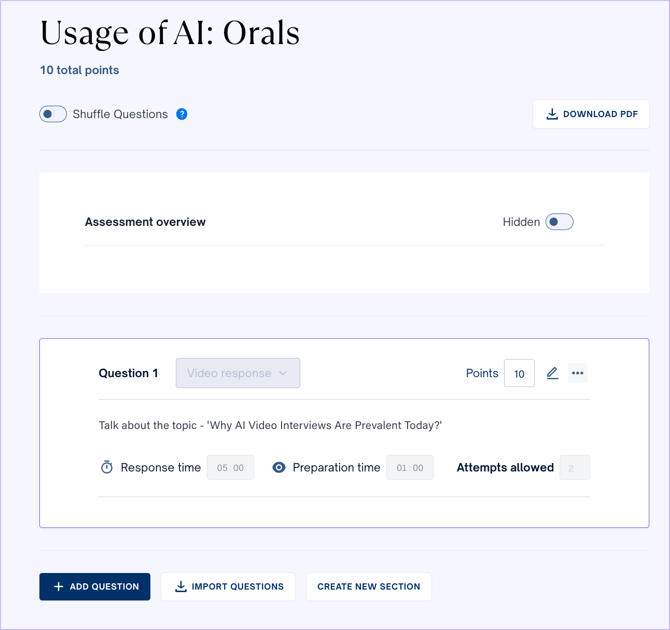
- Add your question prompt in the question space and assign the appropriate points.
- Below the question prompt, set the Response time (maximum time limit allowed for the video response), Preparation time (maximum time limit to prepare before recording the video response), and the number of attempts a student has to record their video response. Preparation time and Response time are in the format [MM:SS]
- Click the three dots inside the question block to duplicate, delete, or add a marking rubric to the question.
- Similar to the multi-format builder, you will find the Settings tab from where you can edit requirements and settings, and the Questions tab from where you can reorder the question list, to the left.
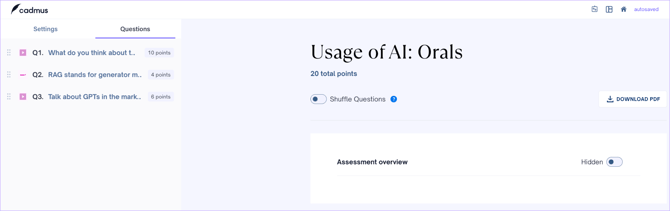
TIP: You may add all the other Multi-format question types, along with video response type questions, to your Cadmus Oral Assessment. However, keep in mind that those questions will not be hidden from students.
Setting requirements and settings for Oral Assessments
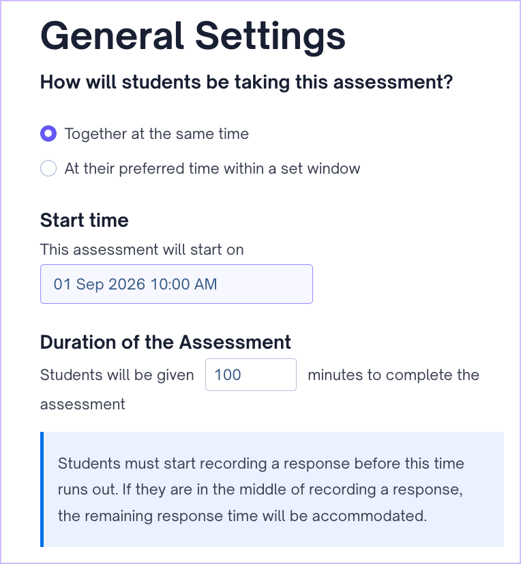
- Under General Settings, first select whether the assessment will be administered live (all students together at the same time) or in a time window (students write in their preferred time within the window).
- Next, select the Duration of the assessment. Students must start recording a response before the duration runs out. If they are in the middle of recording a response, the remaining response time will be accommodated so they can submit it.
After the duration runs out, students will not be able to start recording a response.
NOTE: When setting attempts and durations, It's crucial to build in enough total time to cover every possible attempt.
This is because before starting any attempt (including re-attempts), Cadmus checks that there is time remaining in the assessment to cover a full Preparation + Response window. For example, if a student already used part of their time on attempt #1 and doesn't have enough left for a complete attempt #2, they won't be able to start it — even if they still have attempts remaining.
Total Duration should comfortably exceed:
Reading time + (Number of attempts × (Preparation time + Response time))
Alternatively, turning off Reading Time can also be an option.
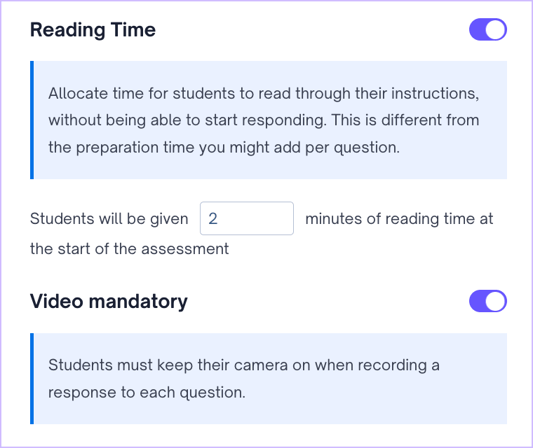
- Switch on the Reading Time toggle to allocate time for students to read through the general assessment instructions. Note that it does not reveal individual question prompts, which stay hidden until a student clicks Start on that question. Students will not be able to start recording their response during this time.
- Meanwhile, Preparation time is time a student will receive to prepare for individual video response questions.
Tip: If your assessment is tight on time, consider turning Reading Time off, since it isn't functioning as extra preparation time for any specific question
- Switch on the Video mandatory toggle to enforce students to keep their camera on while recording their responses.
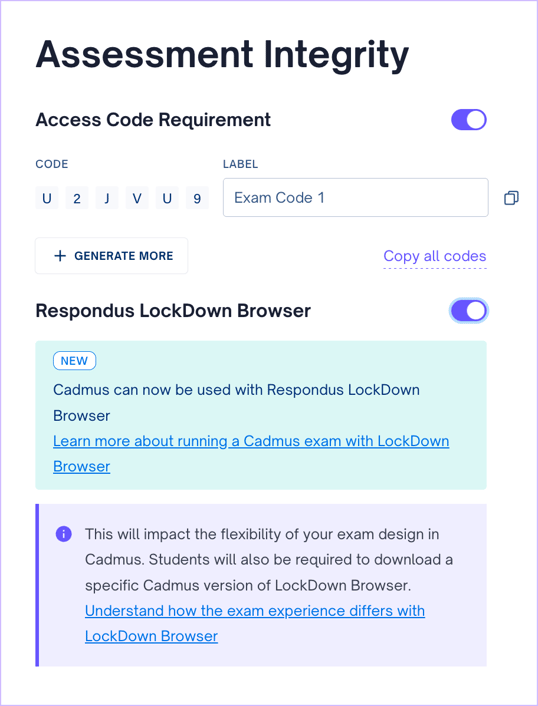
- Next, set the assessment integrity options: enable the Access Codes Requirement feature to enable student assessment entry using a valid, unique code.
- Enable Respondus LockDown Browser for students to take the oral assessment in a locked browser environment.
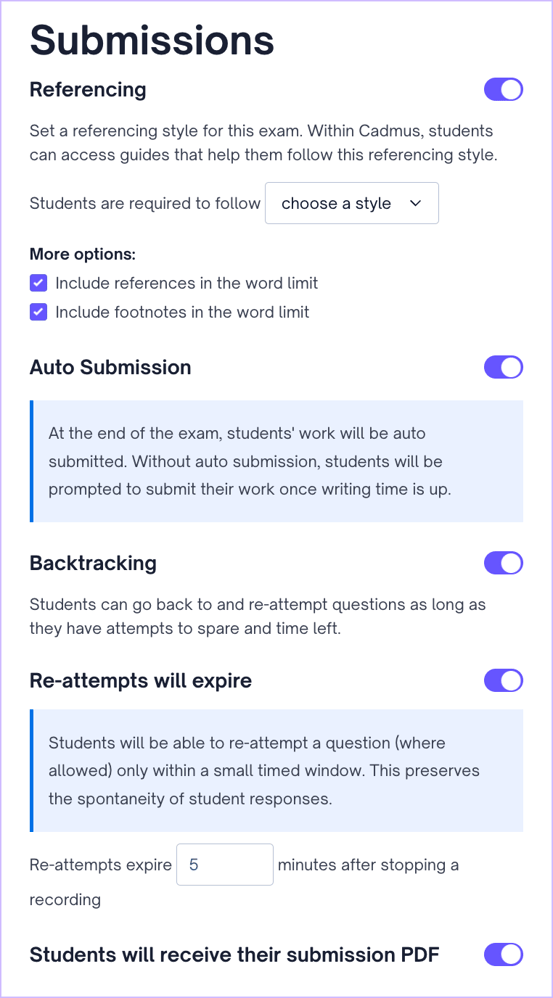
- Under Submissions settings, switch on the Referencing toggle to allow references and footnotes for extended answer-type questions. Choose the referencing style from the dropdown. Under more options, select if references or footnotes may be included in the word limit.
- Next, decide if the assessment will have Auto Submission enabled. If enabled, students’ work will be automatically submitted after the assessment duration or window is over.
- Allow Backtracking if you wish to enable students to go back and re-attempt questions. If disabled, students will not be able to go back to a question they’ve attempted or skipped.
- Switching on the Re-attempts will expire feature allows you to set a time window within which the student will have to start another attempt at recording their response.
For example, if the setting is on and the time is set to 2 minutes, the student will have to record their next attempt within 2 minutes of finishing the previous recording.
If the feature is off, students will be able to record their re-attempts at any time during the assessment. - Enable Students will receive their submission PDF setting to allow students to download a copy of their submission.
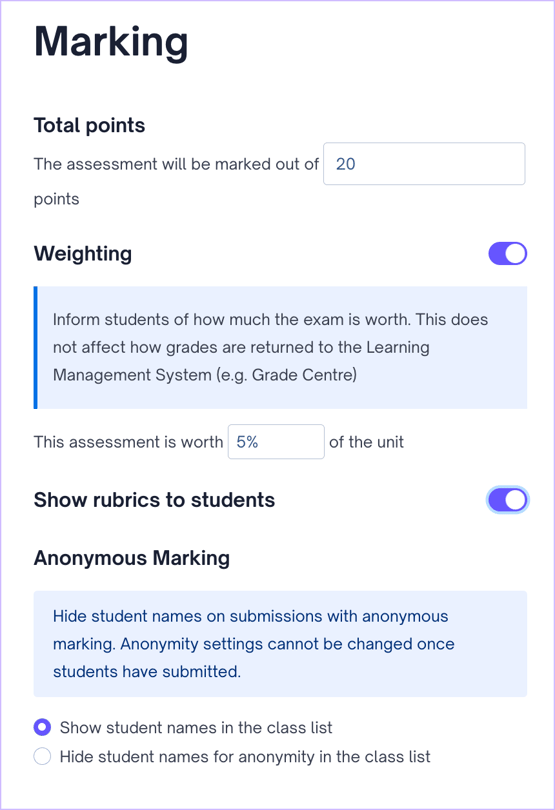
- Under Marking settings, you will see the Total points for the assessment. This will be auto-calculated according to the individual points per question and hence, non-editable.
- Use the Weighting setting to add how much the exam is worth (in %) to the unit. Note that this won’t affect how grades are returned to your respective LMS.
- Toggle on the Show rubrics to students option to allow students to view the grading rubric of every question.
- Use the Anonymous Marking setting to show or hide student names in the class list.
All the requirements can be reviewed from the panel on the right. Click Confirm to save them. In the next step, review and finalise the instructions. Click Release Instructions to publish the Oral assessment.
NOTE: Oral Assessments can only be graded using Cadmus Marker. Learn more about Marking Oral Assessments here. Learn how a student navigates video responses here.
How to Grant Special Considerations to a Student?
To change a student's assessment dates, adjust their total assessment duration, grant extra attempts, or add extra preparation and response time, follow these steps:
- Navigate to the Progress tab. Find the student who needs special considerations in the class list.
- Click on the three dots to the right. Select between options: Give extra time, Give extra time or attempts (per question), and Change assessment window.
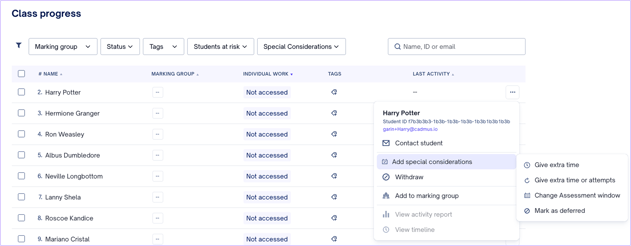
- This opens the special considerations panel, where the below can be adjusted:
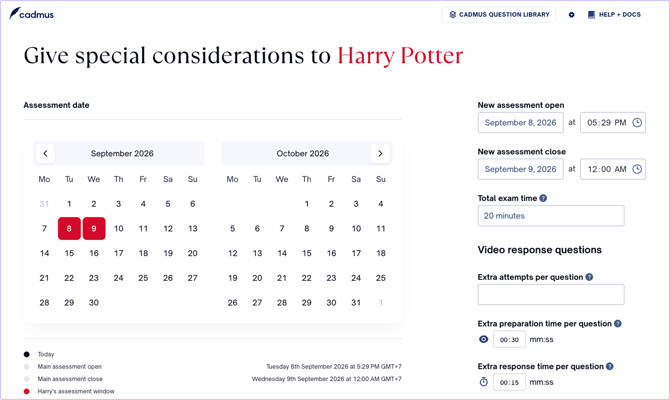
- Assessment open and close dates and times: Change when the student's assessment opens and closes.
- Total exam time: Adjust the overall time the student has to complete the assessment. This replaces the default total time rather than adding to it.
- For example: If a student has already used 7 minutes of a 17-minute assessment and needs 10 more minutes to finish their remaining attempts, set their Total exam time to 17 minutes (their elapsed time + the time they still need) — not 10 minutes, which would leave them only 10 minutes in total and cut their session short.
- Under Video Response Questions sections, the followings can also be adjusted:
- Extra attempts per question: Grant additional attempts on each question.
- Extra preparation time per question: Add time on top of the default preparation time for each question.
- Extra response time per question: Add time on top of the default response time for each question.
- Once the adjustments are made, click Confirm to save.
NOTE: It is important to allocate appropriate total exam time when granting extra attempts to a student. If a student is granted extra attempts, but has exhausted the assessment duration, the student will not be able to access oral assessment for re-takes.
NOTE: Extra preparation and response time are added on top of the default. For example, if a student is granted 15 seconds of extra preparation on a question with a 30-second default, they will have 45 seconds to prepare for that question.
A student can't start their next attempt, even though they have time and attempts left
This typically happens when the time remaining in a student's assessment isn't enough to guarantee they can complete a full Preparation + Response window for another attempt (see the calculation above). If this happens:
- Reset the student's assessment for a fresh start. This wipes any existing recording, so only use this if the student is comfortable losing earlier attempts.
- Grant extra time instead, calculated from the student's original start time (elapsed time + time still needed)