![Cadmus Wordmark & Logo_Master File_Cadmus Icon_Ink.png]](https://support.cadmus.io/hs-fs/hubfs/Cadmus%20Wordmark%20%26%20Logo_Master%20File_Cadmus%20Icon_Ink.png?height=40&name=Cadmus%20Wordmark%20%26%20Logo_Master%20File_Cadmus%20Icon_Ink.png)
The teacher dashboard is a comprehensive space that has everything from the group assessment settings to group-level performance insights. In this article, we will look at the different tabs in the teacher environment and the feature sections in each of the tabs:
Instructions
Progress
Marking
Moderation
Learning Assurance
Insights
You will find the LMS Sync button at the top of the teacher dashboard to pull the class lists or grades from your LMS.
Instructions
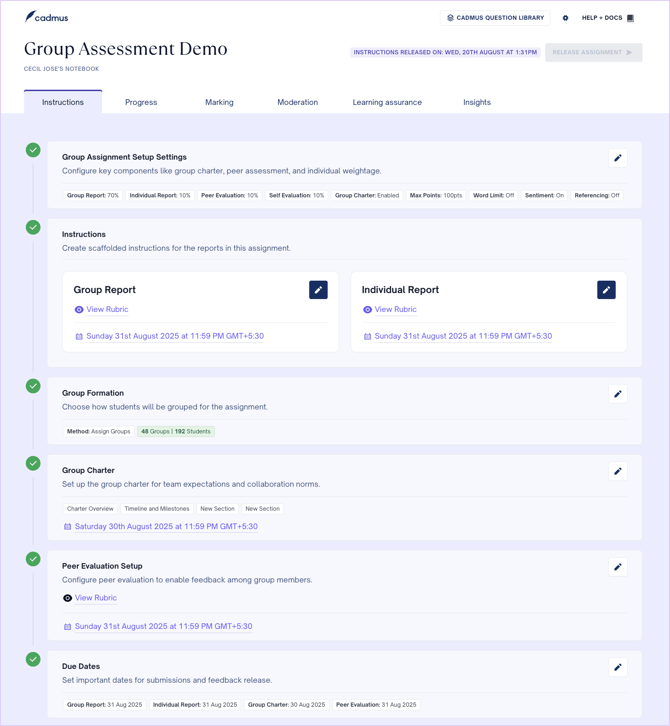
The Instructions tab provides access to key assessment settings and information. You may edit any of the settings, writing instructions, group formation, group charter, peer/self evaluation settings, and the key due dates by simply clicking on the icon to the right in any section. At the top, you’ll find the Release Instructions button as well as the timestamp of the last release.
In the Group assessment setup settings section, find all the selected settings. In the Instructions section, find the Group report and Individual report writing instructions, rubrics attached, and the due dates for them. In the Group Formation section, view how students have been grouped. In the Group charter section, find the charter setup and the charter deadline. In the Peer Evaluation section, find the rubric for peer and self-evaluation, if applicable, and the peer evaluation deadline. In the Due Date section, view the selected group report, individual report, charter, peer and self-evaluation deadlines.
Progress
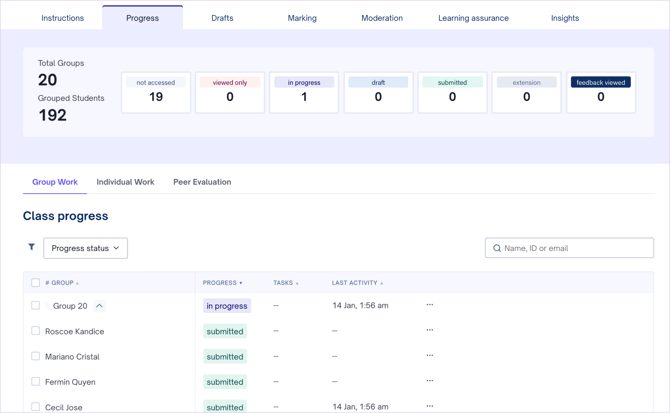
The Progress tab helps you track the progression of the group’s and individual students’ work. There are three tabs - Group work, Individual work, and Peer Evaluation that show group report-level, individual report-level, and peer/self evaluation statistics.
At the top of the Group Work tab, you will find the number of total groups, the number of grouped students, and the number of groups that have accessed the group report, only viewed the assessment, have their work in progress, have submitted a draft or final, have received extensions, or have accessed feedback.
Below, you will find a table that displays group-level progress, the number of tasks completed, the percentage of milestones completed, the group charter, and the sentiment check status. Click the three dots to find options to contact students in a group to view the group activity report. To view specific group data, use the filters by group name and progress status. The search bar allows searching for individuals or specific groups.
At the top of the Individual Work tab, you will find the number of enrolled students, the number of students who have not accessed the individual report, have only viewed instructions, are working in progress, have submitted, have an extension, or have accessed the feedback.
Below, you will find a table that displays student names alongside the group they’re assigned to, their progress status, and the last activity timestamp. Click on the three dots to find options to contact, set extensions for, withdraw, view activity report, withdraw, or download submission of a student. To view specific student data, use the filters based on group, progress status, and students at risk (access).
At the top of the Peer Evaluation tab, you will find the number of groups where peer evaluation has not started, is in progress, and has been completed.
Below, you will find a table that displays the group name, with a dropdown to view student names alongside the progress status for peer evaluation, the number of tasks completed, and the last activity on peer/self-evaluation. The three dots to the right provide options to contact the student, download their individual submission, and peer evaluation. To view specific data, use the status filter or search for a student using the search bar.

Marking
The Marking tab is where you can mark and manage the group and individual submissions. This tab has specific tabs for group and individual submissions.
At the top of the Group work tab, you can view group submission rates, the number of marked group submissions, and the submissions yet to be marked. Below, you will find a table where you will see the marker assigned to the group, final submission timestamp, similarity score of the group report, mark button (if ungraded) and the grade (if already graded). If the submission is already graded, you will find a download button under the submission pdf column. Clicking on the three dots provides options to contact students or view the group activity report.
At the top of the Individual work tab, you can view individual submission rates, the number of individual marked submissions, and the submissions yet to be marked. Below, you will find a table with the group name, final submission timestamp, similarity score of the individual report, mark button (if ungraded) and the grade (if already graded). If the submission is already graded, you will find a download button under the submission PDF column. Clicking on the three dots provides options to contact, set extensions for, withdraw, view the activity report, and download the submission of a student.
In both tabs, filters are available for specific marking data based on groups, markers, submission status, similarity scores, and grades. The search bar allows searching for individuals or specific groups. Clicking on the three dots beside the search bar offers options to download all final submissions, grades, assessment report, and view assessment analytics.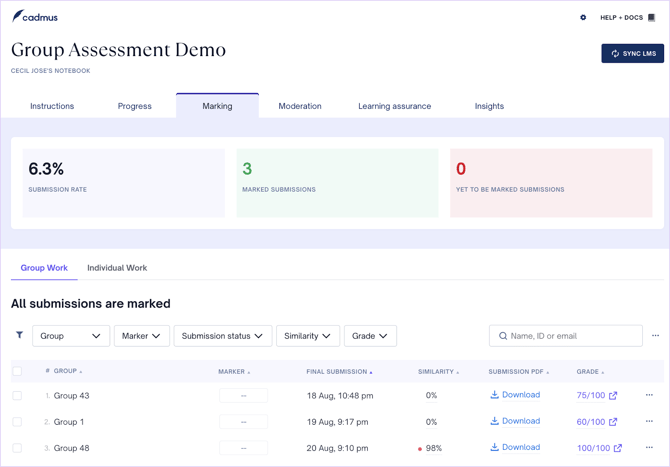
Moderation
The Moderation tab has class performance information, options for grade adjustments, feedback release and penalty set-up options. The data and grade adjustments can only be made after marking for at least one group is done. This tab has specific tabs for group marks, individual marks, provisional and final feedback.
In the Group Marks tab, you will find the group average score, the highest score, the lowest score, the pass rate, the standard deviation, and scores across groups. In the moderation table, you will find the group name, assigned marker, final submission timestamp, submission lateness, feedback release date, adjusted score, and group score. Click on the three dots to the right to find the Edit Group Marks button to edit group marks, showing the adjusted score.
The Student Marks tab shows scores across students for individual reports and individual class performance. In the moderation table, you will find the student's name, the group affiliated to, the assigned marker, peer, self, individual, and final scores. Click on the three dots to the right to find the Edit Individual Marks button to edit group marks, showing the adjusted score.
In both tabs, filters are available by group, submission lateness, similarity score, grade ranges, or specific tags. To find specific groups or students, use the search bar to the right.
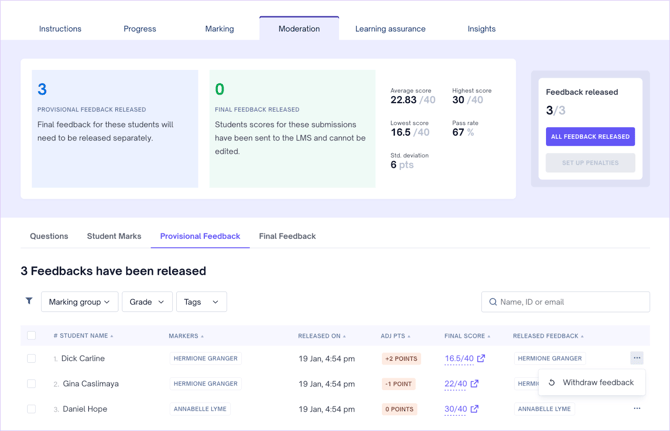
At the top of the Moderation tab, click the Release Feedback button to enable selective or cohort-wide provisional or final feedback release. Click on the Set up Penalties button to deduct penalty marks for late submissions and other reasons.
In the Provisional Feedback and Final Feedback sections, you can find the number of students for whom provisional and final feedback has been released, as well as other moderation score-related statistics. Click the three dots on the right of the student's name in the list, click Withdraw feedback, and confirm to remove all feedback for a group or student.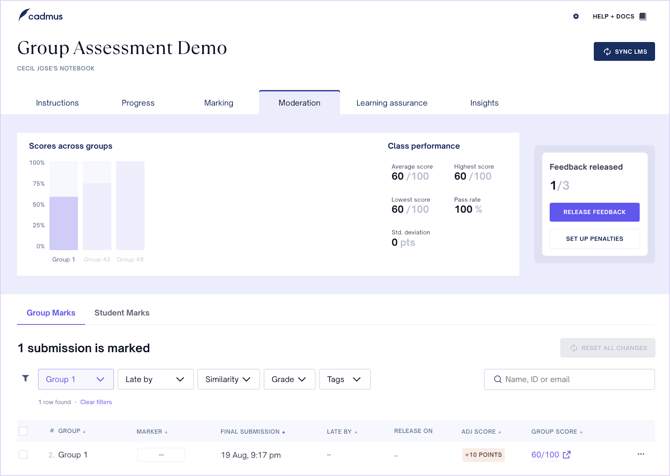
Learning Assurance
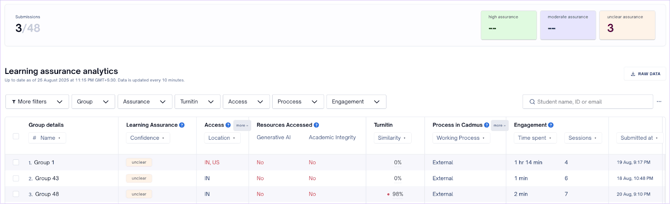
The Learning Assurance tab provides analytics on student performance and work authenticity. This tab contains information about group learning assurance mapped by the system. At the top, you will find the number of submissions turned in, and the number of submissions with high, moderate, or unclear assurance.
The learning assurance table includes data points such as locations from which students accessed Cadmus, resources accessed (including generative AI and academic integrity resources), Turnitin similarity score, student/group working process in Cadmus (internal vs. external work, paste ratio), engagement (time spent, number of sessions), submission timestamps, the group report submission, and the activity report for the group. Clicking on the three dots on the right would give you options to contact students and download submissions.
An option to download raw data is available at the top. There are filters available based on tags, grades, assurance, learning assurance confidence, Turnitin scores, access (locations, browsers, operating systems), process working in Cadmus, writing statistics (paste ratio, transcriptions), most common paste source (Microsoft Word, Google Docs, other), and engagement (time spent writing, number of sessions). There’s a search bar allows searching for specific student data.
Insights
The Insights tab offers data and data visualizations of important group-level insights, such as task summaries for individual groups, responses to sentiment checks, comments and replies made by students for their group report, score differences (peer vs. self-assessment, group vs. individual), and an activity report that has word count, paste ratios for individual students in groups, customizable by date range. There are filters are available to view specific groups’ insights.

