![Cadmus Wordmark & Logo_Master File_Cadmus Icon_Ink.png]](https://support.cadmus.io/hs-fs/hubfs/Cadmus%20Wordmark%20%26%20Logo_Master%20File_Cadmus%20Icon_Ink.png?height=40&name=Cadmus%20Wordmark%20%26%20Logo_Master%20File_Cadmus%20Icon_Ink.png)
Extensions and special considerations added in Canvas can now sync to Cadmus, so they only need to be entered once.
For institutions using automatic extension tools in Canvas, these extensions flow directly to Cadmus when a student launches their assessment, so everything is handled automatically.
In this article, we'll cover:
- Add extensions and special considerations to Canvas
- Sync automatically to Cadmus
- Sync manually to Cadmus
- Troubleshooting
Note: Only due date extensions and alternative exam window special considerations can sync from Canvas. Extra writing time and extra attempts for video response questions need to be set up directly in Cadmus (see Managing Extensions or Managing Special Considerations).
Add extensions and special considerations to Canvas
Before Cadmus can sync them, extensions and special considerations need to be added to Canvas. As these steps happen outside of Cadmus and each institution’s setup may differ, please check with your Canvas administrator if you’re unsure where to apply extensions.
Note: For institutions using automatic extension tools in Canvas, this section can be skipped as the extensions and special considerations are already managed by the tool.
- On the Canvas assignment settings page:
- For an assignment, enter the due date and time in the Due Date field.
- For an exam, set the standard exam window:
- Add the exam open time to the Available from field.
- Add the exam close time to the Due Date field.
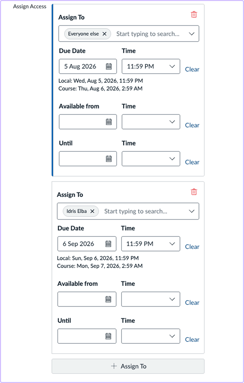
- For each student or group of students who needs an extension or alternative exam window, add a separate entry. Fill in the same fields as step 1, using their extended due date or alternative exam window. In the example below, Idris Elba has an extended due date.
Sync automatically to Cadmus
No action is needed from your end for the automatic sync. Cadmus syncs the extension or special consideration from Canvas the next time each student opens the assignment or exam.
Once they’ve opened it, you'll see an Extension or Special con. tag next to their name in the Progress tab.
Sync manually to Cadmus
If you'd like extensions or special considerations to show in Cadmus before students open their assessment, you can sync them manually. To do so:
- Make sure the extensions or special considerations have been added in Canvas.
- Navigate to the Progress tab in Cadmus.
- Click Sync Class List if your class list hasn't been synced yet.
- Under Extensions or Special considerations, click Sync from LMS.
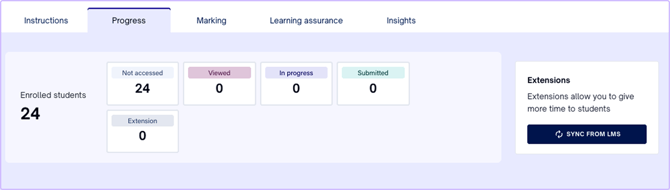
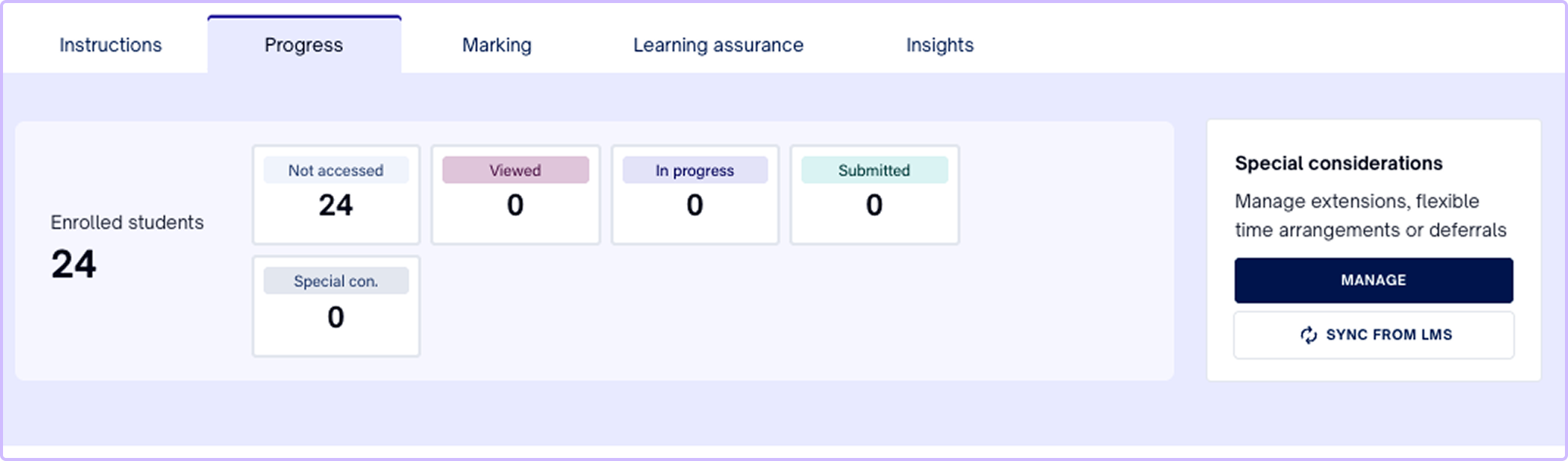
- If students already have extensions or special considerations in Cadmus, you will be prompted to choose one option:
- Sync without replacing: syncs only for students who don’t already have one in Cadmus.
- Override and replace: replaces existing ones in Cadmus with those from Canvas
- Click the Extension or Special con. box to filter the list of students to those with extensions. For special considerations, you can also click the Manage button.
Note: If a student needs extra writing time or additional attempts for a video response question, apply these directly in Cadmus (see Managing Extensions or Managing Special Considerations).
Troubleshooting
If a student’s extension or special consideration shows in Canvas but not in Cadmus, check the following steps.
- Has the assessment been released in Cadmus? Extensions and special considerations can only be applied once the Cadmus assessment is released.
- Has the student opened the assessment? Automatic sync happens when the student opens it, so it won’t appear before then.
- If both are true and it still isn’t showing, follow the steps in Sync manually to Cadmus above.