![Cadmus Wordmark & Logo_Master File_Cadmus Icon_Ink.png]](https://support.cadmus.io/hs-fs/hubfs/Cadmus%20Wordmark%20%26%20Logo_Master%20File_Cadmus%20Icon_Ink.png?height=40&name=Cadmus%20Wordmark%20%26%20Logo_Master%20File_Cadmus%20Icon_Ink.png)
With Cadmus, students are now able to preview their work before they submit it. The Preview feature allows students to check page breaks, headings, tables, footnotes and references fall exactly where they will in the PDF sent to their teacher.
The preview is view only, so students can't select, edit, download or print from it. Nothing in the preview is submitted either, so students can check it as often as they like.
We have a quick demo below.
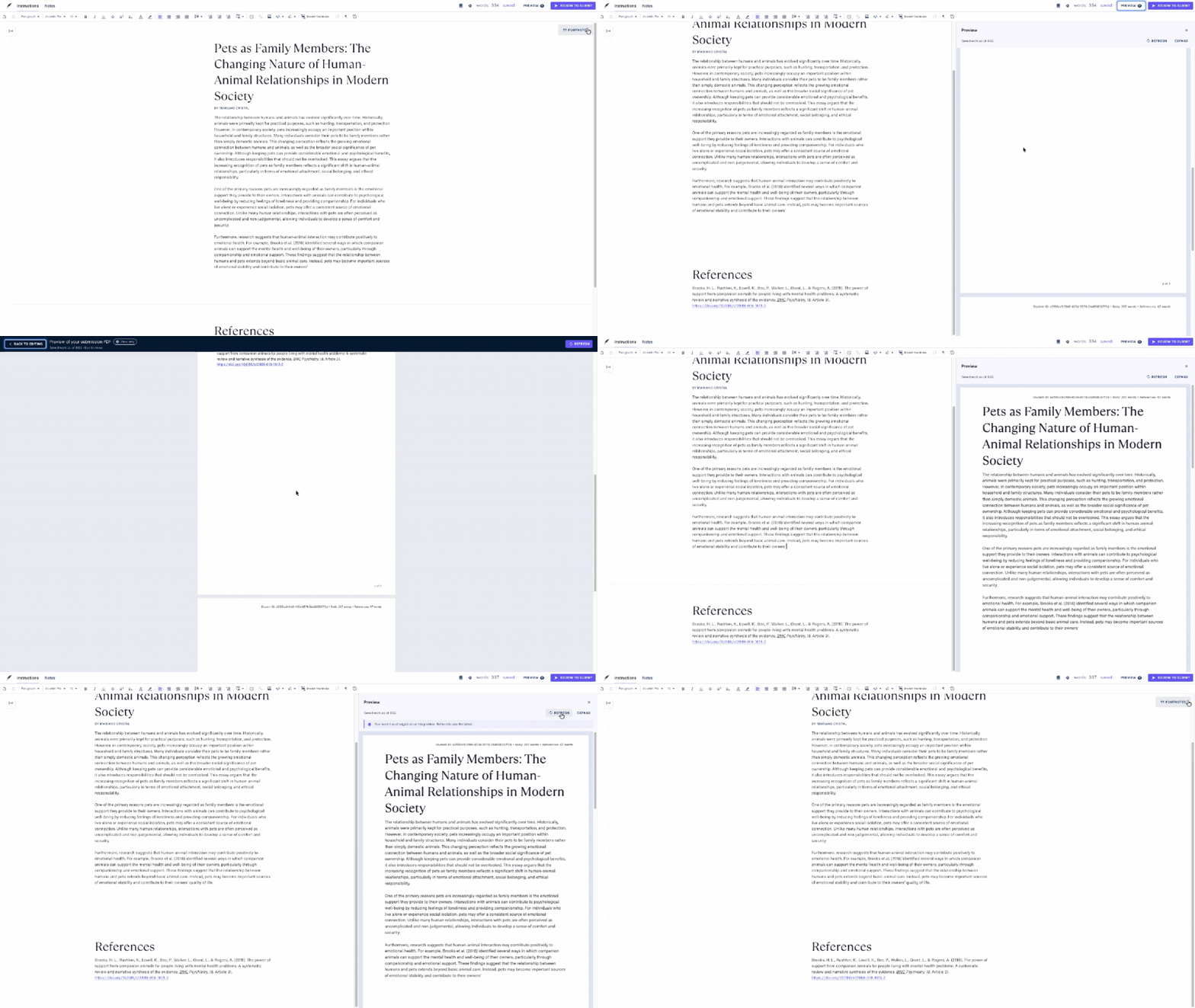
Step by Step on using Preview:
- Click on the Preview button at the top right of the page.
- Click Prepare Preview. It will take 10 to 20 seconds to prepare the preview, and students can keep writing while it prepares.
- While it prepares, students can click Cancel to stop waiting.
- Once the preview appears, the status bar will show which saved version it shows, for example "Saved work as of 2:41 pm".
- Select the Expand button to open the preview on full screen.
- To return to the student workspace, please click Back to editing or Esc button in your keyboard.
- Student can open the preview in full screen by selecting the Expand button
- Close the preview by clicking on the × button.
NOTE: The Preview feature shows the last previewed work. If the student keeps writing with the Preview window still open, the panel will show "Your work has changed since this preview. Refresh to see the latest" notification. To see the latest version, students can click on the Refresh button.
NOTE: Preview works in any assessment set up in the classic longform format, including the Individual Work component within Group assessments, as this component uses that same format. Please note that this feature might not be available for some older Classic work.