![Cadmus Wordmark & Logo_Master File_Cadmus Icon_Ink.png]](https://support.cadmus.io/hs-fs/hubfs/Cadmus%20Wordmark%20%26%20Logo_Master%20File_Cadmus%20Icon_Ink.png?height=40&name=Cadmus%20Wordmark%20%26%20Logo_Master%20File_Cadmus%20Icon_Ink.png)
Oral assessments in Cadmus may require you to record video responses using your camera and microphone.
Before your assessment begins, there are a few things you can do to make sure your device is ready and help avoid technical issues during your recording.
This guide covers four key stages:
- Before your assessment: getting your device, browser, internet connection, camera, and microphone ready.
- Before you start recording: completing the Cadmus device check and making sure everything is working.
- While you're recording: what to keep in mind while recording and uploading your responses.
- Troubleshooting: what to try if your camera, microphone, or recording isn't working as expected.
Before the assessment
- Use a personal computer or your phone. Where possible, use a personal computer or your phone for your oral assessment. Computers managed by an employer or institution may have security settings that prevent your browser from accessing the camera or microphone. You may not be able to change these settings yourself.
- Check your internet connection. Recording a response involves uploading a video file, so you'll need a stable internet connection.
Before starting your assessment:
- Use home Wi-Fi or a wired connection rather than mobile data.
- Sit close to your router if you're using Wi-Fi.
- If other people are streaming or gaming on the same network, ask them to pause while you complete your assessment.
- Check and test your internet speed. We recommend an upload speed above 5 Mbps.
- Close other apps that use your microphone. Before opening your assessment, fully quit Zoom, Microsoft Teams, Skype, Discord, and any other video or voice apps.
These apps can sometimes take control of your microphone while Cadmus is trying to use it, which may result in a recording with no sound.
Simply closing the app window may not be enough, so make sure the app is fully quit. - Check your volume and microphone. Turn your computer's volume up before starting your assessment.
Where possible, use the microphone built into your computer or phone rather than an external microphone. - Allow Chrome to access your camera and microphone. Cadmus works best on Google Chrome, and it will ask your browser for permission to use your camera and microphone. Depending on your device, you may also need to allow this through your computer's settings by following the steps below:
- Mac users:
- Open System Settings.
- Go to Privacy & Security.
- Select Camera and make sure Chrome is enabled.
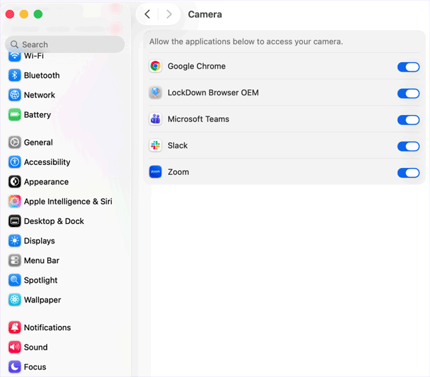
- Go back and select Microphone, then make sure Chrome is enabled there too.
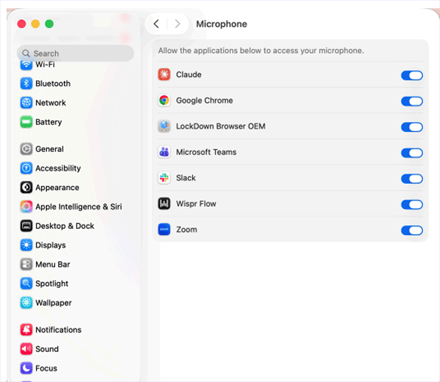
- Fully quit your browser and reopen it.
- Mac users:
-
- Windows users:
- Open Settings by pressing Windows Key + I.
- Select Privacy & security from the left-hand menu.
- Under App permissions, select Camera.
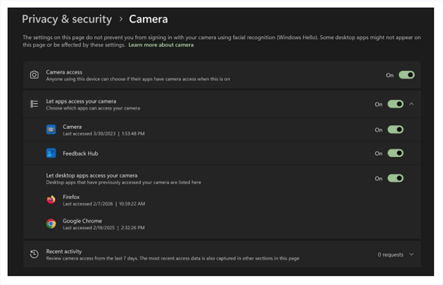
- Make sure Camera access is turned on.
- Turn on Let desktop apps access your camera.
- Repeat these steps under Microphone, making sure both Microphone access and Let desktop apps access your microphone are turned on.
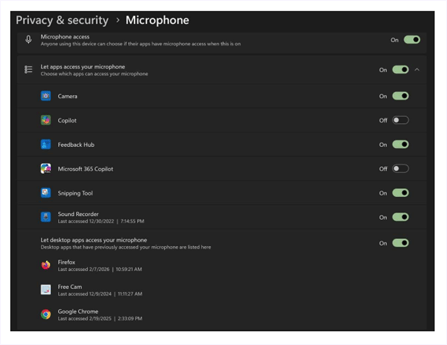
- Fully quit your browser and reopen it.
- Windows users:
Before you start recording
When you open your assessment, Cadmus will run a device check.
- Click Allow when your browser asks for permission to use your camera and microphone.
- Say a few words out loud and watch the level meter beside the microphone button. You should see it move as you speak.
- Wait until you see two green ticks next to Microphone and Camera, as shown in the screenshot below, before continuing.

If the microphone level isn't moving or you don't see two green ticks, don't start your recording yet. Try the troubleshooting steps, just below the next section.
While you're recording
Once you've started your oral assessment:
- Don't close the assessment tab, refresh the page, or use your browser's back button. Doing this will end the attempt, and it will count as used even if nothing was recorded.
- If something doesn't look right, leave the assessment page open rather than refreshing or closing it.
- Wait for your recording to finish uploading before closing anything or moving on. If your Wi-Fi briefly drops out, Cadmus can continue handling the upload as long as the tab remains open.
- Check your recording before moving to the next question. Make sure the video has been recorded correctly and that you can hear yourself.
Troubleshooting
If your camera or microphone isn't working, try these steps in order:
-
Clear your cache and cookies. In Chrome, open the⋮ menu → Delete browsing data → Cookies and Cached images and files → Delete data. Then reopen the assessment.
-
Check that another app isn't using your microphone. Fully quit Zoom, Teams, or any other video or voice apps, then reopen the assessment.
-
Restart your computer, as it can release the camera or microphone if another program is still using it.
-
Try another device. If the issue continues, you can try recording on your phone or another computer.
If you've tried the troubleshooting steps above and still can't record your response, please contact Cadmus Support.
From inside Cadmus, click the book icon to open the Cadmus Manual, then select Contact Support.
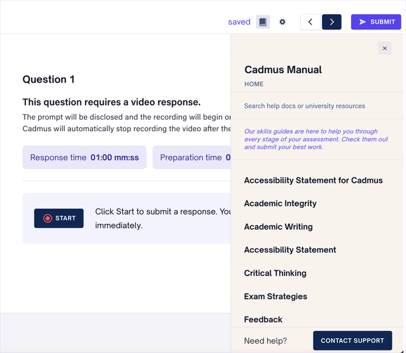
When contacting us, please tell us:
- What you were trying to do
- What happened or what you saw on your screen
- What type of computer or device you're using
- Any troubleshooting steps you've already tried
If you see an error message, including a screenshot will also help us understand what happened and assist you more quickly.