---
title: Introduction to Multi-Format Assessment (MFA)
description: Learn about completing your Multi-Format Assessment
---
[Skip to content](https://support.cadmus.io/students/introduction-to-multi-format-assessment#main-content)
English
Show submenu for translations
[Contact Support](https://support.cadmus.io/kb-tickets/new?hsLang=en)
[![Cadmus Wordmark & Logo\_Master File\_Cadmus Icon\_Ink.png\]](https://support.cadmus.io/hs-fs/hubfs/Cadmus%20Wordmark%20%26%20Logo_Master%20File_Cadmus%20Icon_Ink.png?height=40&name=Cadmus%20Wordmark%20%26%20Logo_Master%20File_Cadmus%20Icon_Ink.png)](https://support.cadmus.io/?hsLang=en)
- [Cadmus](https://cadmus.io/)
- [Contact Support](https://support.cadmus.io/kb-tickets/new)
Open main navigation
Close main navigation
- [Cadmus](https://cadmus.io/)
- [Contact Support](https://support.cadmus.io/kb-tickets/new)
- English
Show submenu for translations
- [Contact Support](https://support.cadmus.io/kb-tickets/new)
What would you like to learn?
- There are no suggestions because the search field is empty.
1. [Cadmus Help Docs](https://support.cadmus.io/?hsLang=en)
2. [Students](https://support.cadmus.io/students?hsLang=en)
3. [Multi-format Assessment](https://support.cadmus.io/students?hsLang=en#multi-format-assessment)
# Introduction to Multi-Format Assessment (MFA)
## Learn how to navigate and complete Multi-Format Assessments in Cadmus.
#### **What is a Multi-Format Assessment?**
A Multi-Format Assessment (MFA) is a new type of exam or assignment in Cadmus. Unlike classic (longform writing) Cadmus assessments, which primarily support long-form text-based assessments, MFA can include different types of questions within the same assessment. These question types include:
- Multiple choice
- Short answer
- Extended response
- Fill in the blanks
- True & False
- Numerical
- Hotspot
- Matching
MFA is compatible with all devices and browsers that you already use with Cadmus. For more details on supported devices and browsers, refer to our [support documentation](https://support.cadmus.io/students/accessing-your-cadmus-assessment?hsLang=en).
### **Before you begin**
Before starting your assessment, we recommend:
- Ensuring you have a stable internet connection and you're not [working offline](https://support.cadmus.io/students/working-offline?hsLang=en)
- Using a supported browser and device
- Closing unnecessary tabs and applications
- Avoiding waiting until the final seconds to submit
- Checking that your work shows as **Saved** while working in Cadmus, as this confirms your work has been auto-saved
### **Completing your assessment**
Once you’re ready to get started on your assessment, you can access it from the subject page in the LMS by following [these instructions](https://support.cadmus.io/students/accessing-your-cadmus-assessment?hsLang=en).
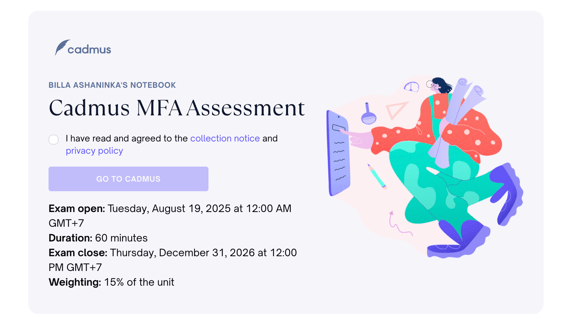
When accessing an exam, You’ll see the exam details with the assessment title.
Click **Go To Cadmus** to enter the MFA student environment and begin the assessment
#### 
**MFA Student environment**
The MFA Student Environment is made up of three main parts:
- [Assessment](https://docs.google.com/document/d/1I5uycJ0DFViQsGmpQBJDIo1q1-DxrLpr7t6M5hwiaE0/edit#heading=h.uk0ndo71ohxs)
- [Notes](https://docs.google.com/document/d/1I5uycJ0DFViQsGmpQBJDIo1q1-DxrLpr7t6M5hwiaE0/edit#heading=h.1ndrdkvd0lto)
- [Action Bar](https://docs.google.com/document/d/1I5uycJ0DFViQsGmpQBJDIo1q1-DxrLpr7t6M5hwiaE0/edit#heading=h.r38mc717mba6)
#### **Assessment**
The *Assessment* tab is where you’ll find information about your assessment, as well as the questions you’ll be answering.
### **Assessment overview**
The *Assessment overview* is where you’ll find the requirements, resources, and academic integrity agreement.
**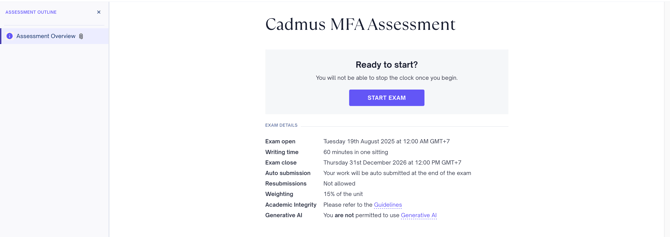**
Once you click Start Exam:
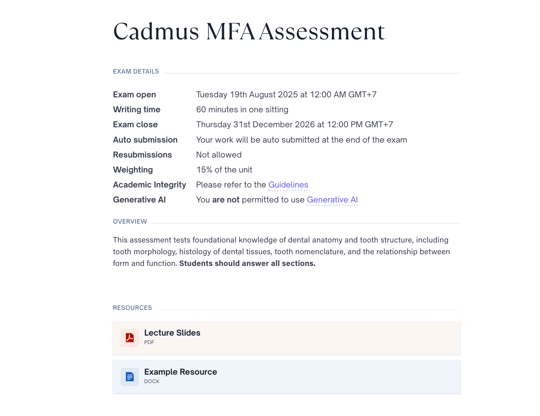
To access the resources provided as a part of the assessment, click the **Resource link** or the **File tile** under the *Resources* section.
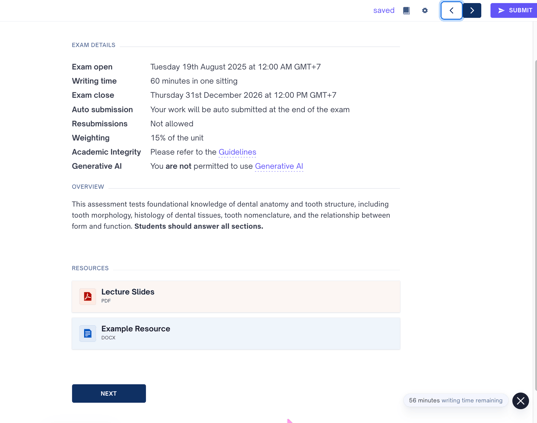
To go to the first question click **Next,** or the Arrow next to the Submit button.
****
### Assessment outline
The *Assessment outline* is the left panel which includes a list of all the sections and questions in the assessment. You can use this to quickly navigate through the entire assessment.
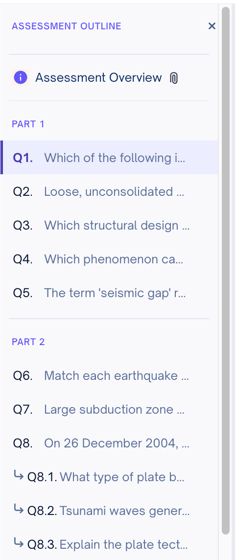
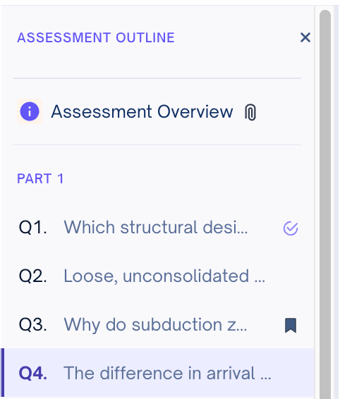
The outline also shows the status of each question.
- A tick indicates that a question has been attempted
- A label icon indicates that a question has been bookmarked.
### **Work Area**
This is the main area where you’ll find the questions within the assessment and respond to them.
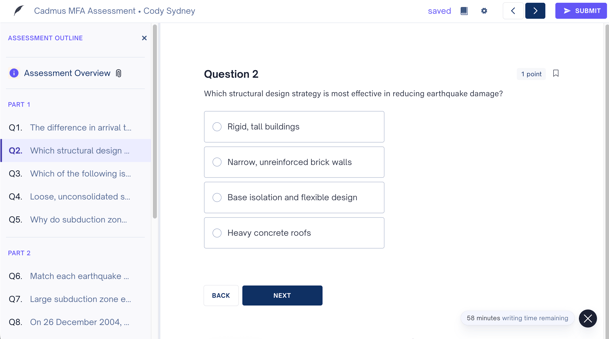
Each question block displays:
- The **question number**.
- The **question text**.
- **Points** - Maximum points that can be awarded for each question.
- **Bookmark button** - Saves a question to be revisited later.
- **Response options** - Varies based on the question type.
- **Back and Next Buttons** - Click these buttons to navigate through the assessment. Note that clicking these buttons without answering the question automatically flags the question as skipped.
How to use the response options to answer each type of question is covered [here, under "How to Answer"](https://support.cadmus.io/students#multi-format-assessment)
#### File Upload & Camera Capture
Some questions may allow File Upload and Camera Capture as part of the assessment.
If enabled by the teaching team, students may be able to:
- upload files alongside their response
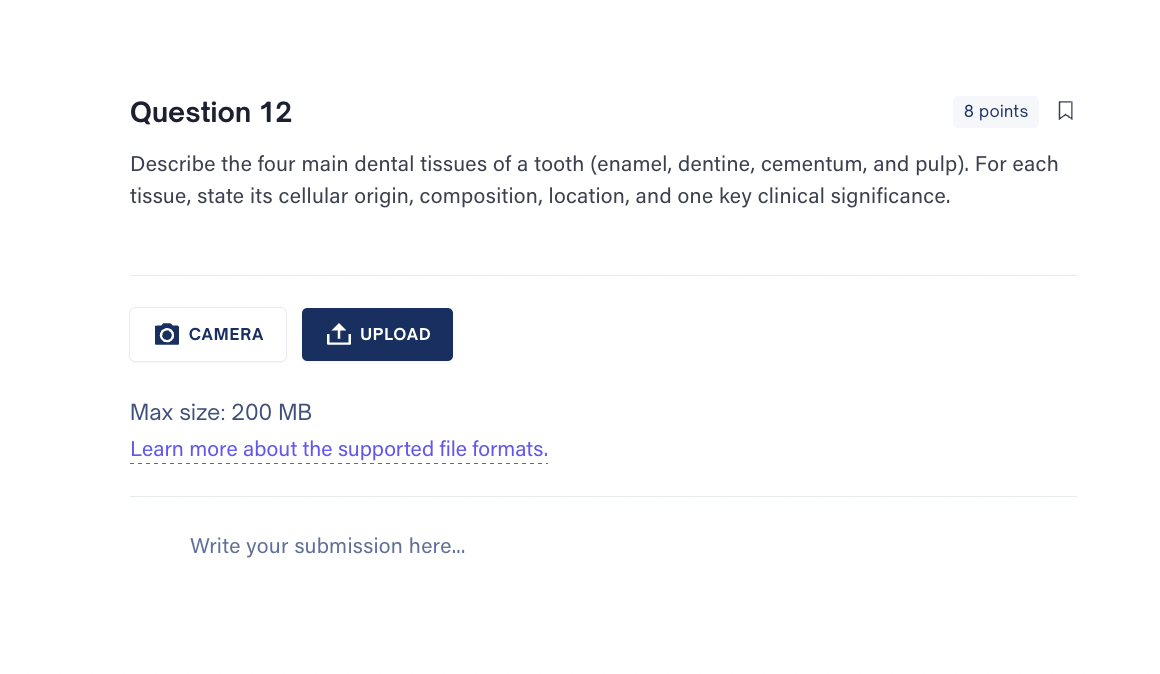
- take and attach photos directly using their device camera within Cadmus
This can be useful for:
- handwritten workings
- diagrams or drawings
- calculations
- lab work
- other visual responses required for the assessment
To use Camera Capture:
1. Click the Camera option within the question block.
2. Allow browser/device camera permissions if prompted.
3. Take a photo or video directly within Cadmus.
4. Confirm the capture to attach it to the response.
**Note**: Camera access depends on browser and device permissions. If the camera does not open, camera permissions may need to be enabled in the browser or device settings before retrying.
### **Count-down Timer**
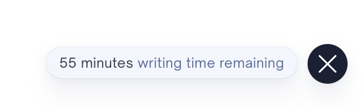
The countdown timer shows the **remaining writing time** available for the assessment attempt.
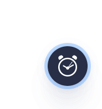
To hide the countdown timer, click the **X** button. To show the hidden countdown timer, click the **Clock** icon.
#### **Action Bar**
The *Action bar* enables you to access the Cadmus Manual, enable or disable spell check, navigate through the questions, and submit your work. It also displays the saved status of your work.

To access the Cadmus Manual:
- Click the **Book button** to open up the Cadmus Manual. It’s full of helpful university resources on things like academic writing and referencing.
Inside the Cadmus Manual, you’ll also find a link to the [**Cadmus Help Centre**](https://support.cadmus.io/?hsLang=en) in case you have any questions or issues while working in Cadmus.
To toggle the Spell Checker:
- Click the **Settings button** to open up a dropdown menu
- Enable or disable the spell checker by clicking on the **Toggle button**
To navigate between questions, simply use the left and right arrow buttons to move between questions.
**Submitting work in MFA**
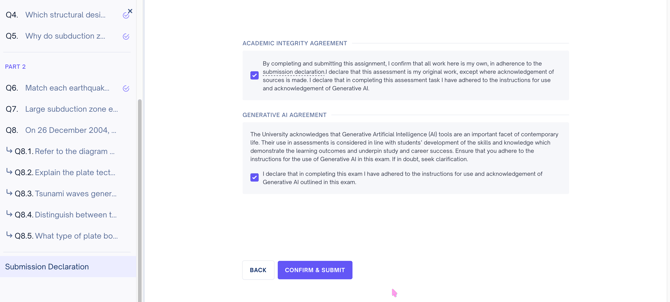
**Normal submission**:
To submit your assessment when all questions have been answered, click **Confirm and Submit.**
**Note**: You can submit multiple times before the assignment's close/end date.
### ****
**Submitting with unanswered questions**:
1. Click **Submit**
2. When there are questions that haven't been answered, you’ll be asked to confirm your submission.
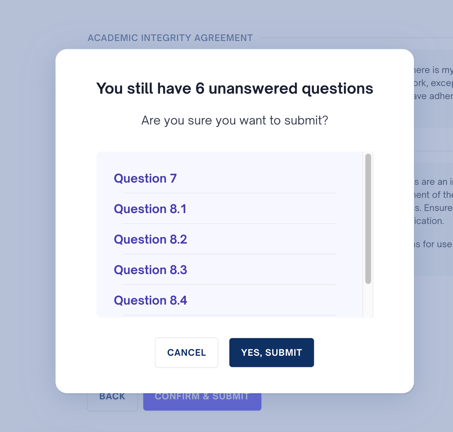
1. Click **Yes, Submit** to submit anyway.
2. To go back to the assessment click **Cancel.**
3. To go back to the assessment and reattempt a question click on the **Question number.**
The final submission for your assignment will be displayed in a new tab called **Final** next to Assessment.
Note: Submitting again before the due date replaces the previous submission.
The process of [submitting drafts](https://support.cadmus.io/students/submitting-drafts?hsLang=en) remains the same.
**Submission after timer expires**:
1. When the time is up, and some questions haven't been answered, you’ll be asked to confirm your submission.
2. To submit on time, with questions that have not been answered, click **Submit Now.**
3. To re-attempt any skipped or bookmarked questions and continue working, you’ll need to accept a late submission penalty. You can do this by clicking **Continue working and submit late.** This will take you back to the assessment
4. You can also click the **Question Number** to go back to a specific question. Doing so will also incur a late submission penalty.
### **What is bookmarking and how to use it**
Bookmarking a question allows you to tag a question that you want to revisit at any point during the assessment.
To create a bookmark, simply click on the **Label Icon** on the desired question block.
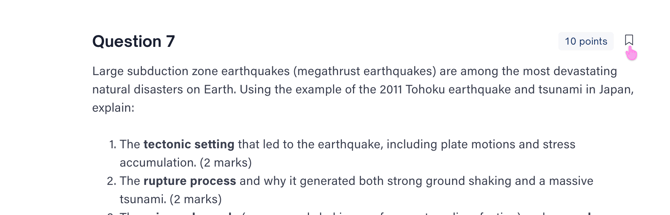
This question will be displayed as **saved for later** in the *Assessment* *outline*.
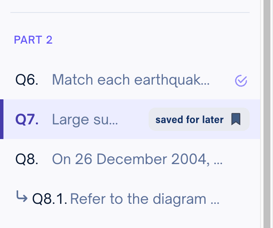
Tip: Bookmarked questions can be revisited anytime during the assessment.
- [Teachers](https://support.cadmus.io/teachers?hsLang=en#main-content)
- [Introduction](https://support.cadmus.io/teachers?hsLang=en#introduction)
- [Setting up assessments](https://support.cadmus.io/teachers?hsLang=en#setting-up-assessments)
- [Managing your class](https://support.cadmus.io/teachers?hsLang=en#managing-your-class)
- [Turnitin + Cadmus](https://support.cadmus.io/teachers?hsLang=en#turnitin-cadmus)
- [Marking + feedback](https://support.cadmus.io/teachers?hsLang=en#marking-feedback)
- [Exams](https://support.cadmus.io/teachers?hsLang=en#exams)
- [Drafts](https://support.cadmus.io/teachers?hsLang=en#drafts)
- [Insights](https://support.cadmus.io/teachers?hsLang=en#insights)
- [Students working](https://support.cadmus.io/teachers?hsLang=en#students-working)
- [FAQs + Troubleshooting](https://support.cadmus.io/teachers?hsLang=en#faqs-troubleshooting)
- [Multi-format Assessments](https://support.cadmus.io/teachers?hsLang=en#multi-format-assessments)
- [Group Assessments](https://support.cadmus.io/teachers?hsLang=en#group-assessments)
- [Oral Assessments](https://support.cadmus.io/teachers?hsLang=en#oral-assessments)
- [Students](https://support.cadmus.io/students?hsLang=en#main-content)
- [Introduction](https://support.cadmus.io/students?hsLang=en#introduction)
- [Working in Cadmus](https://support.cadmus.io/students?hsLang=en#working-in-cadmus)
- [Submitting](https://support.cadmus.io/students?hsLang=en#submitting)
- [Grades + Feedback](https://support.cadmus.io/students?hsLang=en#grades-feedback)
- [Drafts](https://support.cadmus.io/students?hsLang=en#drafts)
- [FAQs + Troubleshooting](https://support.cadmus.io/students?hsLang=en#faqs-troubleshooting)
- [Multi-format Assessment](https://support.cadmus.io/students?hsLang=en#multi-format-assessment)
- [Group Assessments](https://support.cadmus.io/students?hsLang=en#group-assessments)
- [Oral Assessments](https://support.cadmus.io/students?hsLang=en#oral-assessments)
- [Admins](https://support.cadmus.io/admins?hsLang=en#main-content)
- [Integrations](https://support.cadmus.io/admins?hsLang=en#integrations)
- [Release Notes](https://support.cadmus.io/release-notes?hsLang=en)
- [Privacy Policy](https://support.cadmus.io/privacy-policy?hsLang=en)
- [Cadmus](https://cadmus.io/)
- [Video Tutorials](https://cadmus.io/video-tutorials/)
- [Contact Support](https://support.cadmus.io/kb-tickets/new)
- [System Status](https://cadmus.statuspage.io/)
[](http://cadmus.io)
Copyright © 2026, Cadmus
```json
{
"@context" : "https://schema.org",
"@type" : "VideoObject",
"caption" : {
"@type" : "MediaObject",
"contentUrl" : "https://support.cadmus.io/media-transcripts/164974258984/en.vtt",
"inLanguage" : "en",
"name" : "en Captions"
},
"contentUrl" : "https://5206287.fs1.hubspotusercontent-na1.net/hubfs/5206287/Intro%20to%20Student%20Environment.mp4",
"dateModified" : "2026-03-11T03:47:58.151Z",
"duration" : "PT2M38.767S",
"height" : 1198,
"name" : "Intro to Student Environment",
"thumbnailUrl" : "https://5206287.fs1.hubspotusercontent-na1.net/hubfs/5206287/Intro%20to%20Student%20Environment.mp4/medium.jpg",
"uploadDate" : "2024-04-19T12:29:41.980Z",
"width" : 1920
}
```