---
title: How to Answer a Video Response Question
description: Learn how to answer a Video Response Question in an Oral Assessment
---
[Skip to content](https://support.cadmus.io/students/how-to-answer-a-video-response-question#main-content)
English
Show submenu for translations
[Contact Support](https://support.cadmus.io/kb-tickets/new?hsLang=en)
[![Cadmus Wordmark & Logo\_Master File\_Cadmus Icon\_Ink.png\]](https://support.cadmus.io/hs-fs/hubfs/Cadmus%20Wordmark%20%26%20Logo_Master%20File_Cadmus%20Icon_Ink.png?height=40&name=Cadmus%20Wordmark%20%26%20Logo_Master%20File_Cadmus%20Icon_Ink.png)](https://support.cadmus.io/?hsLang=en)
- [Cadmus](https://cadmus.io/)
- [Contact Support](https://support.cadmus.io/kb-tickets/new)
Open main navigation
Close main navigation
- [Cadmus](https://cadmus.io/)
- [Contact Support](https://support.cadmus.io/kb-tickets/new)
- English
Show submenu for translations
- [Contact Support](https://support.cadmus.io/kb-tickets/new)
What would you like to learn?
- There are no suggestions because the search field is empty.
1. [Cadmus Help Docs](https://support.cadmus.io/?hsLang=en)
2. [Students](https://support.cadmus.io/students?hsLang=en)
3. [Oral Assessments](https://support.cadmus.io/students?hsLang=en#oral-assessments)
# How to Answer a Video Response Question
## A student's guide to preparing, recording, and submitting a Video Response question in Cadmus.
To tackle a Video Response Question, you will need to record yourself speaking, usually about your own written work, or responding to a question prompt from the Teaching Team. Not to worry, you will have some space to set up your devices, time to prepare and read the question, and a window to record, ensuring a smooth process.
This article will guide you through:
- Before you start
- Reading your question
- Using your preparation time
- Recording your response
- Re-attempting your response
- Submitting your response
### **Before you start: Device Check**
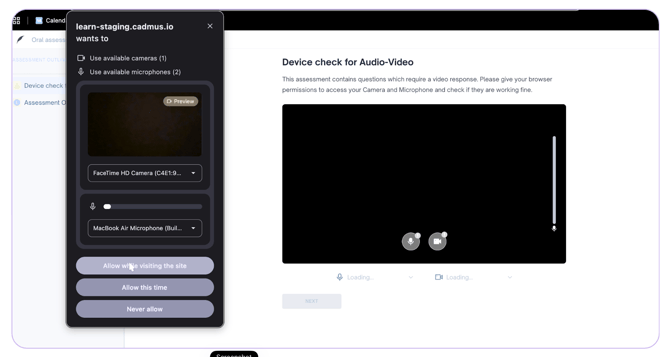
Please test your camera and microphone, check your internet connection and stability, and find a quiet, well-lit space before you begin. Cadmus will also prompt you to allow camera and microphone access when you start the assessment, and you’ll need to allow/accept this manually.
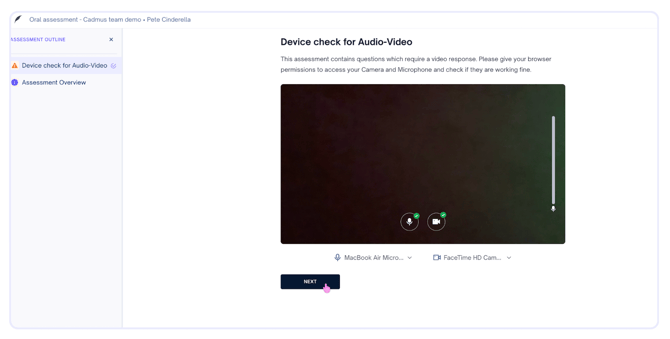
Here’s what a Device Check would look like:
A successful setup will show you Green checkmarks next to the Microphone and Camera buttons, and you can click Next to proceed.
**Example of incomplete setup:**
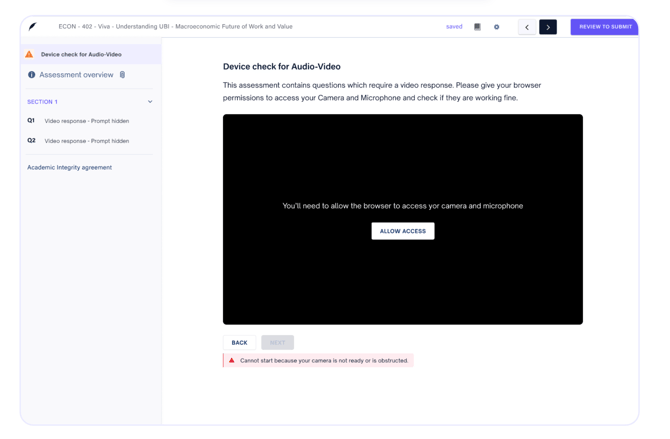
In this case, you will need to:
- Click the **Settings Icon** (sliders, if using Chrome) at the far left of the address bar
- Toggle **Camera** and **Microphone** to **Allow,** similar to
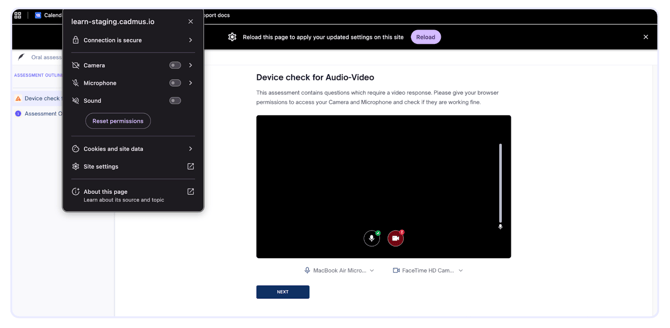
- And then reload the page.
### **The Question Block**
**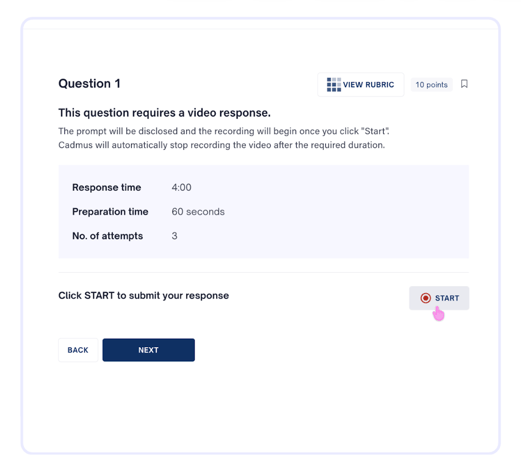**
The question block displays:
- The question number
- The question prompt
- Points - Maximum points that can be awarded for each question
- Bookmark button - Saves a question to be revisited later
- View Rubric - if made available by the Teaching team
- Back and Next Buttons - Click these buttons to navigate through the assessment. Note that clicking these buttons without answering the question automatically flags the question as skipped.
You can also review:
- The required response duration.
- How long you will have to prepare and process the question.
- And the number of attempts available.
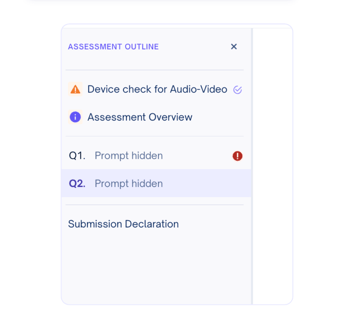
**Note**: Please click **Start** to enter the Video Response Question, and not **Next**. **Next** will lead you to the next question, and the Video Response Question will be marked as skipped, as shown below:
---
### **Preparation Time**
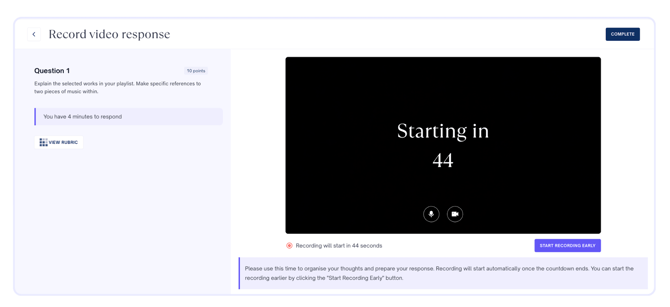
Once you click Start, the prompt is revealed and stays visible on screen throughout your preparation time and recording.
**Using your preparation time:**
1. You'll get a set amount of **preparation time** to think through your answer before recording starts. This isn't recorded — use it to plan what you'll say.
2. You don't have to wait — click Start Recording Early at any point to skip the rest of the countdown and begin straight away.
3. When preparation time runs out, recording starts automatically in the same tab — there's no separate pop-up, so make sure you're ready to speak.
4. We recommend preparing a short mental outline: your key point and supporting details - instead of trying to script word for word.
**NOTE:** *Preparation time is separate from Reading Time, which covers the general assessment instructions rather than an individual question.*
---
### Recording your response
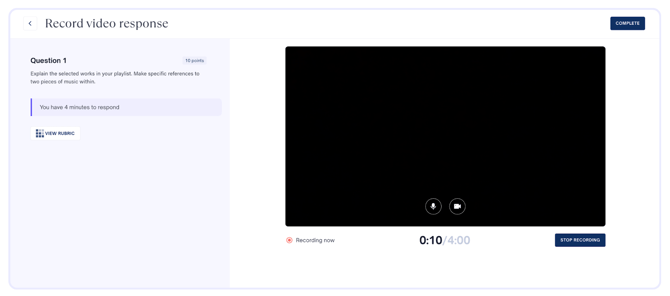
When your **Response time** starts, recording begins automatically — you don't need to click anything to start it (whether preparation time has just run out, or you clicked **Start Recording Early**).
Please note that:
- If your assessment has **Video mandatory** turned on, keep your camera on for the whole recording.
- When you click Stop Recording, you'll see a confirmation screen before your response is saved — so you have a chance to confirm rather than submitting instantly.
- For example, if you click “Stop Recording early, you will receive this notification:
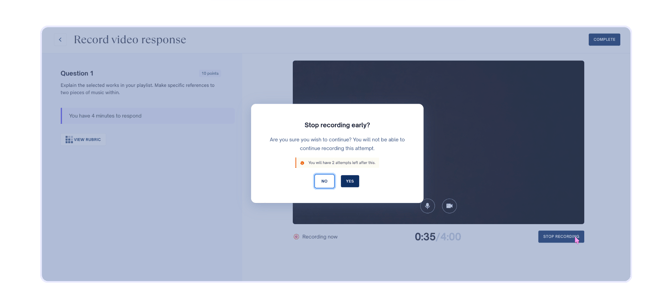
- Once confirmed, you'll get a notification in the bottom right corner that your recording is saved, and you can rewatch it before moving on.
- You'll have up to the full Response duration to finish. Please check with your lecturer whether you’ll need to use up all of it.
---
### Re-attempting your response
You will be able to see how many **attempts** you have left for each question, and this is set by your Teaching Team / Lecturer.
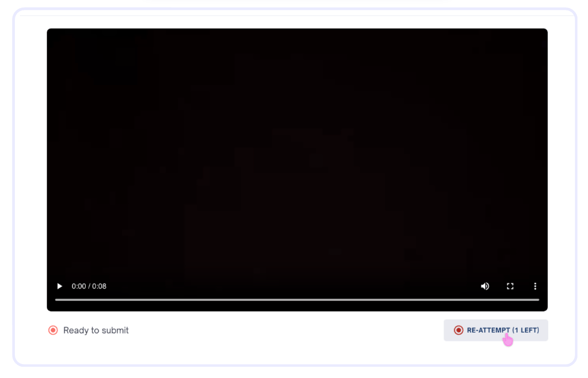
It’s worth noting that:
- If your assessment has a re-attempt time limit, you'll see a countdown — you'll need to start your next attempt before it runs out. Please see the example below:
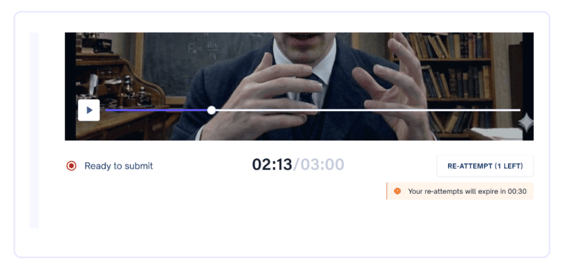
- If backtracking is turned off for your assessment, you won't be able to go back to a question once you've attempted or skipped it — so make sure you're ready before moving on.
- If you logged multiple attempts, please note that your latest attempt will be selected by default.
Note: **If you still have attempts showing but aren't able to start another one,** it's likely because there isn't enough time left in the assessment to complete a full Preparation + Response window. Your most recent recording will still count, so nothing is lost. Reach out to your teaching team if you think you need more time.
---
### **Submitting your response**
Each response is saved as you complete it, but the assessment itself isn't submitted until you've gone through every question and click Submit Work at the end.
If your assessment includes it, you'll be able to download a **PDF copy** of your submission once you've finished.
**Note**: Don't worry if the clock is about to run out mid-recording — if you're still recording a response when the assessment window ends, you won't be cut off. You'll get the time you need to finish and submit that response before it closes.
- [Teachers](https://support.cadmus.io/teachers?hsLang=en#main-content)
- [Introduction](https://support.cadmus.io/teachers?hsLang=en#introduction)
- [Setting up assessments](https://support.cadmus.io/teachers?hsLang=en#setting-up-assessments)
- [Managing your class](https://support.cadmus.io/teachers?hsLang=en#managing-your-class)
- [Turnitin + Cadmus](https://support.cadmus.io/teachers?hsLang=en#turnitin-cadmus)
- [Marking + feedback](https://support.cadmus.io/teachers?hsLang=en#marking-feedback)
- [Exams](https://support.cadmus.io/teachers?hsLang=en#exams)
- [Drafts](https://support.cadmus.io/teachers?hsLang=en#drafts)
- [Insights](https://support.cadmus.io/teachers?hsLang=en#insights)
- [Students working](https://support.cadmus.io/teachers?hsLang=en#students-working)
- [FAQs + Troubleshooting](https://support.cadmus.io/teachers?hsLang=en#faqs-troubleshooting)
- [Multi-format Assessments](https://support.cadmus.io/teachers?hsLang=en#multi-format-assessments)
- [Group Assessments](https://support.cadmus.io/teachers?hsLang=en#group-assessments)
- [Oral Assessments](https://support.cadmus.io/teachers?hsLang=en#oral-assessments)
- [Students](https://support.cadmus.io/students?hsLang=en#main-content)
- [Introduction](https://support.cadmus.io/students?hsLang=en#introduction)
- [Working in Cadmus](https://support.cadmus.io/students?hsLang=en#working-in-cadmus)
- [Submitting](https://support.cadmus.io/students?hsLang=en#submitting)
- [Grades + Feedback](https://support.cadmus.io/students?hsLang=en#grades-feedback)
- [Drafts](https://support.cadmus.io/students?hsLang=en#drafts)
- [FAQs + Troubleshooting](https://support.cadmus.io/students?hsLang=en#faqs-troubleshooting)
- [Multi-format Assessment](https://support.cadmus.io/students?hsLang=en#multi-format-assessment)
- [Group Assessments](https://support.cadmus.io/students?hsLang=en#group-assessments)
- [Oral Assessments](https://support.cadmus.io/students?hsLang=en#oral-assessments)
- [Admins](https://support.cadmus.io/admins?hsLang=en#main-content)
- [Integrations](https://support.cadmus.io/admins?hsLang=en#integrations)
- [Release Notes](https://support.cadmus.io/release-notes?hsLang=en)
- [Privacy Policy](https://support.cadmus.io/privacy-policy?hsLang=en)
- [Cadmus](https://cadmus.io/)
- [Video Tutorials](https://cadmus.io/video-tutorials/)
- [Contact Support](https://support.cadmus.io/kb-tickets/new)
- [System Status](https://cadmus.statuspage.io/)
[](http://cadmus.io)
Copyright © 2026, Cadmus