![Cadmus Wordmark & Logo_Master File_Cadmus Icon_Ink.png]](https://support.cadmus.io/hs-fs/hubfs/Cadmus%20Wordmark%20%26%20Logo_Master%20File_Cadmus%20Icon_Ink.png?height=40&name=Cadmus%20Wordmark%20%26%20Logo_Master%20File_Cadmus%20Icon_Ink.png)
With smart comments, teachers can now save and reuse frequently used comments while marking and giving feedback on student submissions.
In this guide, we’ll cover how to:
- Add and use smart comments
- Use smart suggestions
- Edit smart comments
- Browse the smart comment library
Add and use smart comments
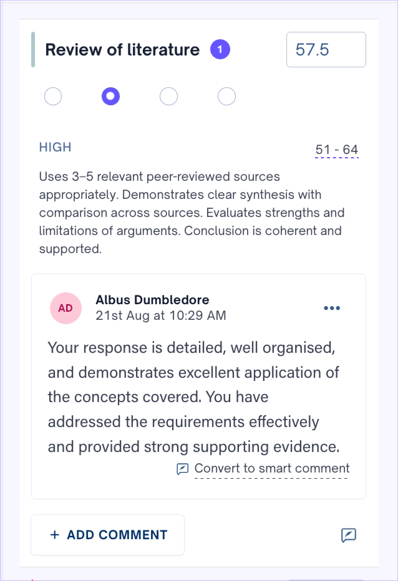
To add a comment to the Smart Comments library, click Convert to smart comment in the Marking tab or next to a comment in the Expanded Rubric view. A smart comment icon will appear once the comment has been added.
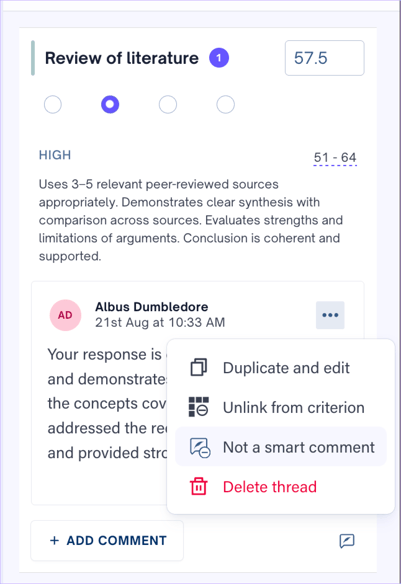
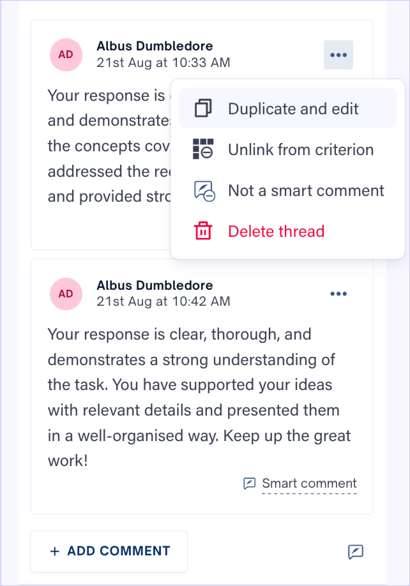
Click on the three dots next to the comment and click the Not a smart comment option in a case where you accidentally added it to the smart comment library.
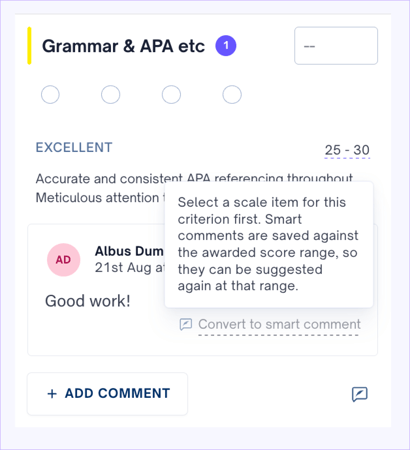
Please note that you can only add a comment as a smart comment after marking the student via the rubric. Smart comments are only available under specific rubric criteria, as each smart comment is linked to the scale item it was added under.
Use smart suggestions
The smart comments you add are automatically suggested when you use the same scale item under a criterion. Click on the suggestion pill to add the suggested comment as feedback. Any suggested comments added as feedback will have the smart comment icon next to them.
Any added smart comment linked to a criterion will be available for grading in the same assessment and for all assessments that use the same criteria. In a case where a criterion uses different scales in different assessments, only those smart comments that fall under the % score equivalent of the previously used scale will be visible and available to use.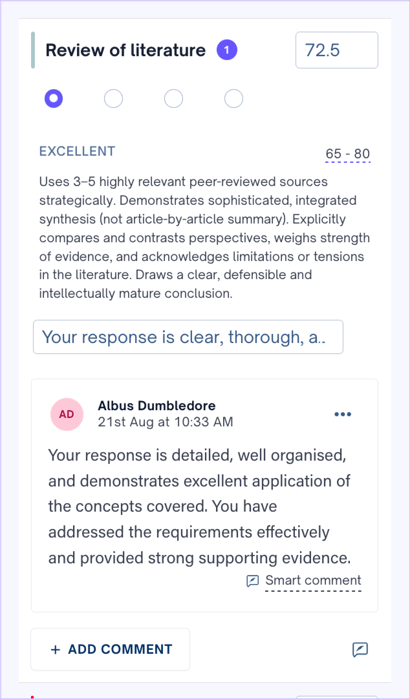
Edit smart comments
To use the content from a previously used smart comment, you can add, duplicate and edit it as per your convenience, and add it as student feedback by clicking on the ellipsis next to the comment.
Note that any duplicated and edited smart comments don’t automatically get added to the library. They appear as normal feedback comments and can be converted into a smart comment.
Browse the smart comment library
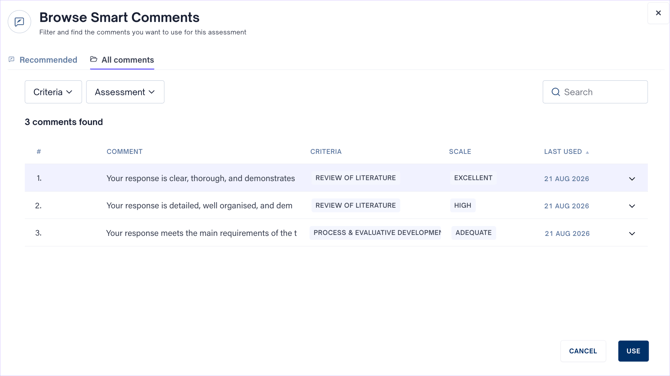
Click the Smart Comments icon next to Add Comment under a criterion in the Marking tab to browse the Smart Comments library. You can switch between Recommended and All comments. Each comment shows its linked criterion, scale score, and last used date.
To find previously used comments, use the search bar or filters to filter by criterion or assessment. Select a comment and click Add to include it in the student’s feedback. Click the down arrow next to a comment to view additional details, such as its author, creation date, and usage count.
Smart Comments are linked to the criterion from which you opened the library. Smart Comments cannot be browsed from the Expanded Rubric view.