![Cadmus Wordmark & Logo_Master File_Cadmus Icon_Ink.png]](https://support.cadmus.io/hs-fs/hubfs/Cadmus%20Wordmark%20%26%20Logo_Master%20File_Cadmus%20Icon_Ink.png?height=40&name=Cadmus%20Wordmark%20%26%20Logo_Master%20File_Cadmus%20Icon_Ink.png)
Group Assessments in Cadmus include a Sentiment Check feature, providing teachers with regular updates on group dynamics. Teachers can set the survey frequency using a red, amber, green scale, and students receive a pop-up to provide feedback on their experience. This fosters a fair process, allows students to voice concerns, and helps teachers intervene early to maintain a healthy learning environment.
In this article, we will learn how to:
Set up a Sentiment Check survey
Checking Sentiment Check Responses
How Sentiment Check Surveys appear to Students
Setting up Sentiment Check
The Sentiment Check feature can be turned on while setting up your group assessment. You can switch the toggle pill next to the Sentiment Check feature on or off to include the survey. You may select between two options -
1. Adding the frequency, in days, which will determine the intervals at which the students will receive the sentiment check survey, along with adding a custom date and time for the first check.
Adding the first check date and time is optional. If you don’t add it, then the first check will be sent out after the frequency period in days passes from the point of assessment release.
2. A custom schedule for the checks, where you would’ve to add the exact date and time for all the sentiment check surveys. You can add any number of checks by clicking the Add Check button. You can delete any check by clicking the bin icon to its right.
Note that sentiment checks added have to be chronological. Sentiment check 2 date and time cannot be earlier than Sentiment check 1 date and time.

NOTE: It is recommended that you don't change the sentiment check frequency after the assessment release or after students have submitted one or more responses to the scheduled sentiment checks according to the previous frequency.
Changing the frequency after students have submitted their first response may result in erasure of the initial set of student responses.
Checking Sentiment Check Responses
- To check the student responses to the surveys, navigate to the Progress tab.
- Under the Sentiment Check Status column, click on the survey responses, which will take you to the Sentiment Check panel.
- You will be able to filter responses based on group and the survey number. In the table, you will find the student name, sentiment check status (On Track, Minor Hurdles, Need Support), comments, and survey submission timestamp.
- Click on the arrow beside the survey submission timestamp to see the entire comment.
- Use the search bar on the top right to view the survey responses from a particular student by name.

How Sentiment Check Surveys appear to Students
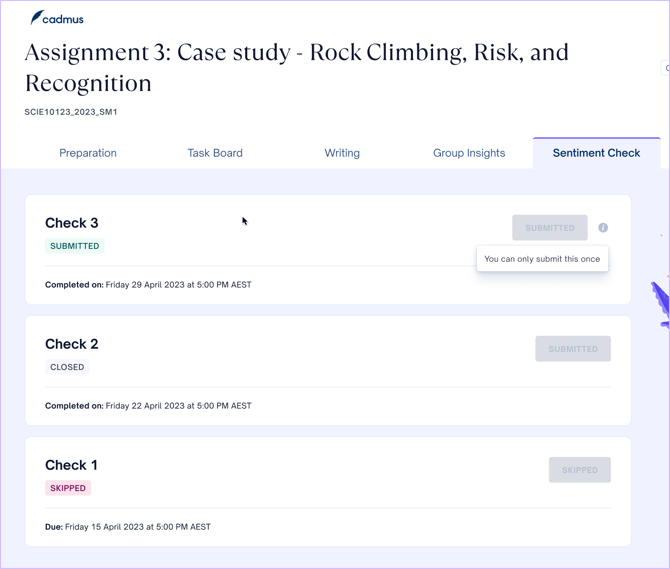
Depending on the frequency or the custom schedule you set, students will receive a pop-up survey periodically. Students can view the status of all previous surveys and submit active surveys from the Sentiment Check tab. The Submit button will only be active against a survey that the student has skipped or hasn't submitted. Students will only be allowed to submit the survey once. Post submission, the submit button will be blocked out.
They would need to select one out of three options to rate their experience. The options are Group is working well together (Green, which shows up as On Track at your end), Some challenges, but manageable (Amber, which shows up as Minor Hurdles at your end), and Significant issues impacting progress (Red, which shows up as Support Needed at your end). They can enter any comments in the comment box below and click Confirm to submit their responses.
