---
title: Provisional Feedback Release
description: Learn how to release feedback provisionally (temporarily) within Cadmus
---
[Skip to content](https://support.cadmus.io/provisional-feedback-release#main-content)
English
Show submenu for translations
[Contact Support](https://support.cadmus.io/kb-tickets/new?hsLang=en)
[![Cadmus Wordmark & Logo\_Master File\_Cadmus Icon\_Ink.png\]](https://support.cadmus.io/hs-fs/hubfs/Cadmus%20Wordmark%20%26%20Logo_Master%20File_Cadmus%20Icon_Ink.png?height=40&name=Cadmus%20Wordmark%20%26%20Logo_Master%20File_Cadmus%20Icon_Ink.png)](https://support.cadmus.io/?hsLang=en)
- [Cadmus](https://cadmus.io/)
- [Contact Support](https://support.cadmus.io/kb-tickets/new)
Open main navigation
Close main navigation
- [Cadmus](https://cadmus.io/)
- [Contact Support](https://support.cadmus.io/kb-tickets/new)
- English
Show submenu for translations
- [Contact Support](https://support.cadmus.io/kb-tickets/new)
What would you like to learn?
- There are no suggestions because the search field is empty.
1. [Cadmus Help Docs](https://support.cadmus.io/?hsLang=en)
2. [Teachers](https://support.cadmus.io/teachers?hsLang=en)
3. [Marking + feedback](https://support.cadmus.io/teachers?hsLang=en#marking-feedback)
# Provisional Feedback Release
## Learn how to release feedback provisionally (temporarily) within Cadmus
Teachers using Cadmus Marker as the grading and feedback tool for their assessments can now release provisional feedback to students. Provisional feedback will only be available to students on Cadmus, whereas final feedback is released to the LMS. Unlike final feedback, provisional feedback can be continued to be edited post- release and released multiple times with updated/changed scores.
**NOTE**: Final feedback would have to be released separately as provisional feedback is tentative.
Irrespective of the feedback type selected, teachers will have the option to select the visibility and sharing settings to better control what part of the feedback (grades, comments, or both) students engage with.
To learn how to release feedback provisionally and set feedback visibility options, follow these steps:
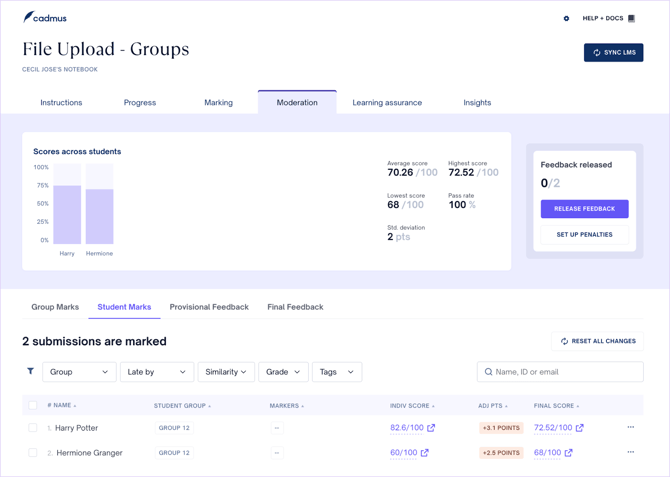
1. From the Moderation tab, click **Release Feedback** to be taken to the feedback settings panel.
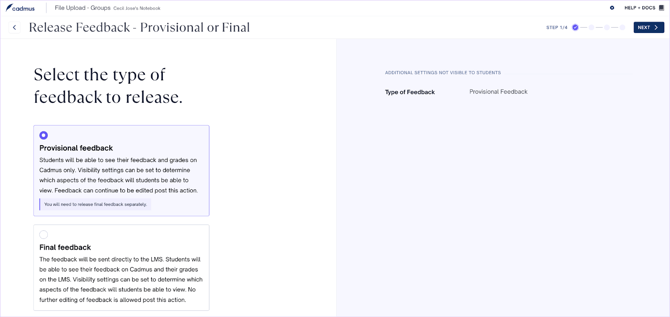
2. Select the **Provisional Feedback** option and click **Next**. To release the final feedback, click on **Final Feedback**.
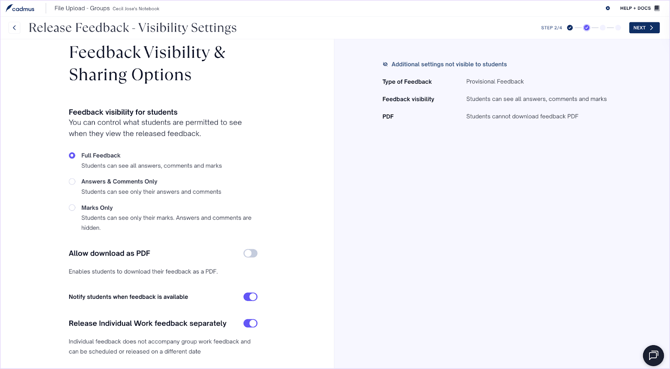
3. Select one out of the feedback visibility options - *Full Feedback* (answers, comments, and marks), *Answers and Comments Only,* or *Marks Only*. To enable students to download feedback as PDF and notify them when feedback is available, click on the toggle pill adjacent to the respective options.
For Group Assignments, use the toggle pill next to **Release individual work feedback separately** to schedule and release individual feedback on a different date than group feedback.
4. In the next panel, select between releasing feedback for everyone in the class or selectively. If **Release now for everyone** option is selected, feedback will be released after clicking **Next**.
If **Release Selectively** is selected, you can choose to release feedback immediately or schedule it for a later date while **withholding feedback from specific students or student groups**.
To release feedback selectively:
1. Select **Release Selectively**.
2. Choose whether to **Release now** or **Schedule release**.
3. Under the exclusion options, select the individual students or student tags whose feedback should be withheld from the release.
4. Click **+ Add to schedule** if you'd like to create additional release schedules for different groups of students.
5. Once your settings are configured, click **Release now** or **Save and Continue** to schedule the release.

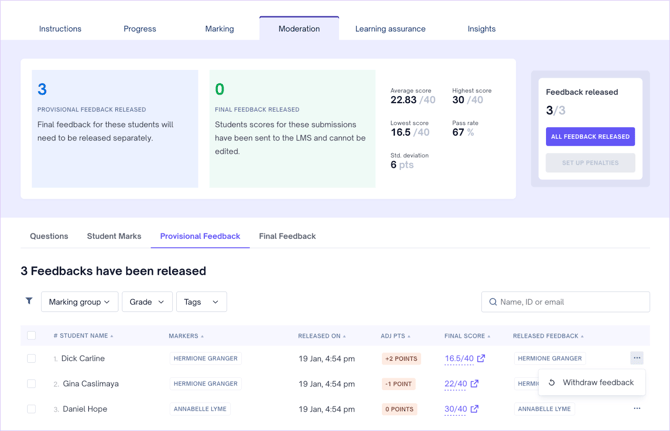
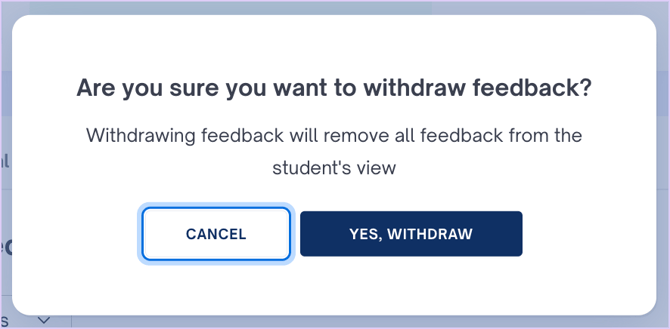
5. Once feedback has been released, you will find a *Provisional Feedback* and *Final Feedback* section in the *Moderation* tab. At the top of these sections, you can find the number of students for whom provisional and final feedback has been released and other moderation score-related statistics. Click the three dots on the right of student's name in the list and click Withdraw feedback and confirm to remove all feedback for a student.
- [Teachers](https://support.cadmus.io/teachers?hsLang=en#main-content)
- [Introduction](https://support.cadmus.io/teachers?hsLang=en#introduction)
- [Setting up assessments](https://support.cadmus.io/teachers?hsLang=en#setting-up-assessments)
- [Managing your class](https://support.cadmus.io/teachers?hsLang=en#managing-your-class)
- [Turnitin + Cadmus](https://support.cadmus.io/teachers?hsLang=en#turnitin-cadmus)
- [Marking + feedback](https://support.cadmus.io/teachers?hsLang=en#marking-feedback)
- [Exams](https://support.cadmus.io/teachers?hsLang=en#exams)
- [Drafts](https://support.cadmus.io/teachers?hsLang=en#drafts)
- [Insights](https://support.cadmus.io/teachers?hsLang=en#insights)
- [Students working](https://support.cadmus.io/teachers?hsLang=en#students-working)
- [FAQs + Troubleshooting](https://support.cadmus.io/teachers?hsLang=en#faqs-troubleshooting)
- [Multi-format Assessments](https://support.cadmus.io/teachers?hsLang=en#multi-format-assessments)
- [Group Assessments](https://support.cadmus.io/teachers?hsLang=en#group-assessments)
- [Oral Assessments](https://support.cadmus.io/teachers?hsLang=en#oral-assessments)
- [Students](https://support.cadmus.io/students?hsLang=en#main-content)
- [Introduction](https://support.cadmus.io/students?hsLang=en#introduction)
- [Working in Cadmus](https://support.cadmus.io/students?hsLang=en#working-in-cadmus)
- [Submitting](https://support.cadmus.io/students?hsLang=en#submitting)
- [Grades + Feedback](https://support.cadmus.io/students?hsLang=en#grades-feedback)
- [Drafts](https://support.cadmus.io/students?hsLang=en#drafts)
- [FAQs + Troubleshooting](https://support.cadmus.io/students?hsLang=en#faqs-troubleshooting)
- [Multi-format Assessment](https://support.cadmus.io/students?hsLang=en#multi-format-assessment)
- [Group Assessments](https://support.cadmus.io/students?hsLang=en#group-assessments)
- [Oral Assessments](https://support.cadmus.io/students?hsLang=en#oral-assessments)
- [Admins](https://support.cadmus.io/admins?hsLang=en#main-content)
- [Integrations](https://support.cadmus.io/admins?hsLang=en#integrations)
- [Release Notes](https://support.cadmus.io/release-notes?hsLang=en)
- [Privacy Policy](https://support.cadmus.io/privacy-policy?hsLang=en)
- [Cadmus](https://cadmus.io/)
- [Video Tutorials](https://cadmus.io/video-tutorials/)
- [Contact Support](https://support.cadmus.io/kb-tickets/new)
- [System Status](https://cadmus.statuspage.io/)
[](http://cadmus.io)
Copyright © 2026, Cadmus