![Cadmus Wordmark & Logo_Master File_Cadmus Icon_Ink.png]](https://support.cadmus.io/hs-fs/hubfs/Cadmus%20Wordmark%20%26%20Logo_Master%20File_Cadmus%20Icon_Ink.png?height=40&name=Cadmus%20Wordmark%20%26%20Logo_Master%20File_Cadmus%20Icon_Ink.png)
If you already have marking groups set up in an assessment and would like to have the same marking groups transferred across your assessments, you can do so with a file downloaded from Cadmus, which you can then upload to your other assessments.
This article will cover how to:
- Download your existing marking groups from Cadmus
- Import your marking groups into another assessment
Download your existing marking groups from Cadmus:
To download your existing marking groups from Cadmus, locate the Cadmus assessment with the groups set up and:
- On the Instructions page, navigate to the Marking tab.
- In the Marking Groups box, click Set up.
- From this page, click the Download 📩 icon (in the bottom-right corner, next to the Go Back button) to export your groups.

Import your marking groups into another Cadmus assessment:
To import your marking groups across into another Cadmus assessment, locate your new assessment, and:
- On the Instructions page, navigate to the Marking tab.
- In the Marking Groups box, click Set up.
- From this page, click Import .csv or .zip file and select the .zip file previously downloaded from your other Cadmus assessment.
.png?width=688&height=370&name=Groups%20across%20assessmentsimport%20(3).png)
- Select the groups you wish to import and click Create Groups (the purple button in the bottom-right corner).
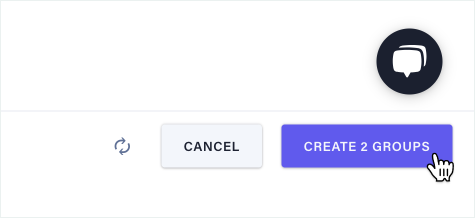
NOTE: If you'd like to quickly select all of your existing groups, select a Group Set instead.