![Cadmus Wordmark & Logo_Master File_Cadmus Icon_Ink.png]](https://support.cadmus.io/hs-fs/hubfs/Cadmus%20Wordmark%20%26%20Logo_Master%20File_Cadmus%20Icon_Ink.png?height=40&name=Cadmus%20Wordmark%20%26%20Logo_Master%20File_Cadmus%20Icon_Ink.png)
With Cadmus, you can add links to your assessment instructions using the formatting toolbar.
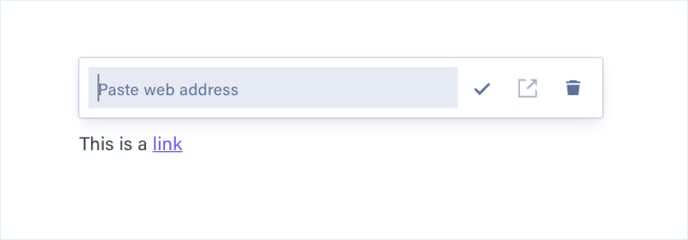
To add a link
- Highlight the text you want to link.
- Click the
 link icon in the formatting toolbar.
 - Paste the URL into the field.
- Click the
 tick icon or press Enter to confirm.
Note: If you would like to track student engagement with a URL, you will need to add it as a resource instead of a link.
To edit a link
- Click on the link you would like to edit.
- Edit the URL or paste in a new one.
- Click the tick icon or press Enter to confirm.
To remove a link
- Click on the link you would like to remove.
- Click the
 delete icon.
To open a link
- Click on the link you would like to remove.
- Click the
 open icon.