![Cadmus Wordmark & Logo_Master File_Cadmus Icon_Ink.png]](https://support.cadmus.io/hs-fs/hubfs/Cadmus%20Wordmark%20%26%20Logo_Master%20File_Cadmus%20Icon_Ink.png?height=40&name=Cadmus%20Wordmark%20%26%20Logo_Master%20File_Cadmus%20Icon_Ink.png)
To understand how to submit an exam, please refer to this article.
Once you've finished your assessment, you can submit your work directly within Cadmus.
Cadmus allows you to:
- Resubmit multiple times before the due date
- Submit late
To submit your work
- Click Review to Submit in the top-right corner.

- Review your submission on the left-hand-side panel.
- Read the submission declaration (this acts as a cover sheet for the assignment) and the Generative AI agreement, and then accept by checking the checkboxes.
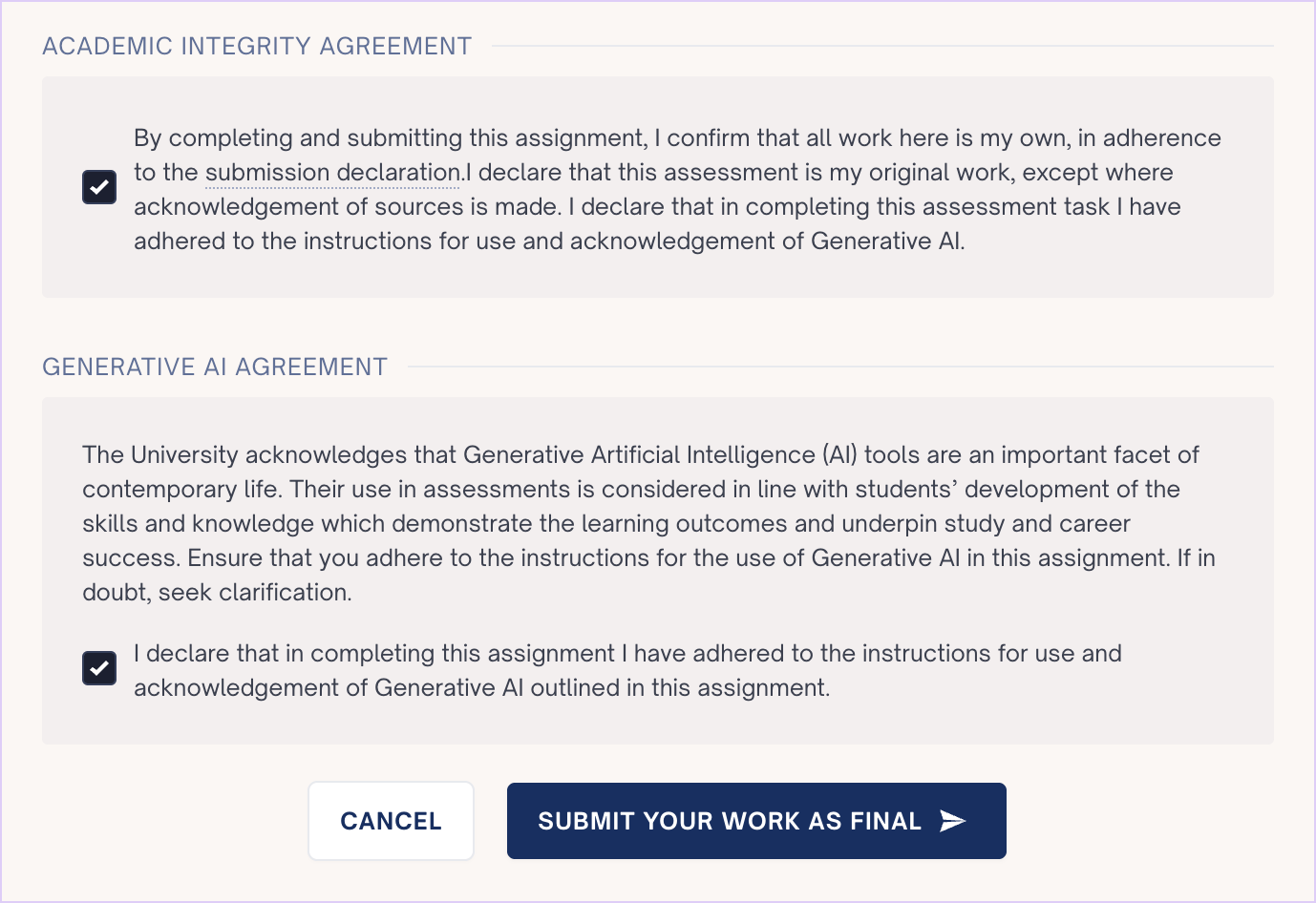
- Click Submit your work as Final.
A submission receipt will be sent to your student email.
Final Submission page
Once you have submitted your final, you’ll be on the Final Submission page. From here you can:
- View a copy of your submitted final.
- Click Continue editing in the top-right to return to the Workspace (only before the due date). You can then edit your work and resubmit.
- View the Turnitin similarity score and access the similarity report for your submission (if your teacher has enabled it).
- Click View grades and feedback to access your grades and feedback in Turnitin Feedback Studio (once grades have been returned).
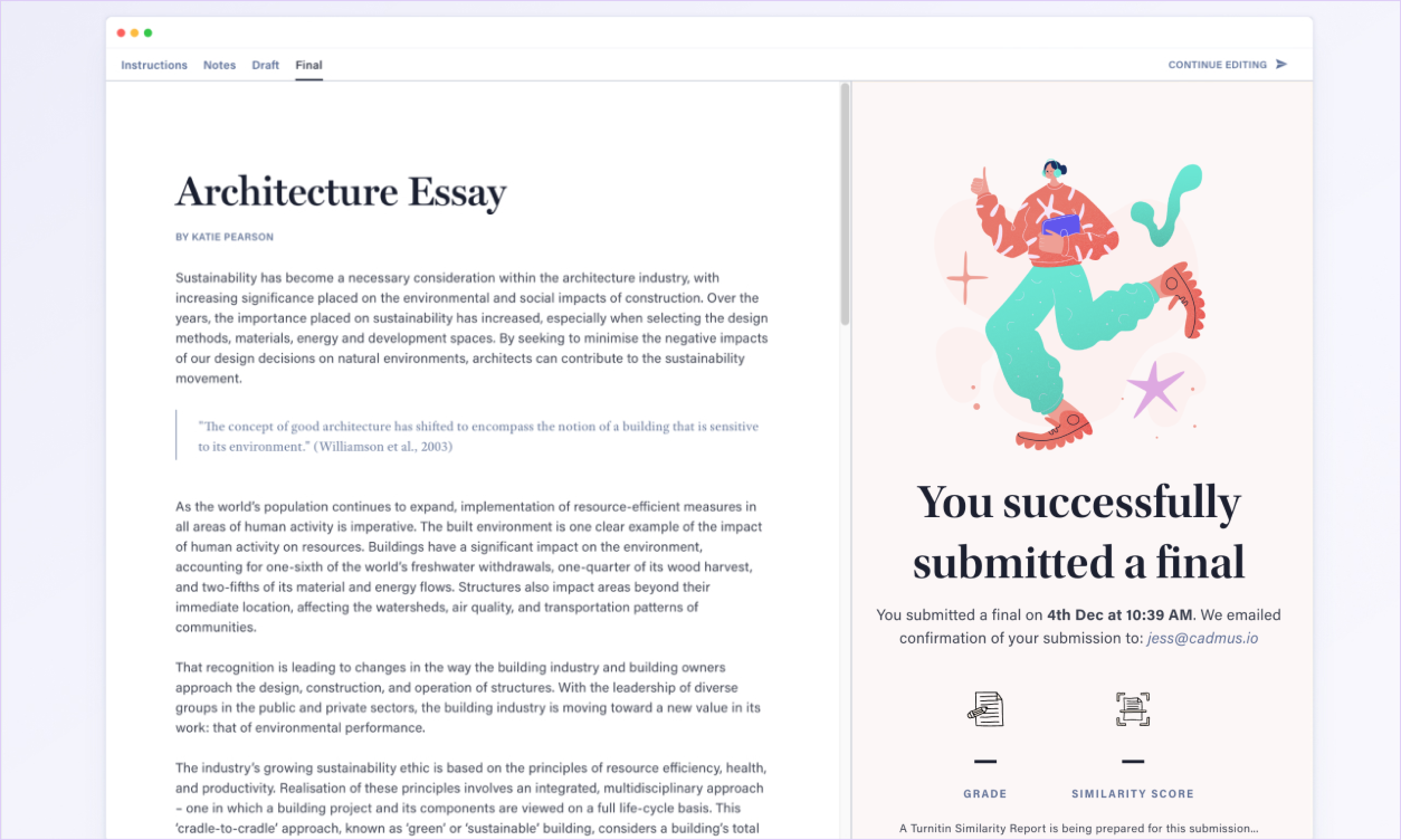
TIP: After you submit, you can still access your Notes and Instructions by clicking on the relevant tabs in the top-left of the Student Environment.
If your assignment involves drafts, you can learn more about submitting drafts.