![Cadmus Wordmark & Logo_Master File_Cadmus Icon_Ink.png]](https://support.cadmus.io/hs-fs/hubfs/Cadmus%20Wordmark%20%26%20Logo_Master%20File_Cadmus%20Icon_Ink.png?height=40&name=Cadmus%20Wordmark%20%26%20Logo_Master%20File_Cadmus%20Icon_Ink.png)
This article covers:
How to mark a video response assessment (oral assessment) without a rubric
If a rubric has not been set up, or a rubric will not be used to mark student submissions, please follow these steps:
- Go to the Marking tab and click the Mark button on the submission to be graded
- Play the video to review the student's content.
- To award marks, go to the Awarded Points section at the top of the question and click the pencil icon.
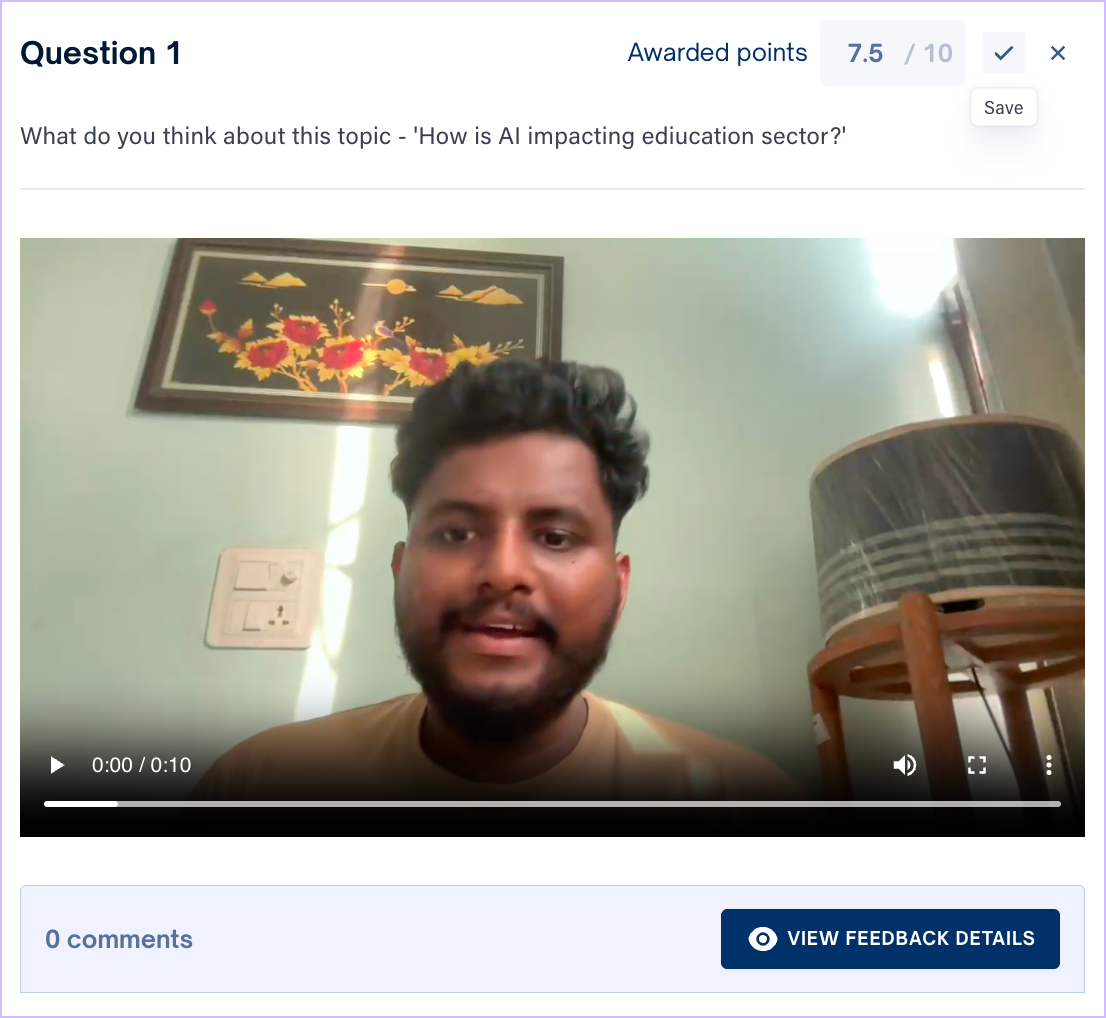
- Click the checkmark to save the marks once marking is complete.
TIP:
- If the video needs to be downloaded, click on the three dots button at the bottom right, then click Download
- If you’d like to add a rubric, please go to the instruction page, click the three dots at the right side of the question, then click Add Rubric. Please note that you can add different rubrics for each question.
- Click here for more information about creating rubric in Cadmus Marker
Rubric-based Marking for Video Response Assessment (Oral Assessment)
Using a rubric ensures assessments are marked consistently and fairly against clear, predefined criteria. It also provides students with transparent, structured feedback that explains how their marks were determined.
Please follow the steps below:
- Go to the Marking tab and click the Mark button on the submission to be graded
- Click the View Feedback Details button under the student's video submission. This opens the detailed feedback section.
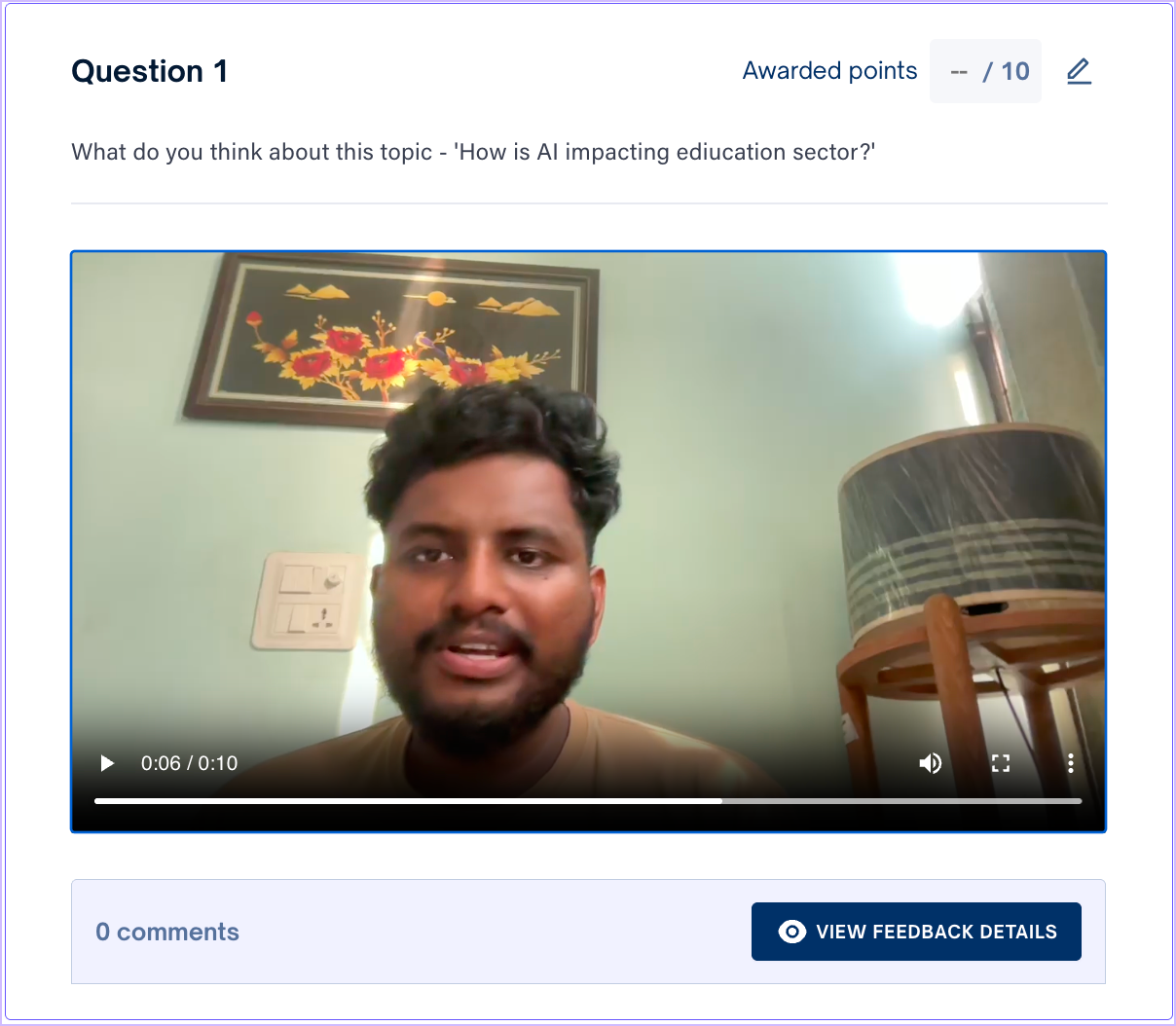
- On the right-hand panel, you'll see the Marking tab, Feedback tab and three-dot menu.
- The Marking tab displays the marking criteria based on the rubric. You can click the scale icon or enter a custom score manually in the mark box.
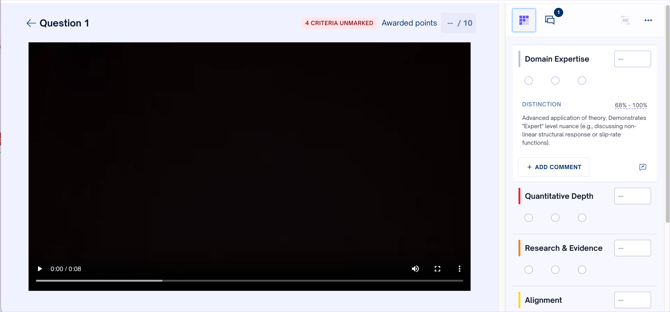
- To add written comments, click the Add Comment button in the Marking tab, or go to the Feedback tab and click Add Comment.
- Once a comment is added, the three dots button will appear. It can be used to link a comment to a specific criterion, edit it, or delete it.
If multiple markers are grading the same assessment, they can ‘link to’ or ‘delete’ other markers' comments, but only the original marker can edit their own comments.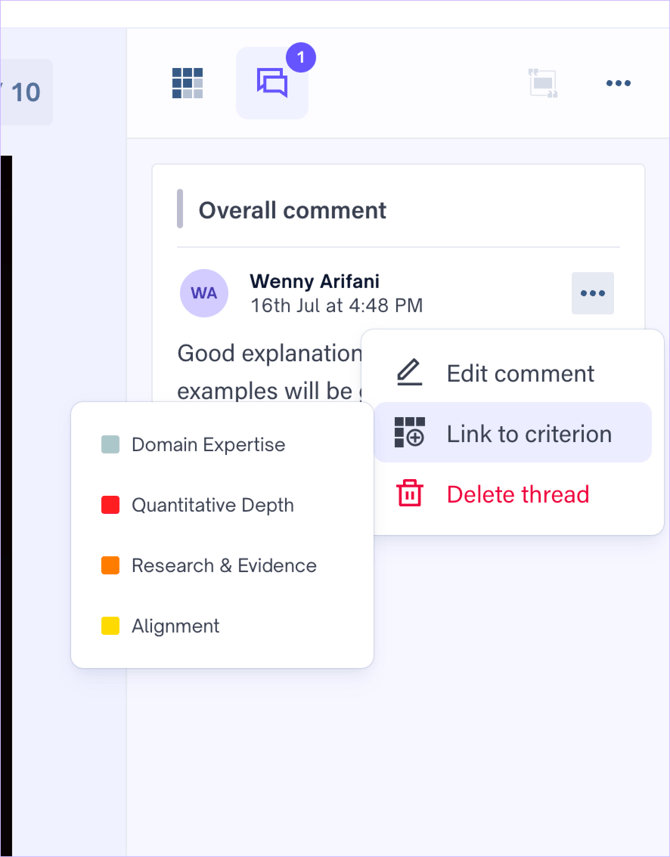
- If you’d like to open the rubric in a new tab, click on the three-dot button at the top, then choose Expand Rubric in New Tab.
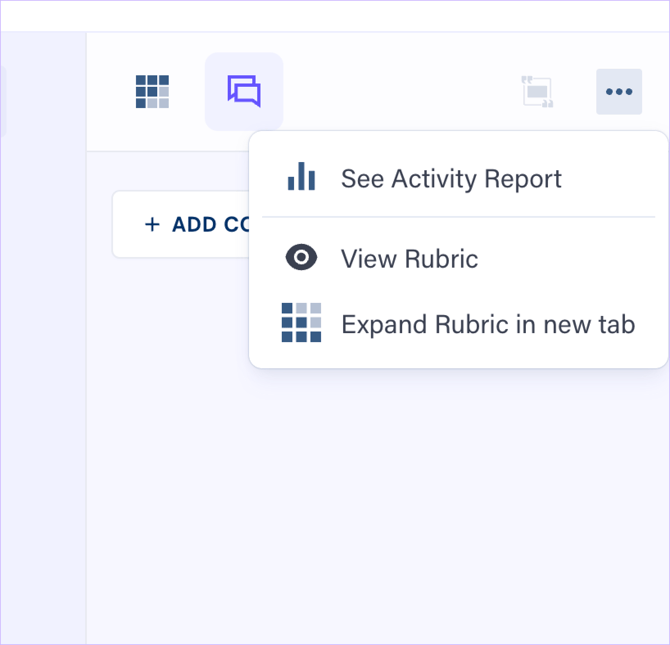
While the rubric is open in the expanded window, the Marking tab on the right-hand panel won't be available. Click Return Rubric to Side Panel to go back to grading in the Marking tab.
TIP: During marking, you may need to update the rubric to clarify assessment criteria or correct an error. If the rubric needs to be updated during marking process, this article might be useful: Grading Cadmus assessments with a Rubric