![Cadmus Wordmark & Logo_Master File_Cadmus Icon_Ink.png]](https://support.cadmus.io/hs-fs/hubfs/Cadmus%20Wordmark%20%26%20Logo_Master%20File_Cadmus%20Icon_Ink.png?height=40&name=Cadmus%20Wordmark%20%26%20Logo_Master%20File_Cadmus%20Icon_Ink.png)
Academics using Moodle LMS are now able to grade Cadmus assessments using Moodle Grader giving them the option to mark directly inside Moodle. To grade or give feedback via Moodle Grader, follow these steps:
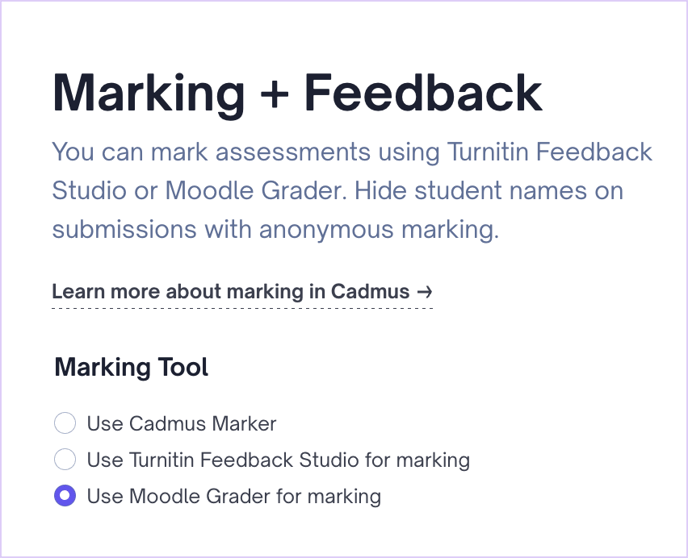
- While setting up your Cadmus assessment, select the Use Moodle Grader for Marking option under the Marking + Feedback settings.
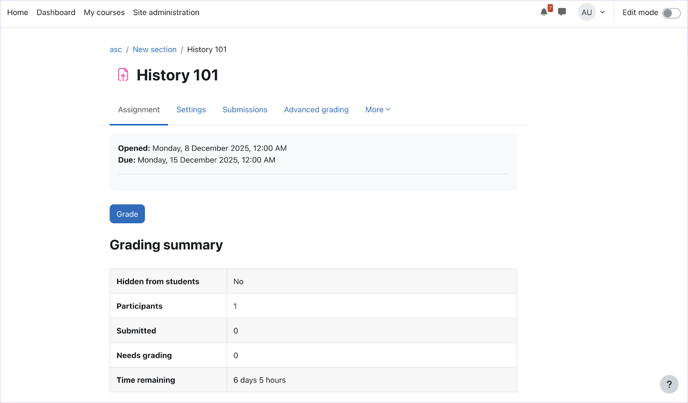
- Click the Grade button next to the assessment in Moodle to open Moodle Grader.
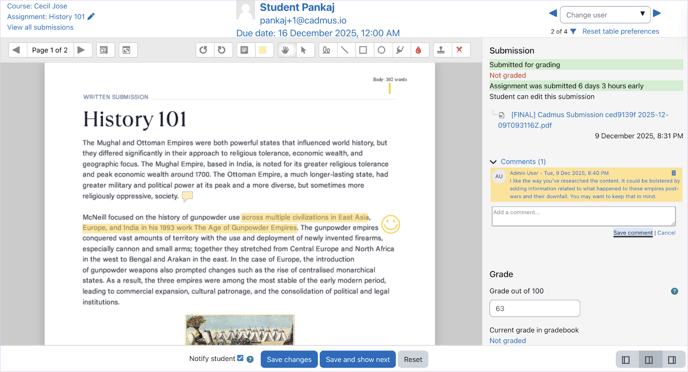
- Add feedback comments and marks in the Grader and click on Save Changes after finishing grading, or click on Save and show next to continue grading other submissions. The grade will appear for the student in the gradebook.
- The PDF copy of the written submission can also be viewed and downloaded by clicking on the PDF link.
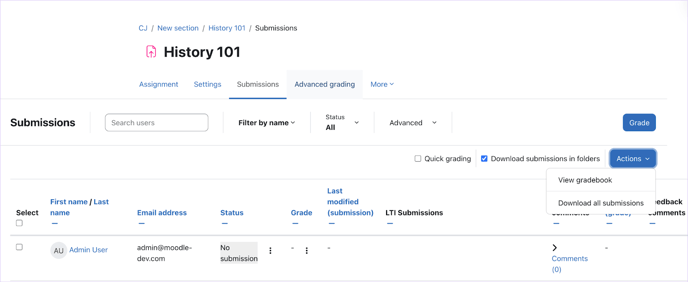
- From the Submissions panel under the assessment, find options to view the gradebook or download all submissions.
Allowing multiple submission attempts to students
Within Cadmus, students can submit and resubmit as many times as needed until their due date. To ensure resubmissions also appear in Moodle Grader:
- Under the assessment settings in Moodle, go to Submission Settings.
- Set the Allowed Attempts setting to ‘Unlimited’. This controls how many attempts Moodle accepts from Cadmus.
- Set the Grant Attempts setting to either ‘Automatically’ or ‘Automatically until pass’.
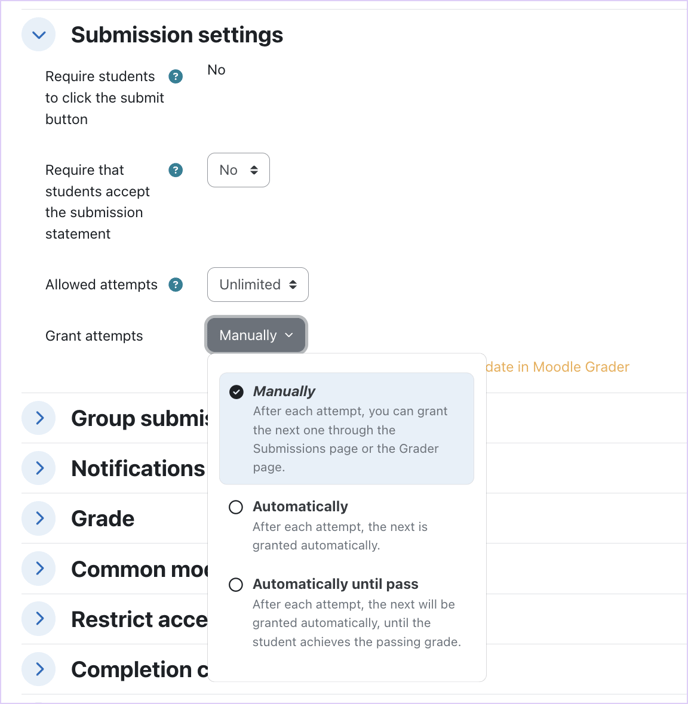
In Moodle, the Grant Attempts setting controls how additional attempts are given:
- Manually - Students submit once and can resubmit only when attempts are granted on the Submissions or Grader page. In this case, attempts must be manually triggered from the submission settings page.
- Automatically - Students can submit and resubmit an unlimited number of times until the due date.
- Automatically until pass - Students submit, and resubmission attempts are granted until the student achieves a passing grade.
NOTE: If the grant attempts setting is set to Manually, students can submit and resubmit in Cadmus, and teachers can download them from within Cadmus, but the submissions will not appear in Moodle Grader. In such a case, only the student's first final submission in Cadmus will be sent to Moodle Grader.
If the grant attempts setting is set to Automatically, Cadmus will send all student submission attempts to Moodle and Moodle Grader, therefore creating an attempt and any changes made by the student to their Cadmus submission to reflect in Moodle.