![Cadmus Wordmark & Logo_Master File_Cadmus Icon_Ink.png]](https://support.cadmus.io/hs-fs/hubfs/Cadmus%20Wordmark%20%26%20Logo_Master%20File_Cadmus%20Icon_Ink.png?height=40&name=Cadmus%20Wordmark%20%26%20Logo_Master%20File_Cadmus%20Icon_Ink.png)
Cadmus assessments now support file uploads and image/video captures. When this feature is switched on by your teacher, you will be required to upload a file, take an image, or video and attach it to your submission.
In this article, we cover how to
Upload files as attachments to a submission
To upload files as attachments to your submissions, follow these steps:
- Navigate to the Files tab (next to the Notes tab for Group and Classic assessments) to find the Camera and Upload buttons. For MFA, you’ll find these options under a question that requires a file upload.
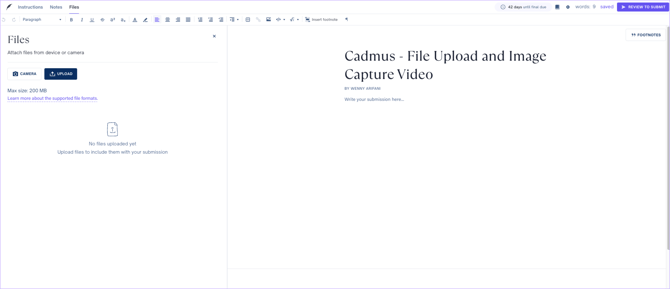
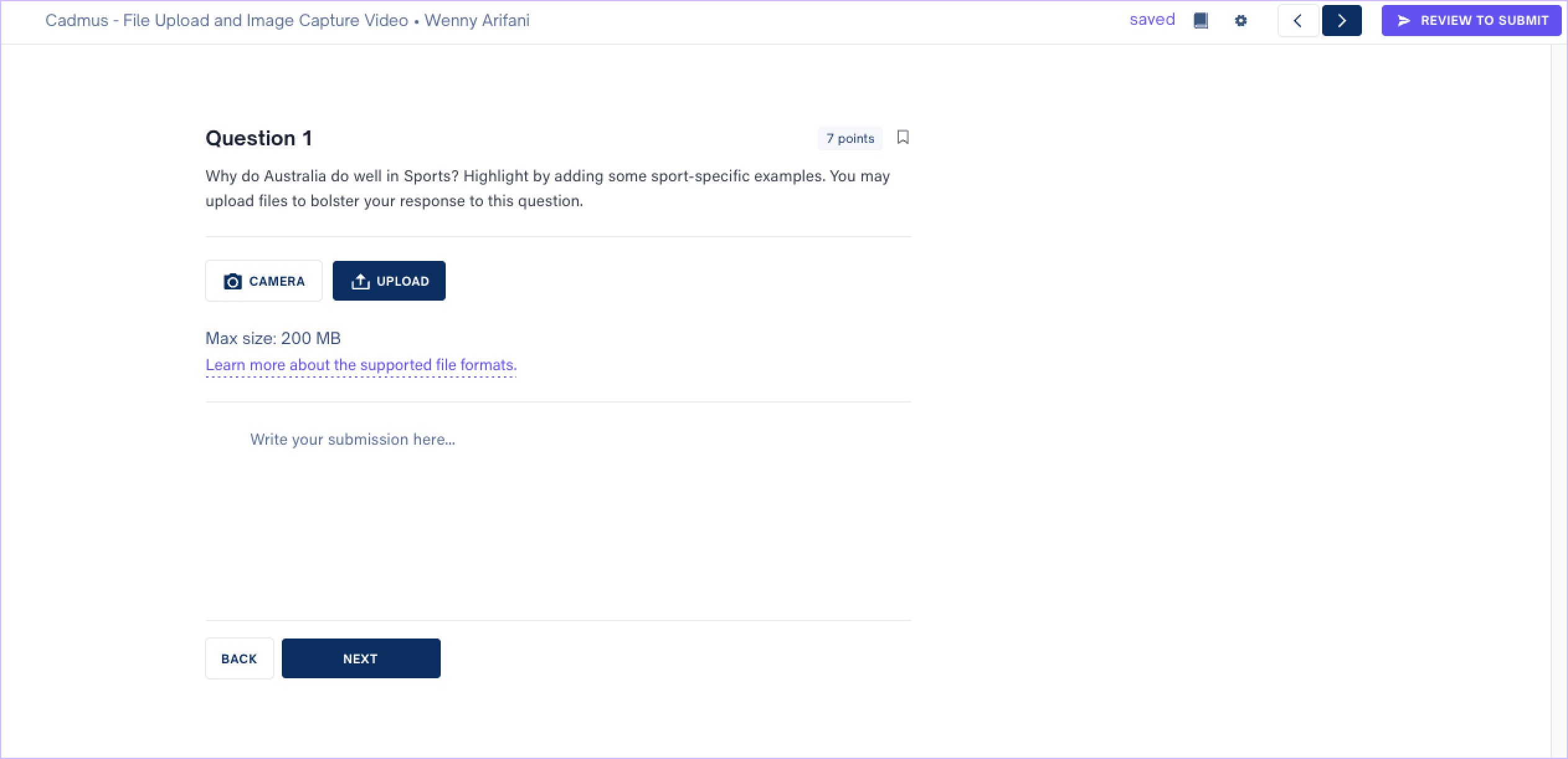
- To add a file, click on the Upload button and choose the file/files you wish to upload. Note that the maximum size limit of one file is 200 MB, and there is no limit to the number of files that can be attached.
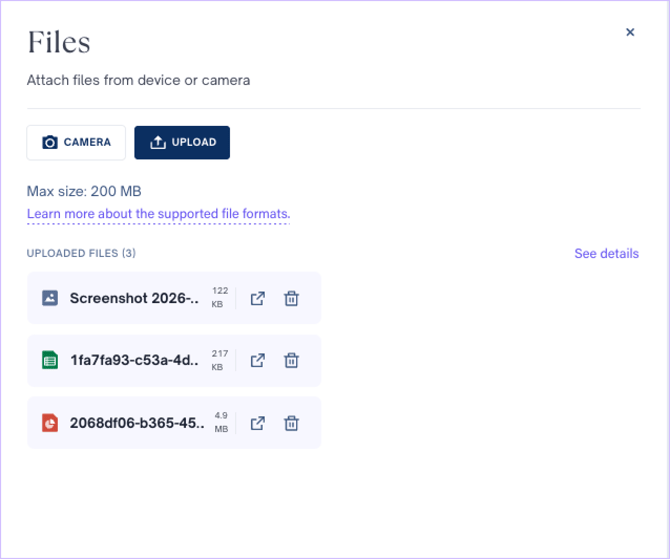
- Click on the Open in browser option to view the file in a new tab. Click the bin icon to remove the uploaded file. A vast range of formats is allowed for file uploads. The supported formats for file uploads are given in the table below:
File Type
Supported Formats
Documents
.doc
.docx
.rtf
.txt
.xml
.pdf
Spreadsheets
.xls
.xlsx
.csv
Presentations
.ppt
.pptx
Images
.jpg
.jpeg
.png
.bmp
.tiff
Audio
.mp3
.wav
.m4a
Video
.mp4
.mov
Project Files
.xer
.mpp
Drawings
.cad
- Submissions can be made without attaching any file upload as well. A warning will appear when you submit a final for group and classic assessments. For MFA, the warning appears when you skip any question that requires a file upload.
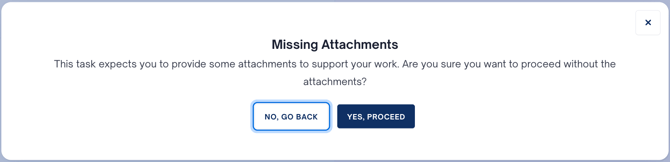
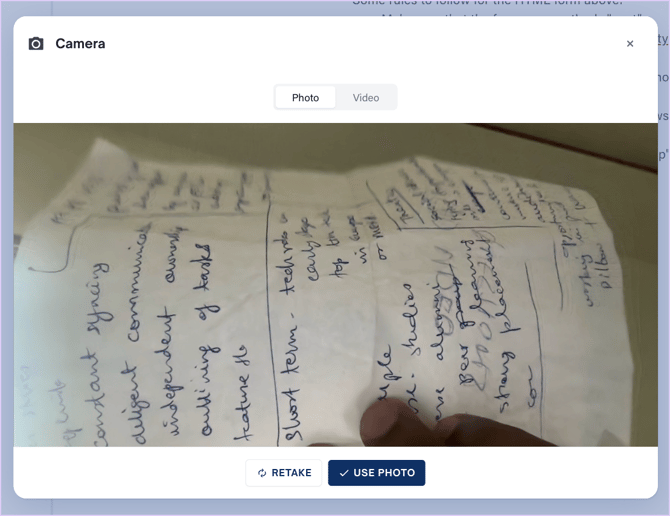
- You can also take pictures or videos of your work and attach it with your submission. Click the Camera button and select between Photo and Video options. Note that the maximum video recording limit is 4 minutes per session.
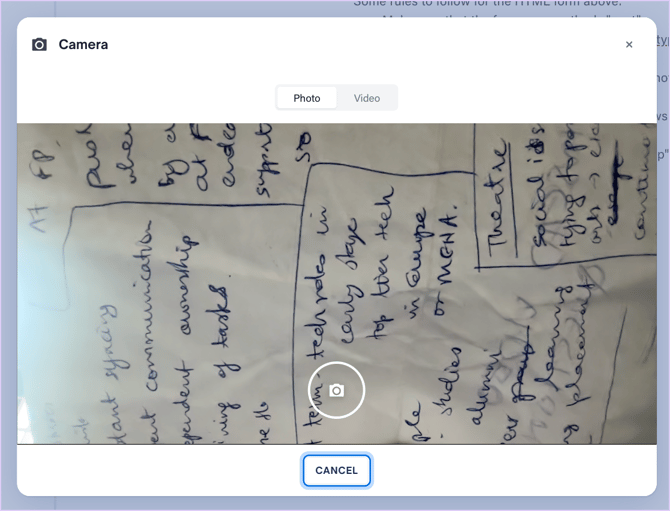
- Click on the camera and recorder icons to take a picture and record a video clip, respectively. Click the Retake button to click the picture/record video again. Click the Use Photo/Video buttons to confirm and attach the picture/video to your submission.
Capture images or videos for Lockdown exams
For MFA and Classic Lockdown browser exams, the Upload button won’t be available. You may use your camera to take pictures/record videos of your work and attach them to your submission.
Find the Camera button in the Files tab and repeat steps 5 and 6 outlined above.