---
title: File Upload and Image Capture
description: Learn how to allow students to attach files to their submissions by uploading or capturing images/videos.
---
[Skip to content](https://support.cadmus.io/file-upload-and-image-capture-teachers#main-content)
English
Show submenu for translations
[Contact Support](https://support.cadmus.io/kb-tickets/new?hsLang=en)
[![Cadmus Wordmark & Logo\_Master File\_Cadmus Icon\_Ink.png\]](https://support.cadmus.io/hs-fs/hubfs/Cadmus%20Wordmark%20%26%20Logo_Master%20File_Cadmus%20Icon_Ink.png?height=40&name=Cadmus%20Wordmark%20%26%20Logo_Master%20File_Cadmus%20Icon_Ink.png)](https://support.cadmus.io/?hsLang=en)
- [Cadmus](https://cadmus.io/)
- [Contact Support](https://support.cadmus.io/kb-tickets/new)
Open main navigation
Close main navigation
- [Cadmus](https://cadmus.io/)
- [Contact Support](https://support.cadmus.io/kb-tickets/new)
- English
Show submenu for translations
- [Contact Support](https://support.cadmus.io/kb-tickets/new)
What would you like to learn?
- There are no suggestions because the search field is empty.
1. [Cadmus Help Docs](https://support.cadmus.io/?hsLang=en)
2. [Teachers](https://support.cadmus.io/teachers?hsLang=en)
3. [Setting up assessments](https://support.cadmus.io/teachers?hsLang=en#setting-up-assessments)
# File Upload and Image Capture
## Learn how to allow students to attach files by uploading or capturing images/videos to their submission
Teachers can now allow students to attach files or record images or videos along with their submissions for Cadmus Classic, Multi-format, and Group assessments. For Lockdown browser exams, only the image/video capture option is made available to students.
In this article, we cover how to
1. [Enable File Upload](https://support.cadmus.io/file-upload-and-image-capture-teachers#enable)
2. [Accessing attachments](https://support.cadmus.io/file-upload-and-image-capture-teachers#access)
3. [Grading Submissions with attachments](https://support.cadmus.io/file-upload-and-image-capture-teachers#grade)
**Enable File Upload**
To allow students to upload file attachments or record/capture images or videos, follow these steps:
1. Navigate to the Instructions space for (Group and Classic assessments) or the task builder (for Multi-format assessments).
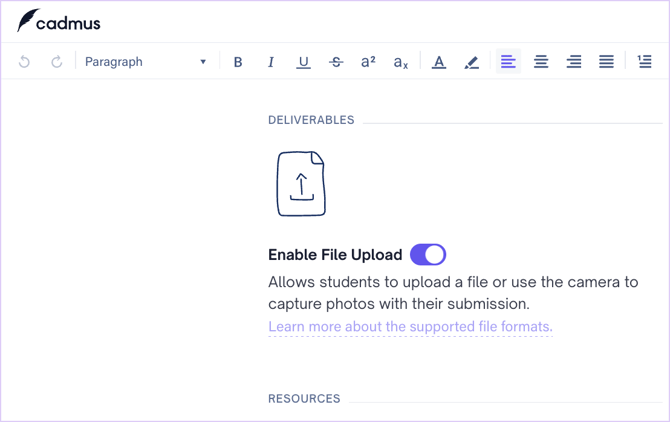
2. For Group and Classic assessments, under the Deliverables section in the left-hand side panel, find and switch on the **Enable File Upload** toggle pill option to enable attachments.
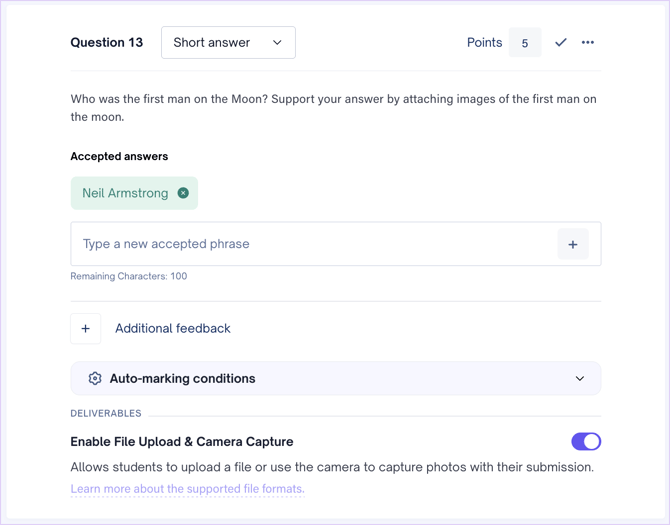
3. In Multi-format assessments, only **Extended response, Short answer and Numerical** type questions support file uploads. In the task builder, when any of these question types are added, switch on the Enable File Upload and Camera Capture toggle pill, found below the question space under the Deliverables section, to enable attachments.
4. For Oral Assessment, Linked Vivas, or Video Response Questions, the option to include files or images are currently not available.
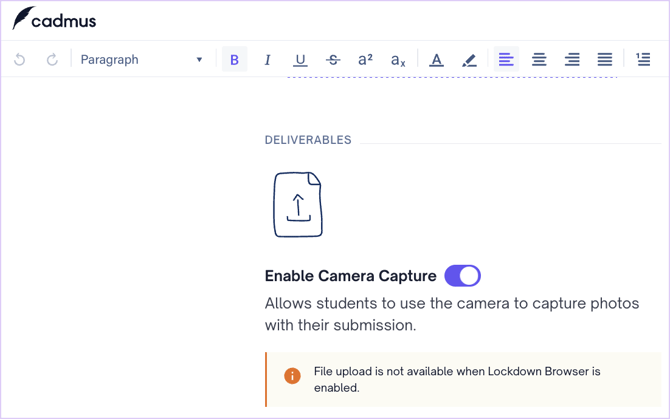
5. For Lockdown browser assessments or exams, in the Instructions space or the task builder, under the Deliverables section, find and switch on the Enable Camera Capture option toggle pill to enable images/video recordings. You will find a message that says ‘File Upload is not available when Lockdown Browser is enabled’.
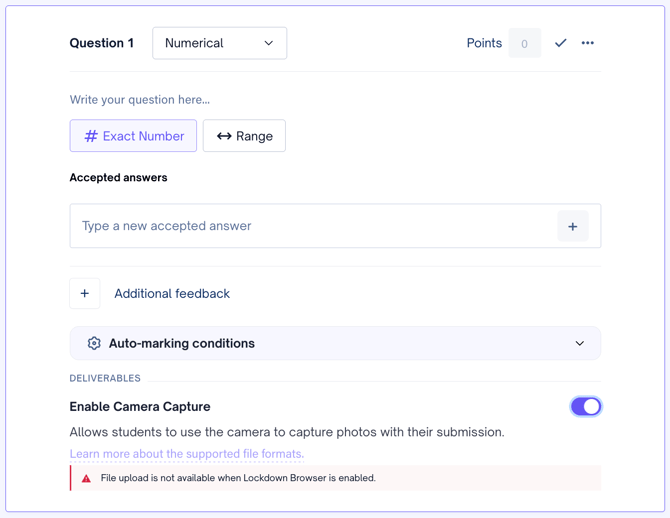
6. A maximum file size of 200 MB can be uploaded by students. They can upload as many files as they wish to their submission. For larger attachments (\>200 MB), they may fragment them and upload them to their submission.
7. A vast range of formats is allowed for file uploads. The supported formats for file uploads are given in the table below:
| **File Type** | **Supported Formats** | | | | | |
| --- | --- | --- | --- | --- | --- | --- |
| Documents | .doc | .docx | .rtf | .txt | .xml | .pdf |
| Spreadsheets | .xls | .xlsx | .csv | | | |
| Presentations | .ppt | .pptx | | | | |
| Images | .jpg | .jpeg | .png | .bmp | .tiff | |
| Audio | .mp3 | .wav | .m4a | | | |
| Video | .mp4 | .mov | | | | |
| Project Files | .xer | .mpp | | | | |
| Drawings | .cad | | | | | |
**Accessing attachments**
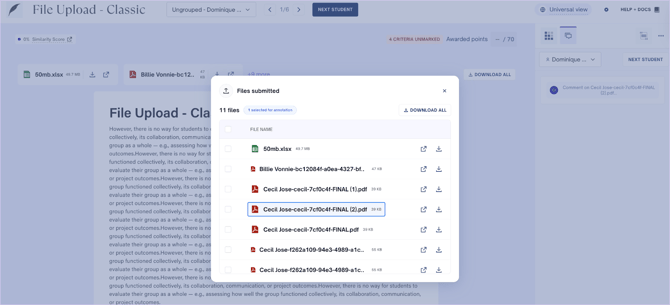
Students’ uploaded files can be accessed via the Marking and Feedback panel in Cadmus Marker or by downloading the submission from the Marking or Learning Assurance tabs.
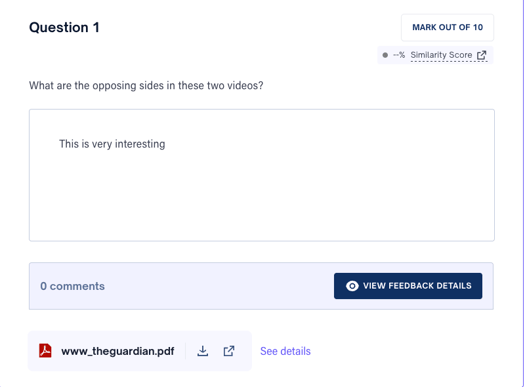
1. If the marking tool used is Cadmus marker, the attached files will appear alongside the submission.
1. Click the save icon on the file to download the file. Click the Open in browser option to view the file in a new tab, and the See details option for a dropdown of all the files (if there are multiple).
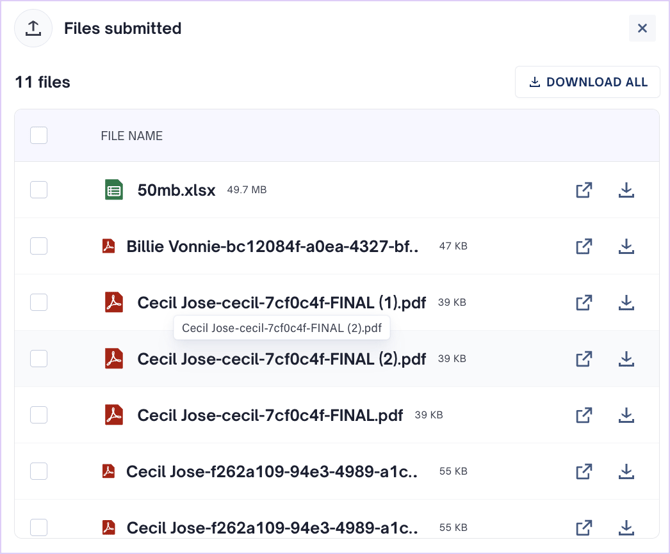
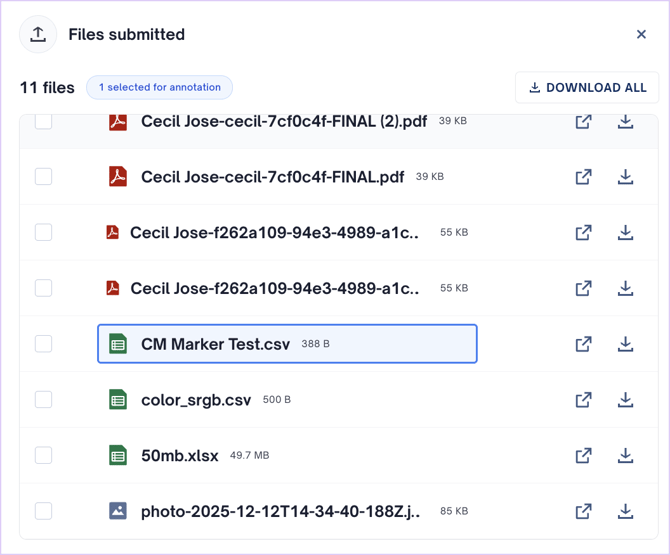
2. When you click "See details", there'll be an option to Download . Click the file to select it for annotation, then leave feedback comments. Click the **Download all** button to save all the files.
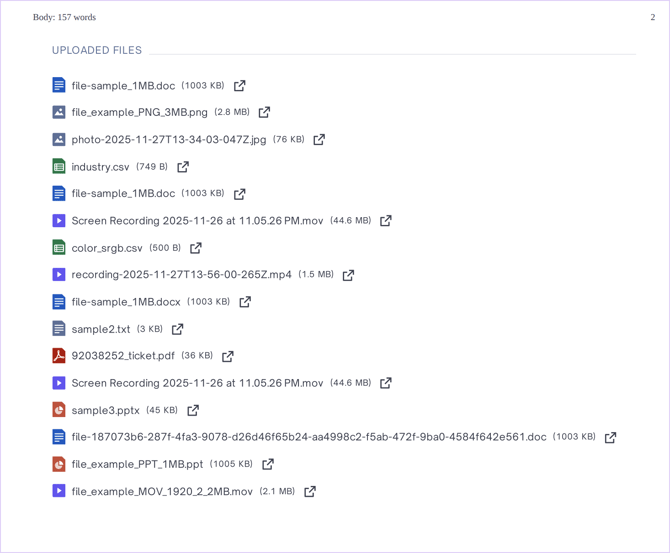
3. In case of other marking tools, students’ submissions can be downloaded from the Learning Assurance or Marking tabs. The uploaded files are embedded at the bottom of the downloaded PDF. Click on the file to download or open it in another tab.
**Grading Submissions with attachments**
1. When the Cadmus marker is used as the marking tool, feedback comments can be left for the uploaded file by clicking on the file and adding a comment.
2. When there are more than two files, click the +more button and click the file to select it for annotation, then add feedback comments. Click anywhere on the submission to switch back to annotating the written work.
3. In case of other marking tools, download the submissions to view the uploaded files and leave comments for the files similar to the written work.
- [Teachers](https://support.cadmus.io/teachers?hsLang=en#main-content)
- [Introduction](https://support.cadmus.io/teachers?hsLang=en#introduction)
- [Setting up assessments](https://support.cadmus.io/teachers?hsLang=en#setting-up-assessments)
- [Managing your class](https://support.cadmus.io/teachers?hsLang=en#managing-your-class)
- [Turnitin + Cadmus](https://support.cadmus.io/teachers?hsLang=en#turnitin-cadmus)
- [Marking + feedback](https://support.cadmus.io/teachers?hsLang=en#marking-feedback)
- [Exams](https://support.cadmus.io/teachers?hsLang=en#exams)
- [Drafts](https://support.cadmus.io/teachers?hsLang=en#drafts)
- [Insights](https://support.cadmus.io/teachers?hsLang=en#insights)
- [Students working](https://support.cadmus.io/teachers?hsLang=en#students-working)
- [FAQs + Troubleshooting](https://support.cadmus.io/teachers?hsLang=en#faqs-troubleshooting)
- [Multi-format Assessments](https://support.cadmus.io/teachers?hsLang=en#multi-format-assessments)
- [Group Assessments](https://support.cadmus.io/teachers?hsLang=en#group-assessments)
- [Oral Assessments](https://support.cadmus.io/teachers?hsLang=en#oral-assessments)
- [Students](https://support.cadmus.io/students?hsLang=en#main-content)
- [Introduction](https://support.cadmus.io/students?hsLang=en#introduction)
- [Working in Cadmus](https://support.cadmus.io/students?hsLang=en#working-in-cadmus)
- [Submitting](https://support.cadmus.io/students?hsLang=en#submitting)
- [Grades + Feedback](https://support.cadmus.io/students?hsLang=en#grades-feedback)
- [Drafts](https://support.cadmus.io/students?hsLang=en#drafts)
- [FAQs + Troubleshooting](https://support.cadmus.io/students?hsLang=en#faqs-troubleshooting)
- [Multi-format Assessment](https://support.cadmus.io/students?hsLang=en#multi-format-assessment)
- [Group Assessments](https://support.cadmus.io/students?hsLang=en#group-assessments)
- [Oral Assessments](https://support.cadmus.io/students?hsLang=en#oral-assessments)
- [Admins](https://support.cadmus.io/admins?hsLang=en#main-content)
- [Integrations](https://support.cadmus.io/admins?hsLang=en#integrations)
- [Release Notes](https://support.cadmus.io/release-notes?hsLang=en)
- [Privacy Policy](https://support.cadmus.io/privacy-policy?hsLang=en)
- [Cadmus](https://cadmus.io/)
- [Video Tutorials](https://cadmus.io/video-tutorials/)
- [Contact Support](https://support.cadmus.io/kb-tickets/new)
- [System Status](https://cadmus.statuspage.io/)
[](http://cadmus.io)
Copyright © 2026, Cadmus