![Cadmus Wordmark & Logo_Master File_Cadmus Icon_Ink.png]](https://support.cadmus.io/hs-fs/hubfs/Cadmus%20Wordmark%20%26%20Logo_Master%20File_Cadmus%20Icon_Ink.png?height=40&name=Cadmus%20Wordmark%20%26%20Logo_Master%20File_Cadmus%20Icon_Ink.png)
With the Invigilator Key and Inactivity Timer, course coordinators can require invigilator approval for any student attempting to re-enter an active exam session, and set a maximum inactivity window after which students are automatically signed out of Cadmus.
Together with access codes, these features give teaching staff greater control over live exam sessions and reinforce academic integrity by ensuring re-entry is always a supervised, deliberate action. These features are only available for Cadmus Exams.
In this guide, we’ll cover how to manage and use:
1. Invigilator Key
2. Inactivity Timer
Invigilator Key
The Invigilator Key (Re-entry code) is a unique security code known only to the invigilator, which is entered by the invigilator when a student logs out voluntarily or is locked out due to inactivity and wishes to re-enter their Cadmus exam.
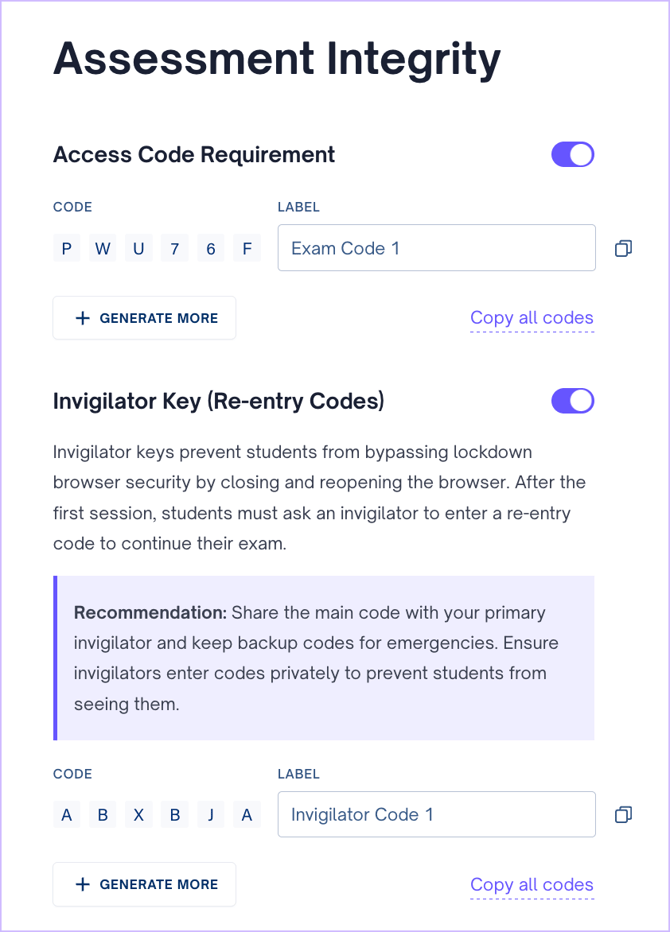
This setting can be enabled by switching on the Access Code setting from the Requirements and Settings page in Cadmus, under the Assessment Integrity section.
When the invigilator key is enabled, one code is automatically generated. To create additional codes, click the Generate More button. By default, generated codes will use labels such as Invigilator Code 1, Invigilator Code 2, and so on. You can also:
- Copy a single code using the Copy icon beside each code
- Click Copy all codes to copy every code at once
- Rename the label to help identify different codes easily
TIP: Share the main code with your primary invigilator and keep backup codes for emergencies. Ensure invigilators enter codes privately to prevent students from seeing them.
Using the Invigilator Key with Access Codes
Please note that the invigilator key is an optional setting. It is nested under the access code setting, hence it cannot be used independently. It can only be enabled when the access code requirement is on.
When using the invigilator key with access codes, upon first entry, the students will be prompted to type in the access code, and for every subsequent entry, they will have to request the invigilator to type in the invigilator key. Hence, it is recommended to ask the invigilator to keep the invigilator key hidden from the students.
Student Experience
When students open the exam link from their LMS, they will see a pop-up asking them to enter an access code before they can begin the exam. Every time they wish to log back in to the exam after getting logged out due to inactivity or a break, they would be prompted to ask the invigilator for a re-entry code.
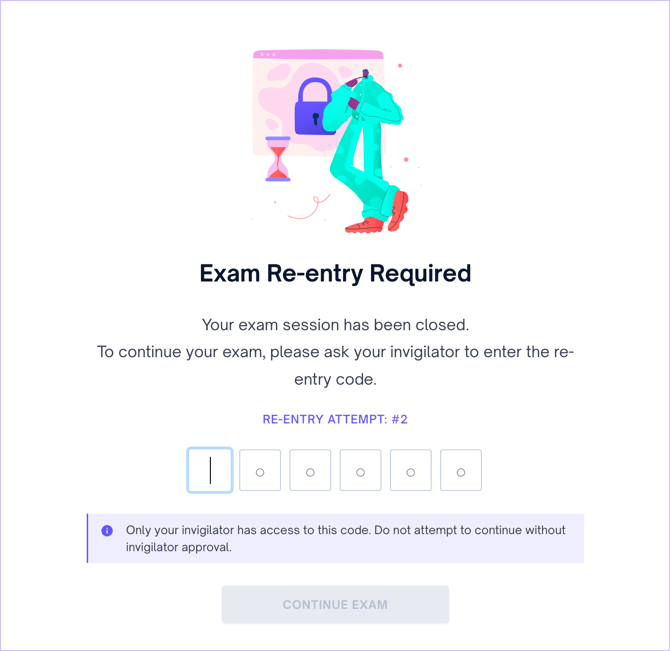
The student may continue writing their exam after the invigilator keys in the code.
Invigilator Key Usage
The number of re-entries a student made will be visible in the Learning Assurance tab.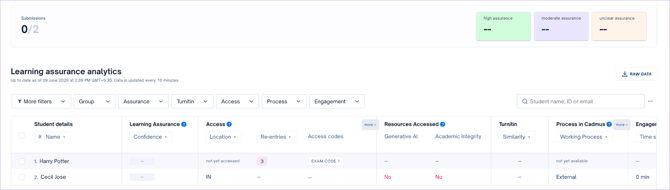
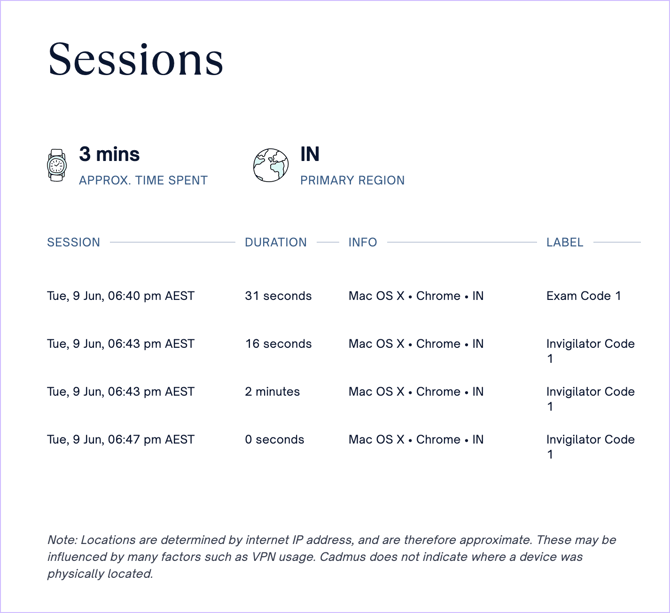
The invigilator key label used for re-entry for each session for a student will be available in the sessions section in the activity report.
Inactivity Timer
With the Inactivity Timer, teachers can better control student engagement throughout the exam by deciding how long a student can remain idle. If there is no student activity detected within the set inactivity period (time), the student will be logged out of that session, prompting them to re-enter by starting a new session to continue their exam.
This setting can be enabled by switching on the Inactivity Timer setting from the Requirements and Settings page in Cadmus, under the Assessment Integrity section. It can be found below the access code requirement setting.
NOTE: The minimum input for the duration of inactivity time is 5 minutes.
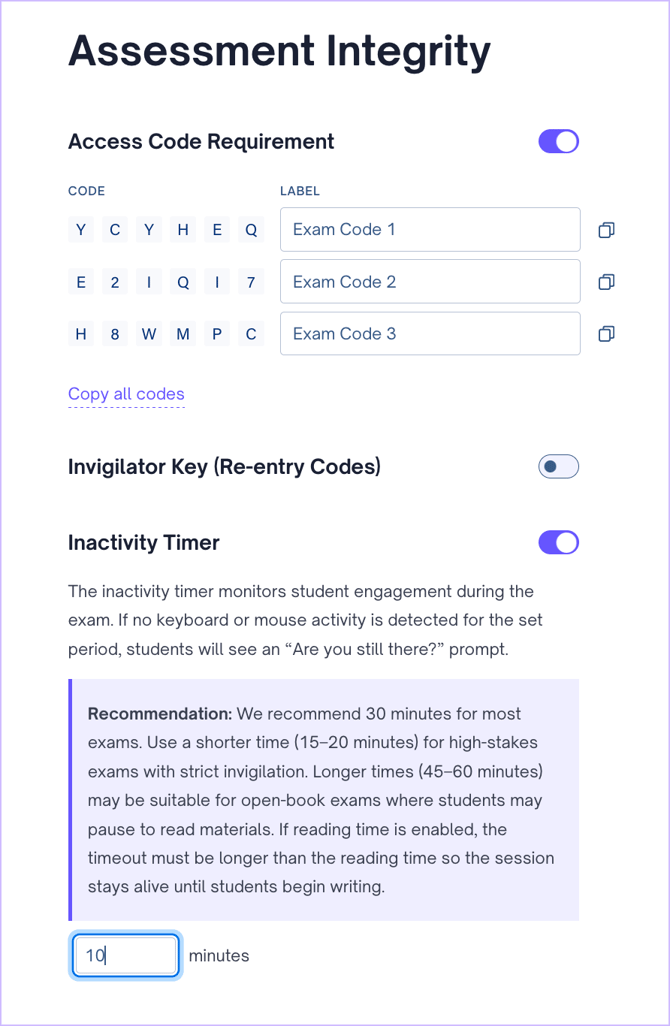
TIP: We recommend 30 minutes for most exams. Use a shorter time (15–20 minutes) for high-stakes exams with strict invigilation. Longer times (45–60 minutes) may be suitable for open-book exams where students may pause to read materials
TIP: If reading time is enabled, the timeout must be longer than the reading time so the session stays alive until students begin writing.
Student Experience
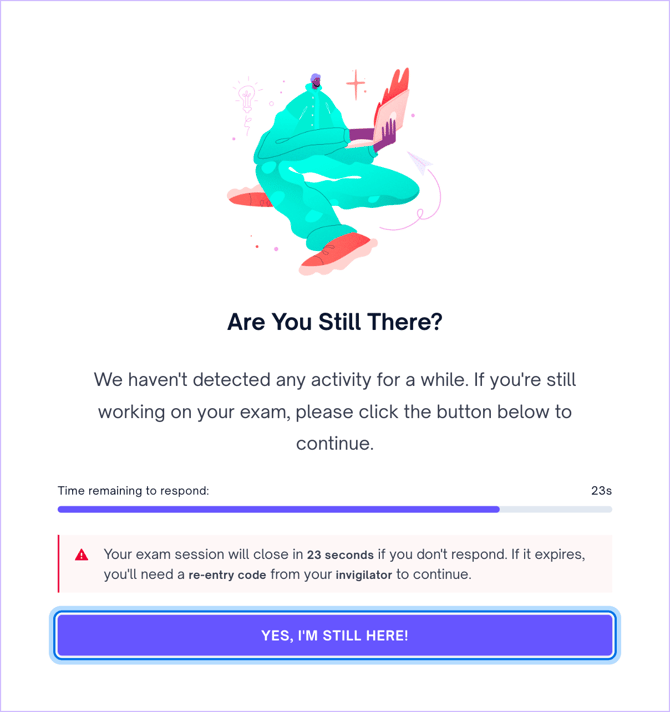
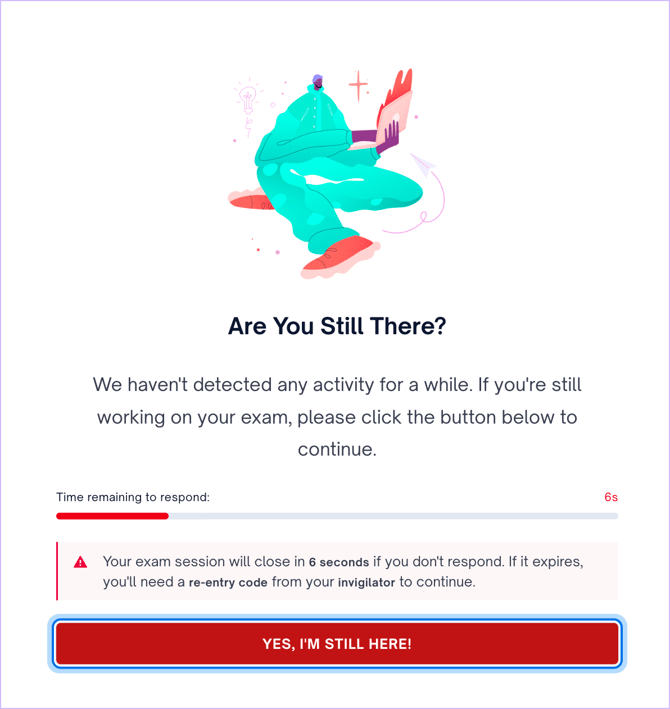
When no keyboard or mouse activity is detected for a duration of the inactivity period set, the student will see a “Are you still there?” warning. The warning gives the students 30 seconds to trigger any activity to show they’re still in the exam session. If no activity is detected, the student’s session ends, and they will be logged out.