![Cadmus Wordmark & Logo_Master File_Cadmus Icon_Ink.png]](https://support.cadmus.io/hs-fs/hubfs/Cadmus%20Wordmark%20%26%20Logo_Master%20File_Cadmus%20Icon_Ink.png?height=40&name=Cadmus%20Wordmark%20%26%20Logo_Master%20File_Cadmus%20Icon_Ink.png)
In Cadmus, teachers can now upload audio and video files to their assessment/exam instructions, allowing more flexibility in assessment design. The upload audio and video instruction feature will be available for all Cadmus assessment types (Classic, MFA, and Group).
To add an audio or video file, click on the audio 🎵or video 🎥 icon in the formatting toolbar. Please note that this feature is not available to students currently.
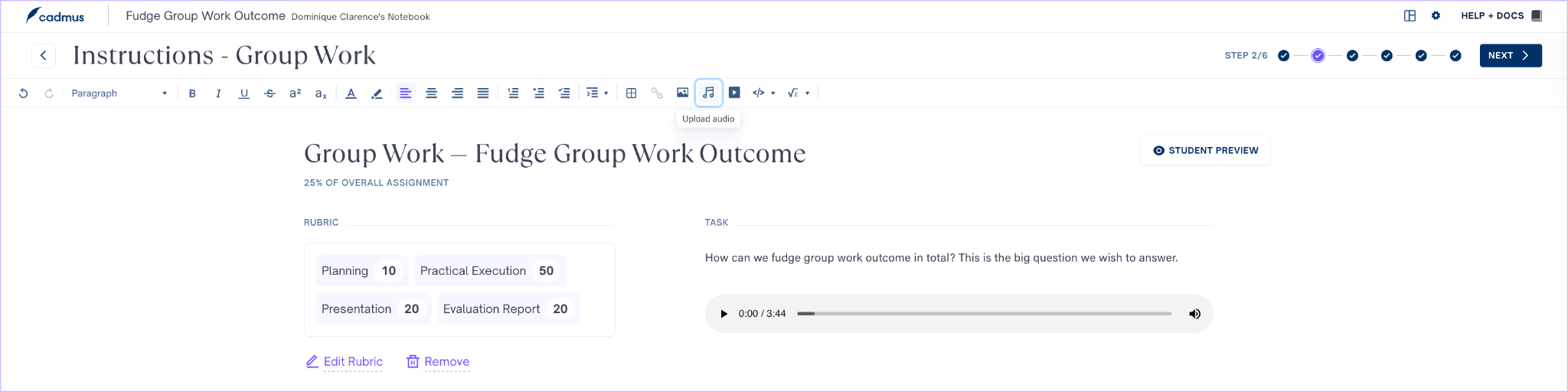
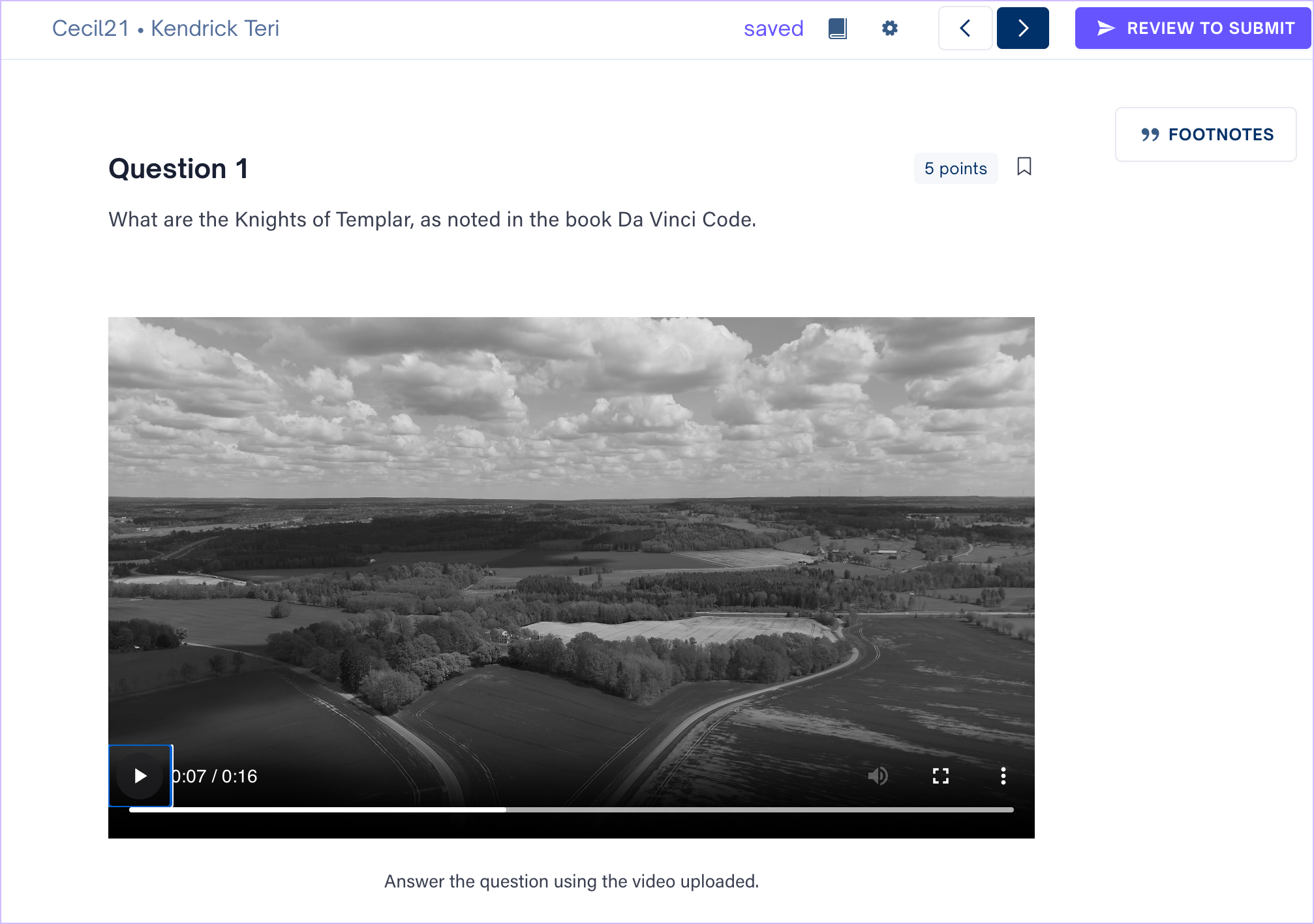
Students can play the embedded audio or video file directly from the assessment instructions.
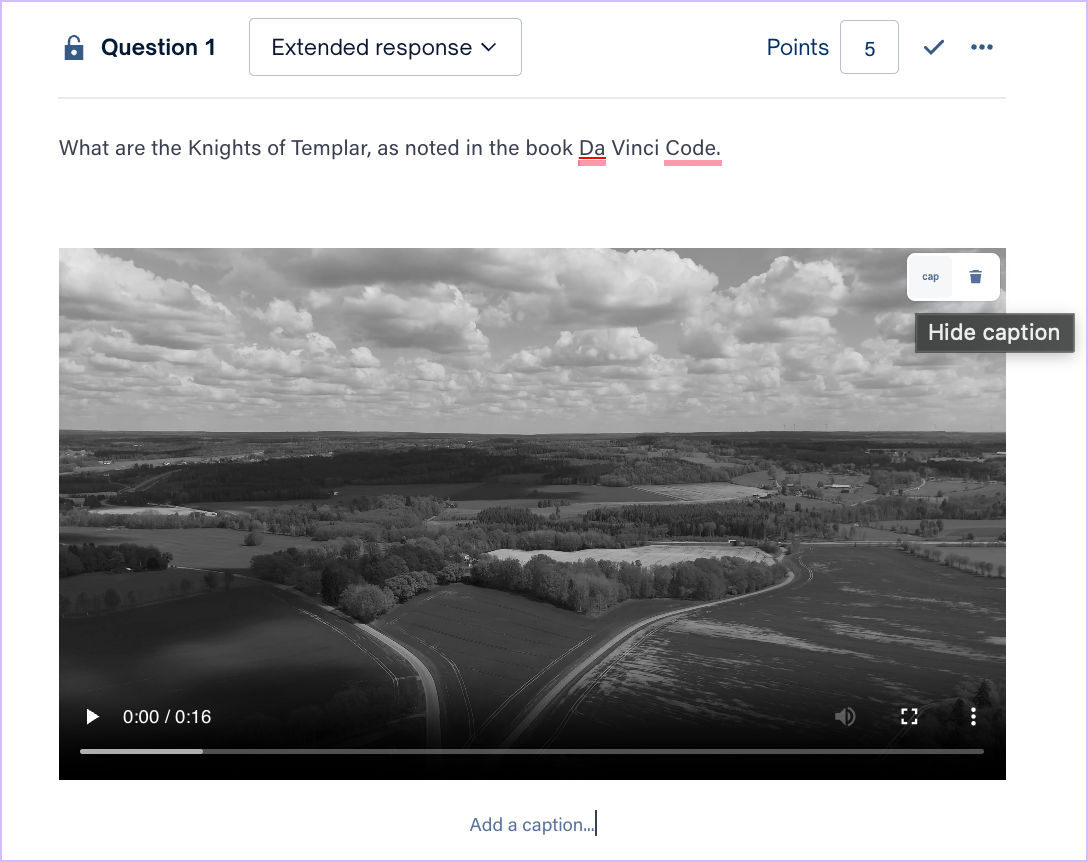
Once you’ve added the audio or video file to the instructions, you can choose to add a caption to it.
To add or remove a caption,
- Click on the audio or video file.
- A toolbar will appear at the top.
- From this toolbar, click the cap icon.
- Type in your caption in the text field below the file.
- Once a caption is added, click on the cap icon to remove it.
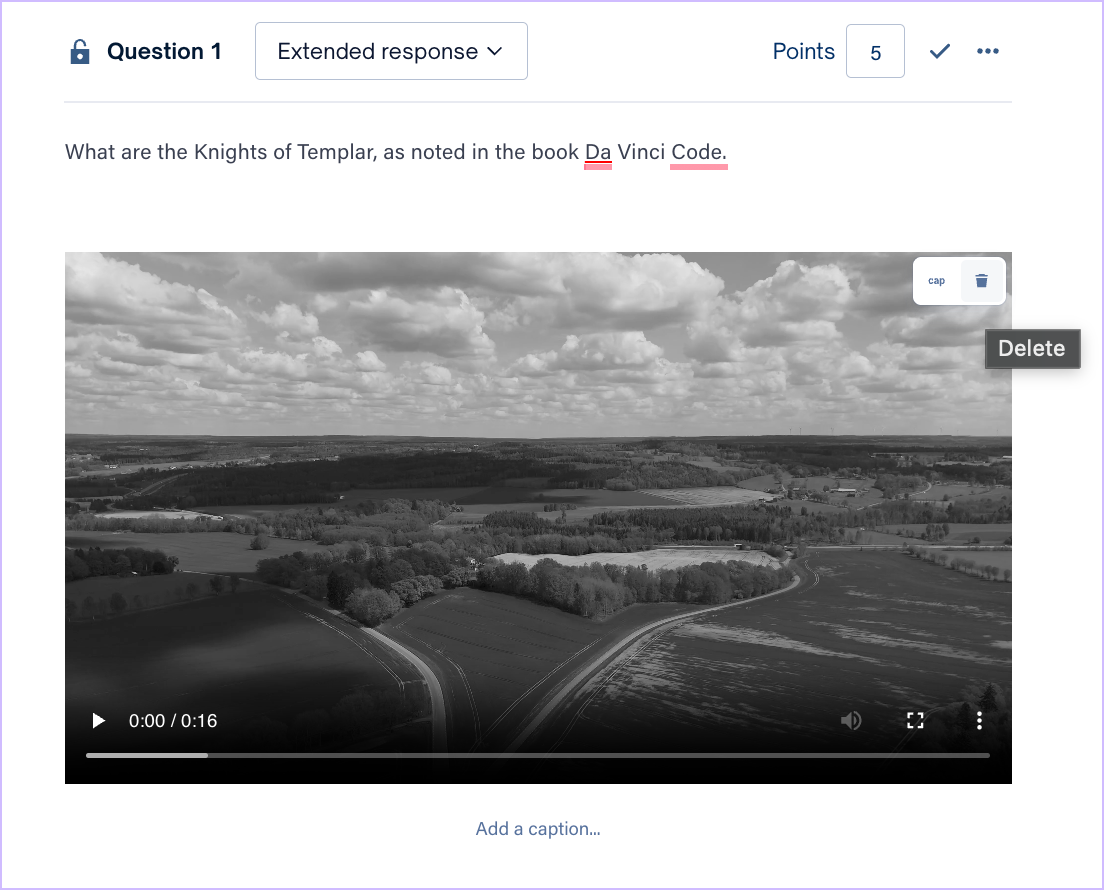
If you'd like to remove the audio or video file, you can remove it by following these steps:
- Click on the audio or video file you’d like to remove.
- A toolbar will appear at the top.
- From this toolbar, click the bin icon to delete the file.
You can always click Undo in the formatting toolbar or (⌘+Z / Ctrl+Z) if you change your mind about deleting the file!