---
title: Double Blind Marking
description: Learn how to set up Double Blind Marking in Cadmus, assign markers, and moderate grades for consistent, accountable assessment grading
---
[Skip to content](https://support.cadmus.io/double-blind-marking#main-content)
English
Show submenu for translations
[Contact Support](https://support.cadmus.io/kb-tickets/new?hsLang=en)
[![Cadmus Wordmark & Logo\_Master File\_Cadmus Icon\_Ink.png\]](https://support.cadmus.io/hs-fs/hubfs/Cadmus%20Wordmark%20%26%20Logo_Master%20File_Cadmus%20Icon_Ink.png?height=40&name=Cadmus%20Wordmark%20%26%20Logo_Master%20File_Cadmus%20Icon_Ink.png)](https://support.cadmus.io/?hsLang=en)
- [Cadmus](https://cadmus.io/)
- [Contact Support](https://support.cadmus.io/kb-tickets/new)
Open main navigation
Close main navigation
- [Cadmus](https://cadmus.io/)
- [Contact Support](https://support.cadmus.io/kb-tickets/new)
- English
Show submenu for translations
- [Contact Support](https://support.cadmus.io/kb-tickets/new)
What would you like to learn?
- There are no suggestions because the search field is empty.
1. [Cadmus Help Docs](https://support.cadmus.io/?hsLang=en)
2. [Teachers](https://support.cadmus.io/teachers?hsLang=en)
3. [Marking + feedback](https://support.cadmus.io/teachers?hsLang=en#marking-feedback)
# Double Blind Marking
## This guide walks through the Double Blind Marking process in Cadmus and how to use it to grade assignments and exams more efficiently
With Double Blind Marking, teachers may assign two different markers to groups/individual students, and the moderators can choose the grade and feedback that align more with the rubric or the learning outcomes.
This feature allows course coordinators to ensure greater consistency in grading and allows for higher marker accountability in grading student submissions. For now, double marking is only available for Classic Cadmus assessments/exams.
In this guide, we’ll cover how to:
1. [Setting up Double Marking](https://support.cadmus.io/double-blind-marking#setup)
2. [Individual Marker View](https://support.cadmus.io/double-blind-marking#marker_view)
3. [Moderation with Double Marking](https://support.cadmus.io/double-blind-marking#moderation)
#### Setting up Double Marking
To set up marking groups and assign markers:
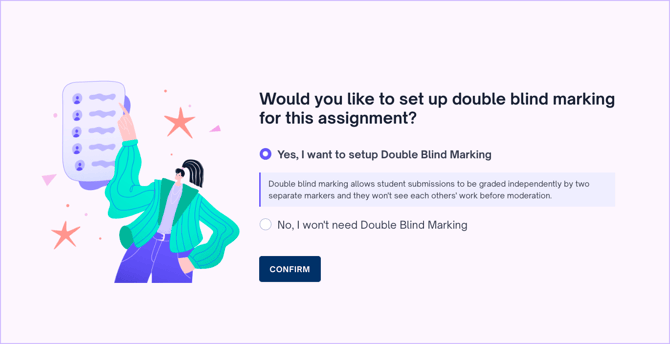
1\. Follow [this guide](https://support.cadmus.io/teachers/setting-up-groups?hsLang=en) to create Marking Groups, ensuring that you select **Yes** to enable Double Marking.
2\. On the next page, assign primary and secondary markers to the already-set marking groups.
3\. Use filters to view specific groups based on tags and primary assigned markers.
4\. Click **Reset Groups** to re-assign groups and markers, and **Export Groups** to download group data.
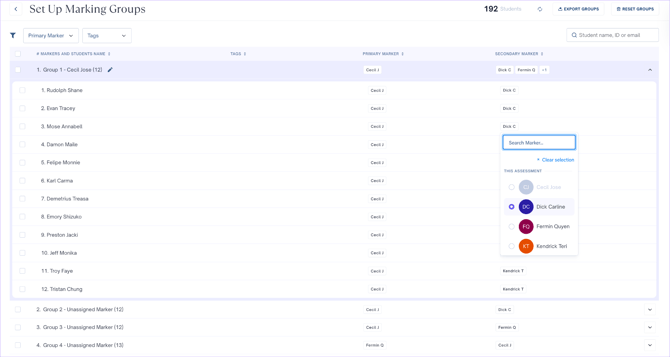
**NOTE:** Only one primary marker can be assigned for an entire group. Multiple secondary markers can be assigned to a group or to individual students within a group. However, no group or student can have the same person assigned as both the primary and secondary marker.
#### Individual Marker View
An individual marker can view all the individual submissions assigned to them in the *Marking* tab.
At the top, there is a progress tracker that shows the number of students assigned, the number of submissions yet to be submitted for moderation (in red), already submitted for moderation (in green), and pending, yet to be graded (in violet). Use the filters for submission status, grade, and tags, along with the search bar, to view a list of specific students.
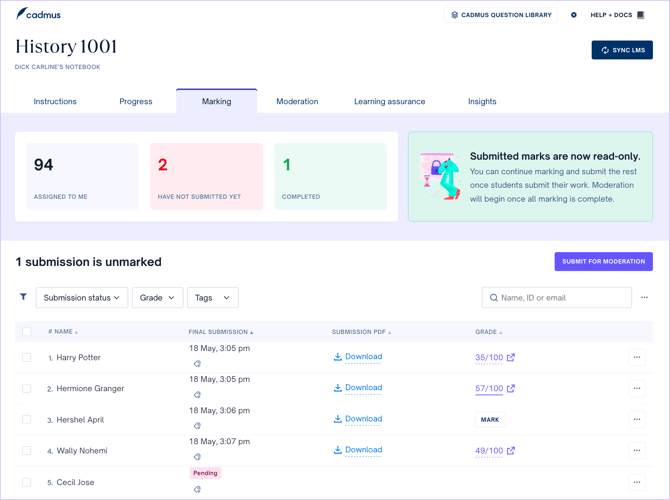
To start grading the submissions, click on the **Mark** button next to them. This will open the *Marking* panel, from where the student submission can be graded based on the rubric or otherwise, and feedback comments can be added.
Once the grading for all the students is done, the marks can be submitted by clicking the **Submit for Moderation** button. Note that once marks are submitted for moderation, they will be read-only for the individual marker, and only the moderator will be able to make changes to the grades.
**NOTE:** Individual Markers will only be able to see the individual submissions assigned to them without classification (primary/secondary).
#### Moderation with Double Blind Marking
All submissions that are graded by both markers will appear in the class list under the *Student Marks* section in the *Moderation* tab. Here, the moderator can finalise the grades for students by reviewing the scores given by the primary and secondary markers and adding appropriate feedback. Note that any academic can act as a moderator.
The top section displays a moderation tracker for submissions, and key marking information such as average, highest, lowest scores, pass rate, and standard deviation.
Within the *Student Marks* section, there is a search bar and filters based on moderation status, late by, score, and grade difference, to allow moderators to view a specific set of students. There is also a toggle, **Show Pending Only,** for moderators to view a list of students for whom the grades and feedback should be reviewed.
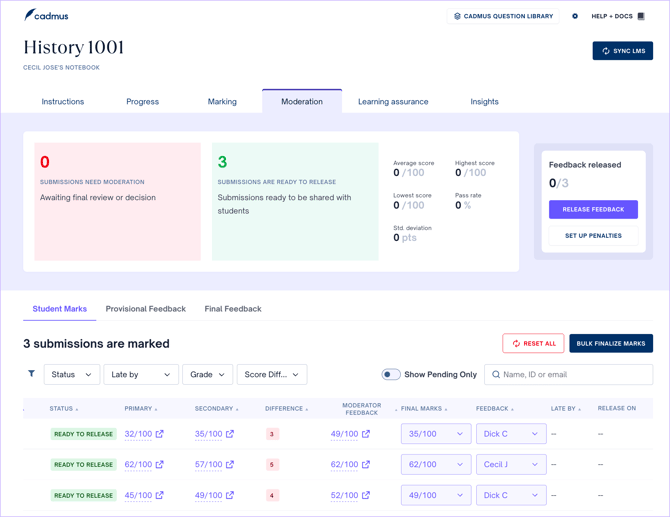
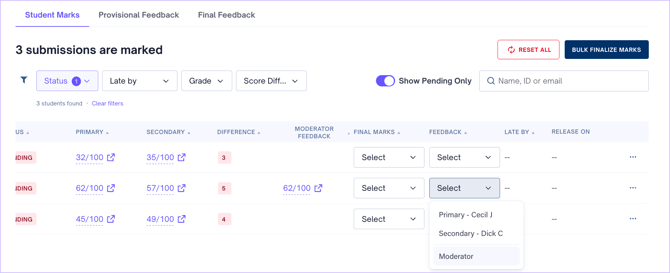
In the *Moderatio*n class list for a double blind marked assessment/exam, find these columns
- Status - This shows the moderation status as Pending, Ready to Release
- Primary - The grade given by the primary marker
- Secondary - The grade given by the secondary marker
- Difference - This is the difference between the primary and secondary marker grades
- Moderation feedback - This allows custom Moderator marks and feedback comments to be provided
- Final Marks - This dropdown is used to select the final grade for the student
- Feedback - This dropdown is used to select the final feedback for the student
The moderator can review grades and feedback provided by the **Primary** and **Secondary Marker**, and add marking of their own.
Click an assigned score to launch Cadmus Marker.
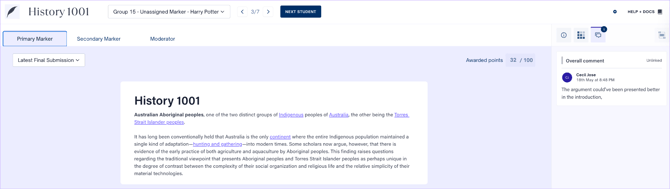
Click on the **Primary Marker** and **Secondary Marker** tabs to view the respective grades and feedback added by them. Click on the **Moderator** tab to provide your own marking and feedback when the existing primary and secondary marking do not reflect the outcome you want to send to the student.
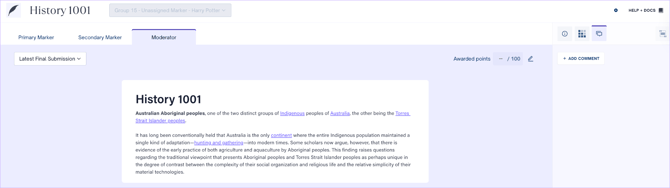
Once grades and feedback have been released, and any moderator grades have been added, close the tab to navigate back to the *Moderation* tab.
Use the **Final Marks** dropdown against each student name to choose between primary marker grade, secondary marker grade, average grade, or moderator grade (if added).
Use the **Feedback** dropdown against each student name to choose between primary marker feedback, secondary marker feedback, or moderator feedback (custom feedback).
Once marks and feedback have been finalised, the student will be ready for feedback release, as shown in the class list.
**NOTE:** Moderator feedback and marks can also be selected and added by clicking the **Moderator** option from the final marks and feedback dropdown within the class list
The **Bulk Finalize Marks**button allows the moderator to quickly choose and finalize between marks and feedback for the entire class using a set of rules. The **Bulk Finalize Marks** option can be applied to a specific set of students by selecting them by checking the boxes to the left of the students' names.
For marks, choose between Average (average of primary and secondary marker grades), Highest (higher of the two), and Lowest (lower of the two) options.
When the average marks option is selected, select between primary marker feedback and secondary marker feedback. When the highest or lowest marks option is selected, the feedback given by the marker associated with the higher/lower mark is shared with the student. After making selections, click **Finalize** to save.
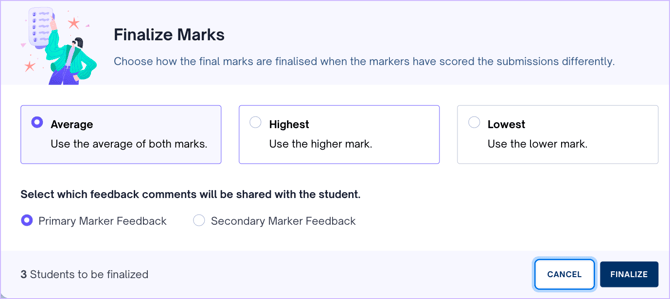
**NOTE:** The Finalize Marks feature only lets you select between primary and secondary markers’ marks and feedback. Moderator marks and feedback cannot be selected in the Finalize Marks feature.
Click the **Reset All** button to reset all moderation decisions, and review the marks and feedback for the entire class again.
- [Teachers](https://support.cadmus.io/teachers?hsLang=en#main-content)
- [Introduction](https://support.cadmus.io/teachers?hsLang=en#introduction)
- [Setting up assessments](https://support.cadmus.io/teachers?hsLang=en#setting-up-assessments)
- [Managing your class](https://support.cadmus.io/teachers?hsLang=en#managing-your-class)
- [Turnitin + Cadmus](https://support.cadmus.io/teachers?hsLang=en#turnitin-cadmus)
- [Marking + feedback](https://support.cadmus.io/teachers?hsLang=en#marking-feedback)
- [Exams](https://support.cadmus.io/teachers?hsLang=en#exams)
- [Drafts](https://support.cadmus.io/teachers?hsLang=en#drafts)
- [Insights](https://support.cadmus.io/teachers?hsLang=en#insights)
- [Students working](https://support.cadmus.io/teachers?hsLang=en#students-working)
- [FAQs + Troubleshooting](https://support.cadmus.io/teachers?hsLang=en#faqs-troubleshooting)
- [Multi-format Assessments](https://support.cadmus.io/teachers?hsLang=en#multi-format-assessments)
- [Group Assessments](https://support.cadmus.io/teachers?hsLang=en#group-assessments)
- [Oral Assessments](https://support.cadmus.io/teachers?hsLang=en#oral-assessments)
- [Students](https://support.cadmus.io/students?hsLang=en#main-content)
- [Introduction](https://support.cadmus.io/students?hsLang=en#introduction)
- [Working in Cadmus](https://support.cadmus.io/students?hsLang=en#working-in-cadmus)
- [Submitting](https://support.cadmus.io/students?hsLang=en#submitting)
- [Grades + Feedback](https://support.cadmus.io/students?hsLang=en#grades-feedback)
- [Drafts](https://support.cadmus.io/students?hsLang=en#drafts)
- [FAQs + Troubleshooting](https://support.cadmus.io/students?hsLang=en#faqs-troubleshooting)
- [Multi-format Assessment](https://support.cadmus.io/students?hsLang=en#multi-format-assessment)
- [Group Assessments](https://support.cadmus.io/students?hsLang=en#group-assessments)
- [Oral Assessments](https://support.cadmus.io/students?hsLang=en#oral-assessments)
- [Admins](https://support.cadmus.io/admins?hsLang=en#main-content)
- [Integrations](https://support.cadmus.io/admins?hsLang=en#integrations)
- [Release Notes](https://support.cadmus.io/release-notes?hsLang=en)
- [Privacy Policy](https://support.cadmus.io/privacy-policy?hsLang=en)
- [Cadmus](https://cadmus.io/)
- [Video Tutorials](https://cadmus.io/video-tutorials/)
- [Contact Support](https://support.cadmus.io/kb-tickets/new)
- [System Status](https://cadmus.statuspage.io/)
[](http://cadmus.io)
Copyright © 2026, Cadmus