![Cadmus Wordmark & Logo_Master File_Cadmus Icon_Ink.png]](https://support.cadmus.io/hs-fs/hubfs/Cadmus%20Wordmark%20%26%20Logo_Master%20File_Cadmus%20Icon_Ink.png?height=40&name=Cadmus%20Wordmark%20%26%20Logo_Master%20File_Cadmus%20Icon_Ink.png)
What is Schoolyear?
Schoolyear is a secure exam workspace that integrates with Cadmus to provide a controlled environment for digital exams. When enabled for an exam, students launch their exam through the Schoolyear application, which creates a secure workspace and restricts access to unauthorised applications, websites, and system features for the duration of the exam.
Schoolyear is designed for supervised digital exams and helps institutions maintain academic integrity while allowing students to complete their exam in Cadmus.
Note: Students must install the Schoolyear application before they can complete a Schoolyear-enabled Cadmus exam.
- Exam design considerations and restrictions
- Enabling Schoolyear
- Preparing students for Schoolyear exams
Exam design considerations and restrictions
It's important to understand how the secure Schoolyear workspace may affect the way students interact with your exam. Before enabling Schoolyear, review your exam design to ensure students can complete all required tasks within the secure environment.
Adding resources to your instructionsStudents can continue to access resources attached to their exam instructions in Cadmus.
We recommend using the following resource types:
- PDF documents
- Images (PNG, JPG)
- Videos (MP4)
These resources can be viewed during the exam without requiring students to leave Cadmus.
Note: Test all attached resources before releasing your exam to ensure they display correctly within the secure workspace.
External websites
If your exam requires students to access external websites or online resources (such as Wikipedia), ensure these sites are approved in the Schoolyear exam settings before publishing.
Depending on your institution's Schoolyear configuration, access to unapproved websites may be blocked during the exam. You may include hyperlinks in your exam instructions where appropriate, but confirm that all required websites are accessible in a Schoolyear-enabled exam.
File attachments
File attachments that require external desktop applications to open may be blocked by Schoolyear unless the required applications are configured as Secure Apps.
Examples of file types that require Secure Apps include:
- Microsoft Word documents
- Microsoft Excel spreadsheets
- Microsoft PowerPoint presentations
- ZIP archives
- Files that require third-party software
Where possible, convert supporting documents to PDF before attaching them to your exam.
Secure Apps
If your exam requires students to open files in external applications, ensure those applications are included in the Schoolyear Secure Apps list for the exam.
See the Schoolyear help article on Secure Apps:
Enabling Schoolyear
When setting up an exam in Cadmus, you can require students to complete the exam using Schoolyear.
Note: You must have the Schoolyear integration enabled in Cadmus for this feature to be available.
- While editing your exam, select Requirements, grading options and settings.
- Select Exam as the assessment type and configure your exam timings and settings.
- Click Advanced exam settings at the bottom of the Submissions section.
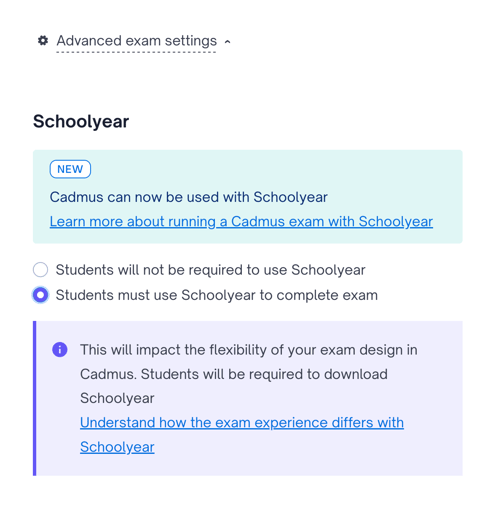
- Under Schoolyear, select Students must use Schoolyear to complete exam.
- Review the information describing how Schoolyear changes the exam experience.
- Click Confirm changes.
- Continue editing your exam, then click Release when you are ready to publish it.
- Once the exam instructions are released, you will see a section for Schoolyear, showing a link to the Schoolyear exam settings and dashboard.
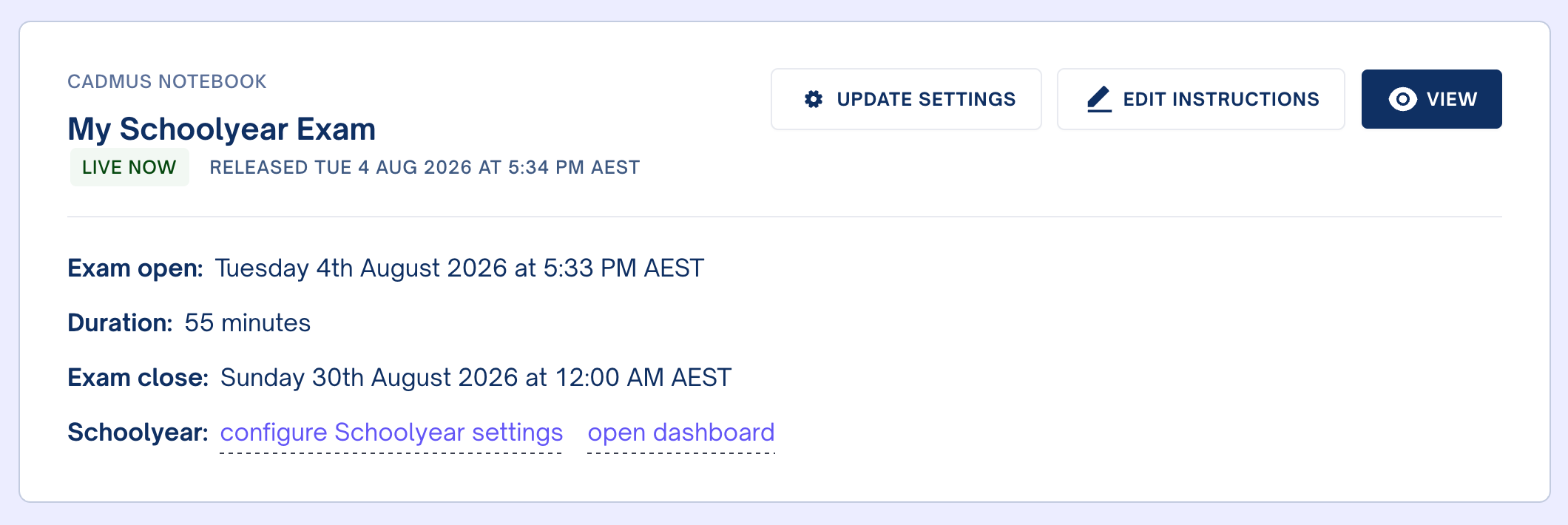
Note: Once Schoolyear has been enabled, students must launch the exam using the Schoolyear application. They will not be able to complete the exam in a standard web browser.
Preparing students for Schoolyear exams
Before running a high-stakes assessment, we recommend preparing students ahead of time.
Advise students to read the Schoolyear help page for what to expect, and for any preparation work they need to perform: https://help.schoolyear.com/hc/en-gb/articles/6359554624669-Checklist-before-you-start-your-exam
Performing this in advance gives students time to resolve any installation or compatibility issues before the assessment begins.
Run a practice exam
Where possible, provide students with a practice assessment using Schoolyear.
A practice assessment allows students to:
- Install Schoolyear successfully.
- Become familiar with launching the secure workspace.
- Verify their device is compatible.
- Resolve any technical issues before the scheduled exam.
Student exam workflow
When Schoolyear has been enabled, students will:
- Open the exam in their Learning Management System (LMS).
- Select Launch Exam in Cadmus.
- Download and install Schoolyear if prompted (first-time users only).
- Open the Schoolyear application.
- Review the exam details and launch the secure workspace.