![Cadmus Wordmark & Logo_Master File_Cadmus Icon_Ink.png]](https://support.cadmus.io/hs-fs/hubfs/Cadmus%20Wordmark%20%26%20Logo_Master%20File_Cadmus%20Icon_Ink.png?height=40&name=Cadmus%20Wordmark%20%26%20Logo_Master%20File_Cadmus%20Icon_Ink.png)
In the Admin Panel, teachers will have visibility across all of their Cadmus assessments and the ability to update settings and timings in bulk.
For teachers, the Admin Panel functions as a simplified Cadmus Dashboard which allows assessments to be accessed and launched directly from one central location, without needing to navigate through the LMS course site each time.
In this guide, we’ll cover how to:
Access the Admin Panel
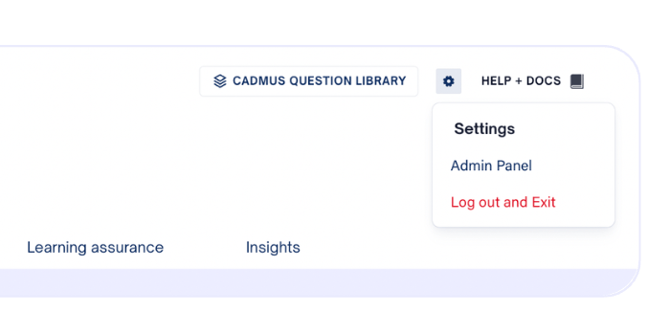
To open the Admin Panel, launch any Cadmus assessment via the LMS. From the Instructions tab in Cadmus, click the settings icon in the top right corner, then select Admin Panel. This will open the dashboard in a new tab.
Note: The Administrator Panel may not be enabled at your institution. If access is required, please reach out to Cadmus Support via support@cadmus.io.
Navigate the Admin Panel
At the top of the dashboard, you can switch between Exams and Assignments, with a total count shown for each.
To launch an assessment, simply click on the assessment name. The assessment will then open in a new window.
You can use the search bar to look up assessments by name or course. Filters are also available to help you quickly find what you need. You can filter by:
- Subject
- Subject Code
- Author
- Format
- Key dates
- More
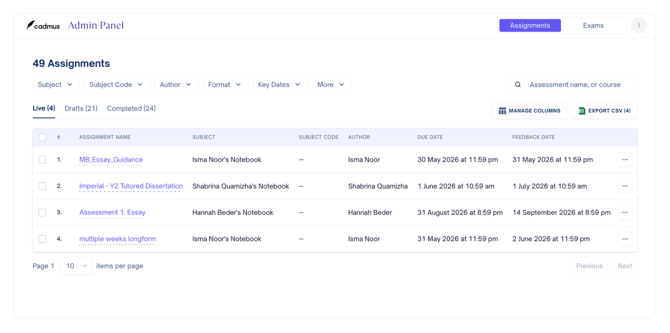
Selecting More filters allows teachers to refine further using options like special considerations, timings, auto-submission, resubmissions, security settings, marking tools, and more.
Once filters are applied, click Apply Filters to narrow your results, or Clear all filters to reset.
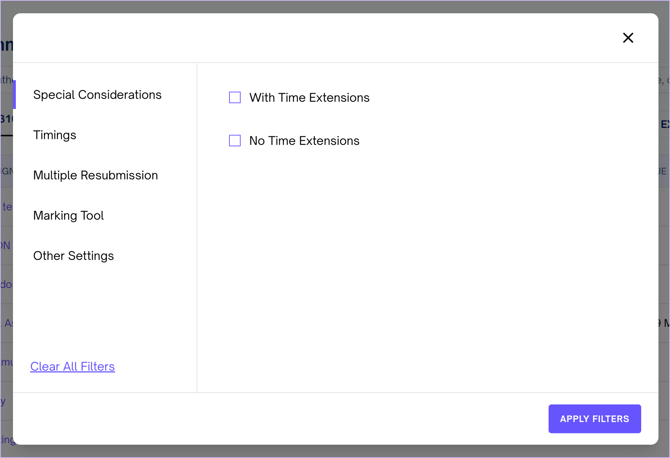
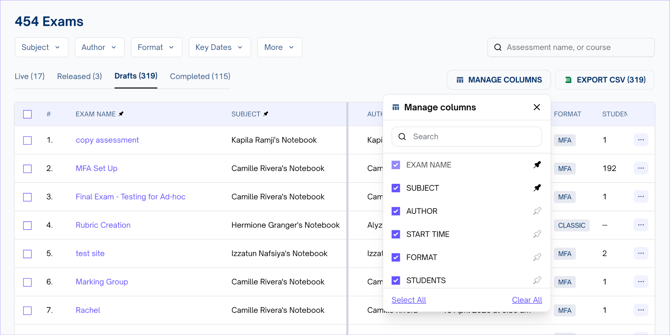
Below the filters, you’ll see a list of assessments. Quick filters let you switch between live, released, draft, and completed items. The list has all the settings and requirements information for each assignment and exam. You can customise the table using Manage Columns, or export the data using Export CSV.
Update settings
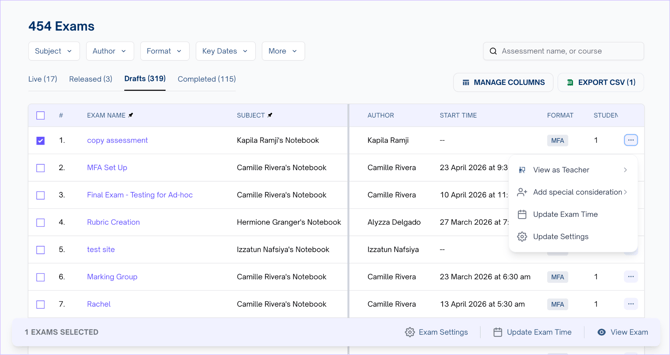
Use the left side check box to select an assignment/exam. For Live, Released and Draft tasks, selecting an assessment displays an Action bar which allows you to update settings based on the type of task:
- View it in Cadmus
- Update assessment or exam settings
- Adjust timings (exam only)
- Adjust due date (assignment only)
These options are also available via the three-dot menu beside each item.
Clicking View as Teacher will launch Cadmus in a new tab, and you can make any changes to the instructions or settings directly within the assessment.
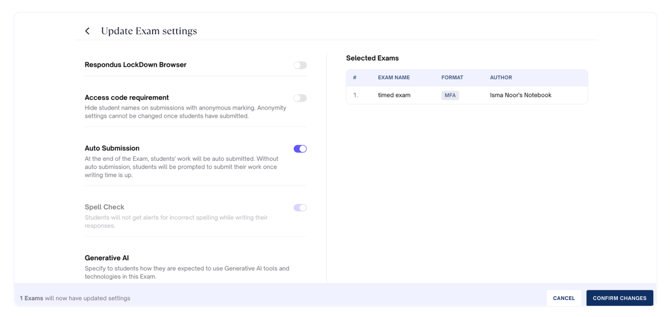
The Exam/Assignment Settings and Update options will allow changes to the settings, key dates and timings from the admin panel dashboard itself. Changes can be saved directly from the panel by selecting Confirm changes.
For completed tasks, teachers will have options to:
- View it in Cadmus
- Send Reminder (for marking completion)
Bulk Update Settings
The Admin Panel allows updates across multiple assessments at once. To do this:
-
Use filters to find the relevant assessments
-
Select them using the checkboxes
-
Choose Exam Settings or Update Exam Time
-
Apply your changes and confirm
You can adjust Exam settings such as timings, reading time, writing time, and other configurations. For the Assignment, assignment settings can also be updated or changed in bulk.
NOTE: Bulk updates apply only to live, released, or draft assessments. Mixed formats (e.g. group and classic) cannot be updated together — use the Format filter to ensure only one type of task is selected.